Home Features🧾 GST Billing💵 Cash Register🏷️ Label Printer🪑 Table Management👥 Attendance💰 Payroll📅 Shift Management⭐ Loyalty & CRM📣 WhatsApp Marketing📦 Inventory📊 Reports 📱 Apps🖥️ SmartPOS — Standalone Outlet Types Pricing Integrations 📰 Blog ▶️ YouTube 📖 Tutorials 🆘 Support 🚀 Changelog 🗺️ Roadmap 🤝 Partner Program Download About Us
Book a Demo →
SmartPOS · Standalone Windows POS

Your restaurant's POS, running on your own PC

SmartPOS installs on one Windows machine at your counter and keeps every order, bill, guest and staff record on that machine. No cloud account. No monthly subscription. A one-time licence, and your data stays in the restaurant.

Book a free demo See pricing

Windows · one-time licence · no data leaves your counter

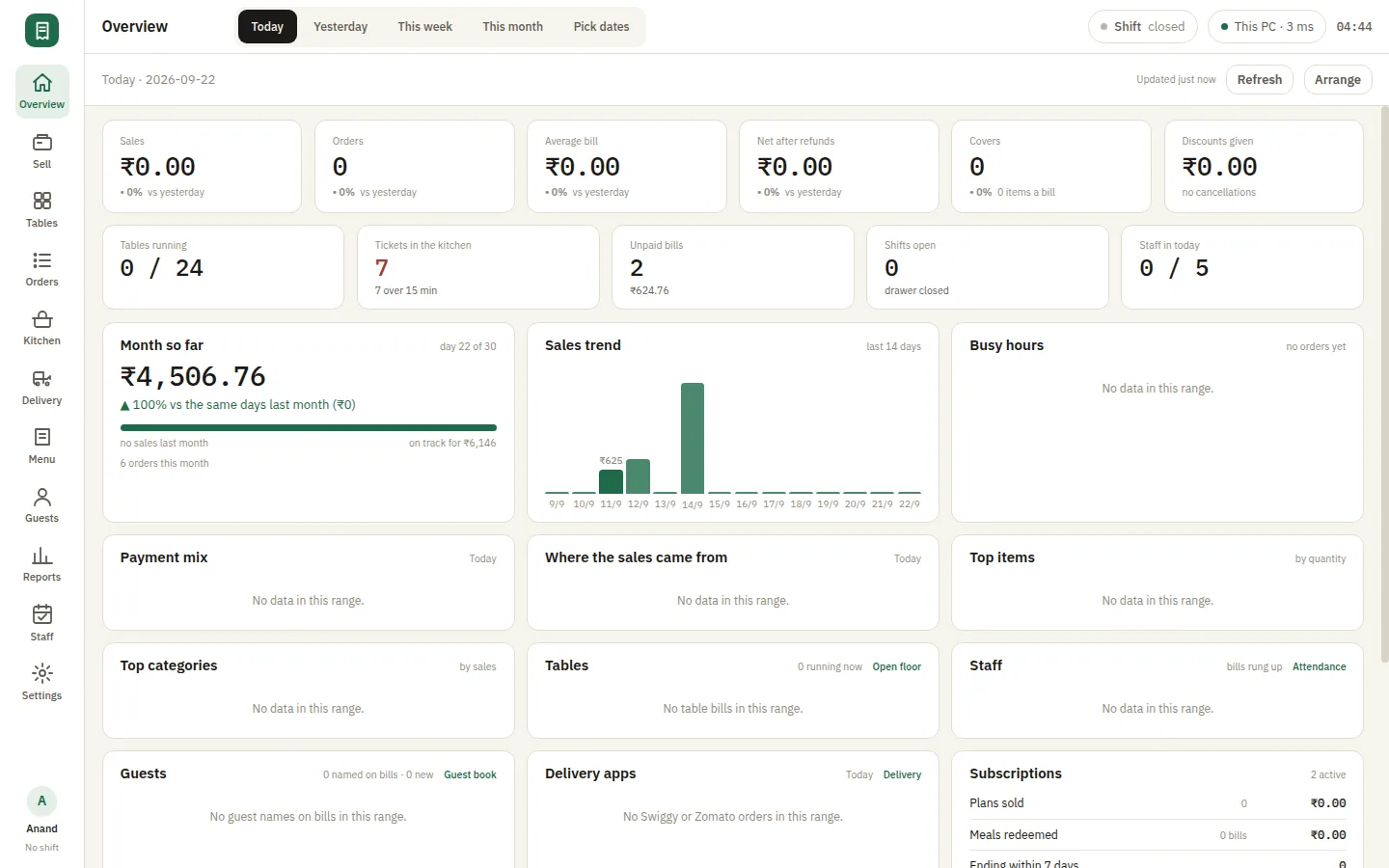
SmartPOS overview dashboard — the day's sales, open orders and kitchen tickets on the counter PC

Which one do you need?

SmartPOS and RestoPOS Desktop POS are two separate products. Both run on Windows at your counter. The difference is where your data lives and how you want to run.

☁️ RestoPOS Desktop POS

Part of cloud RestoPOS · subscription

  • Signs in to your RestoPOS cloud account
  • Shares one account with mPOS, mCAP, mKOT and the web app
  • Watch the outlet from your phone, anywhere
  • Several branches under one owner dashboard
  • Bills offline and syncs when the line returns

Choose this if you want to see your restaurant while you are away, run more than one branch, or use the RestoPOS apps together.

About Desktop POS →

🖥️ SmartPOS THIS PAGE

Standalone · one-time licence

  • No cloud account and no monthly fee
  • Orders, bills and guests stay on the counter PC
  • Waiter phones and the kitchen screen over your own Wi-Fi
  • No analytics, crash reporting or telemetry
  • A second counter PC on a multi-counter licence

Choose this if you want everything on one machine, no monthly fee, and nothing about your restaurant leaving it.

Everything the counter needs

Twenty-two modules, all running on the counter PC. Which ones your licence unlocks depends on the plan you buy — the four marked CORE are always on. Each is shown in full below, with the screens it actually uses.

SellCORETake orders, send KOTs, settle bills and print receiptsOrdersCOREOrder history, reprint, cancel and refundsMenuCORECategories, items, variations, add-ons, pictures and taxesSettingsCORERestaurant profile, printers, receipt layout, order typesTablesFloor areas, dine-in tables, running tables and roundsKitchenKitchen screen with live tickets per stationCash registerShifts, opening float, cash in/out, X and Z reportsGuestsCustomer records, order history, credit notesLoyaltyPoints, stamps and redemption at the counterOffersDiscounts and promotional offers on billsDelivery integrationSwiggy and Zomato orders through the Delivery APIFood subscriptionsPrepaid meal plans and credit sold and redeemed at the counterReportsSales, items, payment modes, hourly and staff reports with exportsWaiter phonesWaiters take orders on their phones over the restaurant Wi-FiSecond terminalA second counter PC sharing this restaurant over the LANLabel printSticker and label printing for packed itemsPacking stationA packing docket per order for the counter that bags itWhatsAppSend bills to guests from the restaurant's own WhatsApp numberWebhooksPost order events to BotGenius or any other serviceAttendance and payrollDaily attendance, month sheets, salaries, payroll periods and payslipsStaff and rolesMultiple staff logins with owner, manager, cashier and waiter rolesBackupScheduled backups and restore of the restaurant data

Turn the phones you already own into terminals

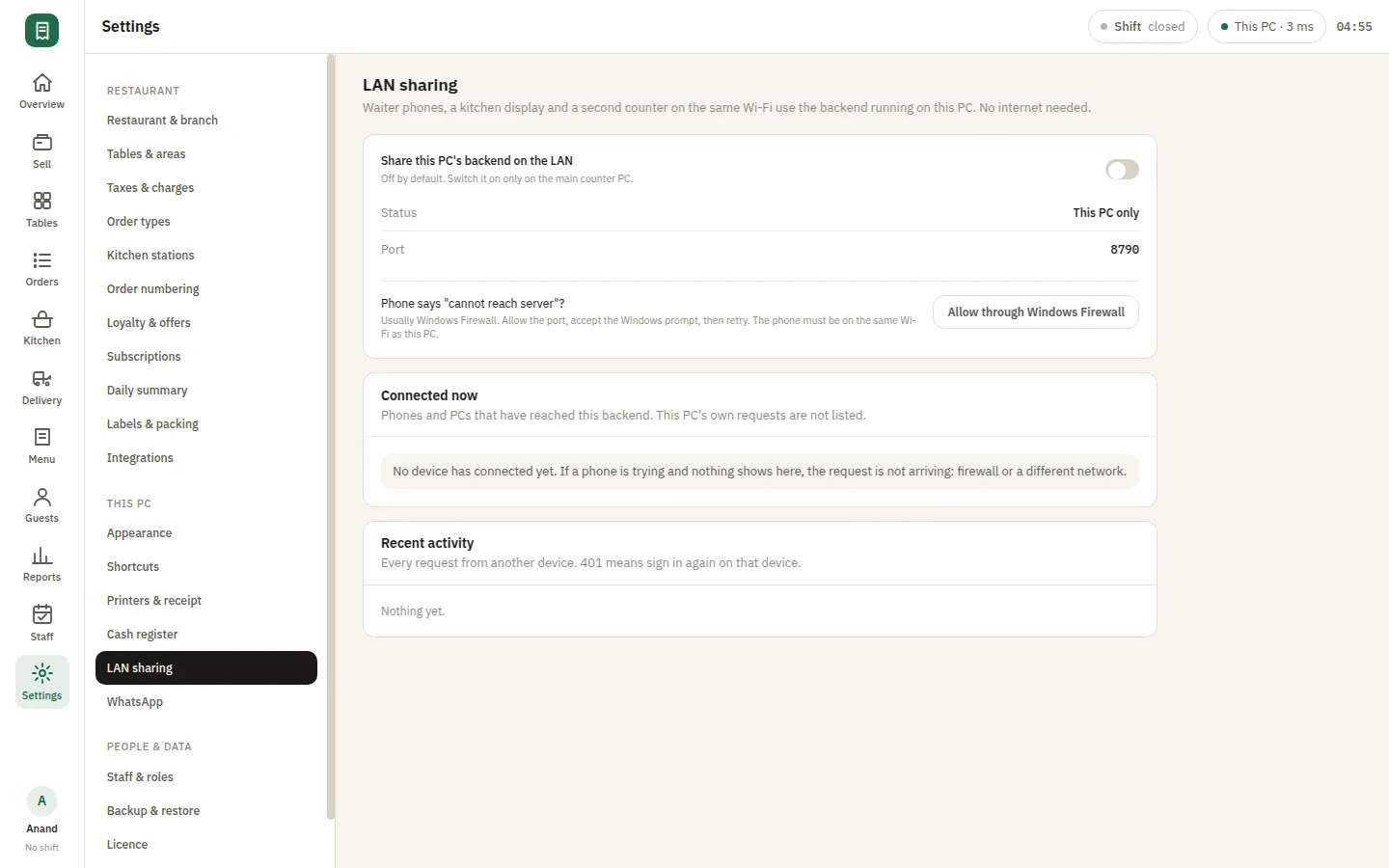
Switch on LAN sharing and the counter PC serves the rest of your floor over your own Wi-Fi. No internet, no extra hardware, no per-device fee.

📱

Waiter phones

Waiters take orders at the table on their own phone. Add it to the home screen and it behaves like an app.

👨‍🍳

Kitchen display

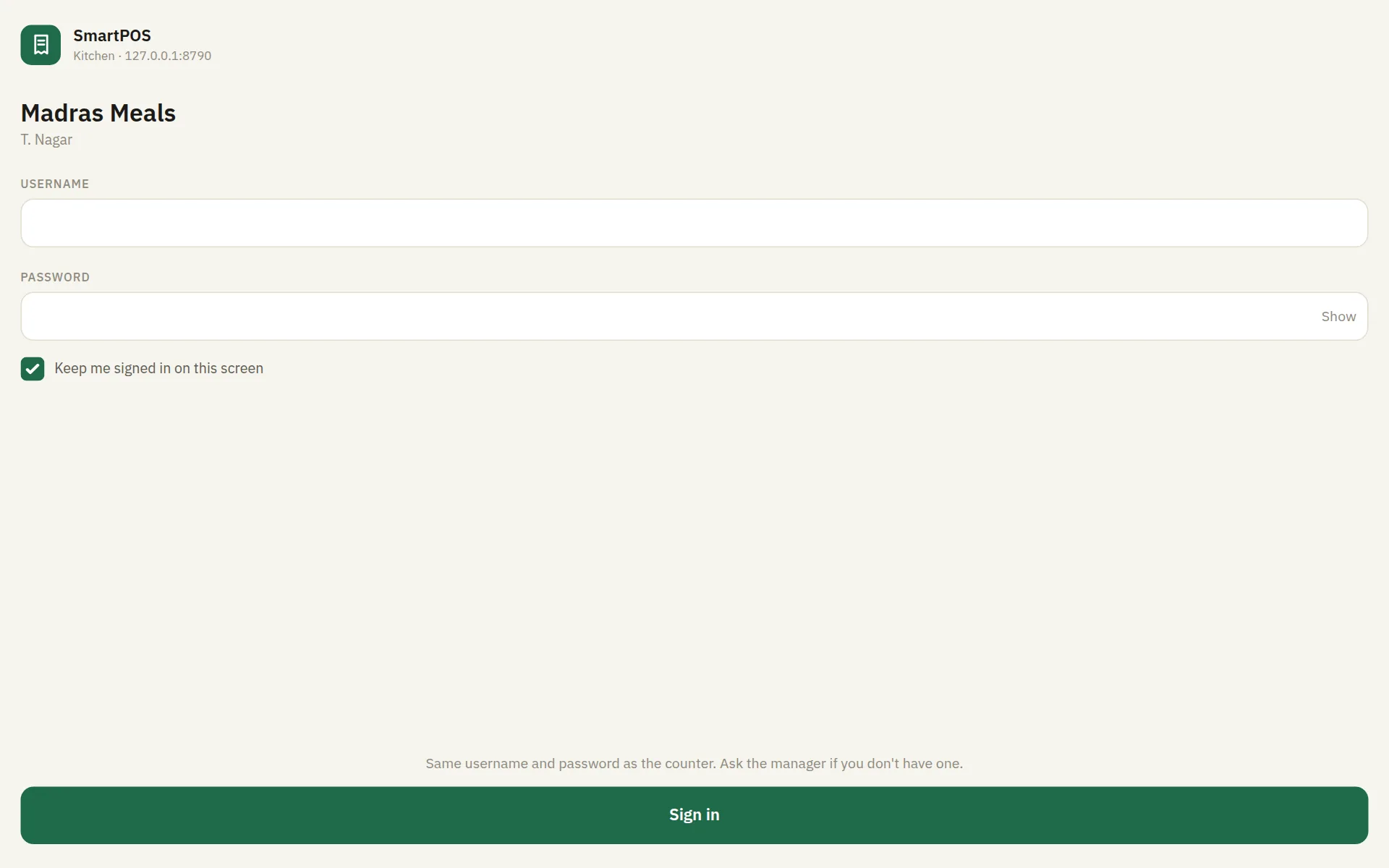
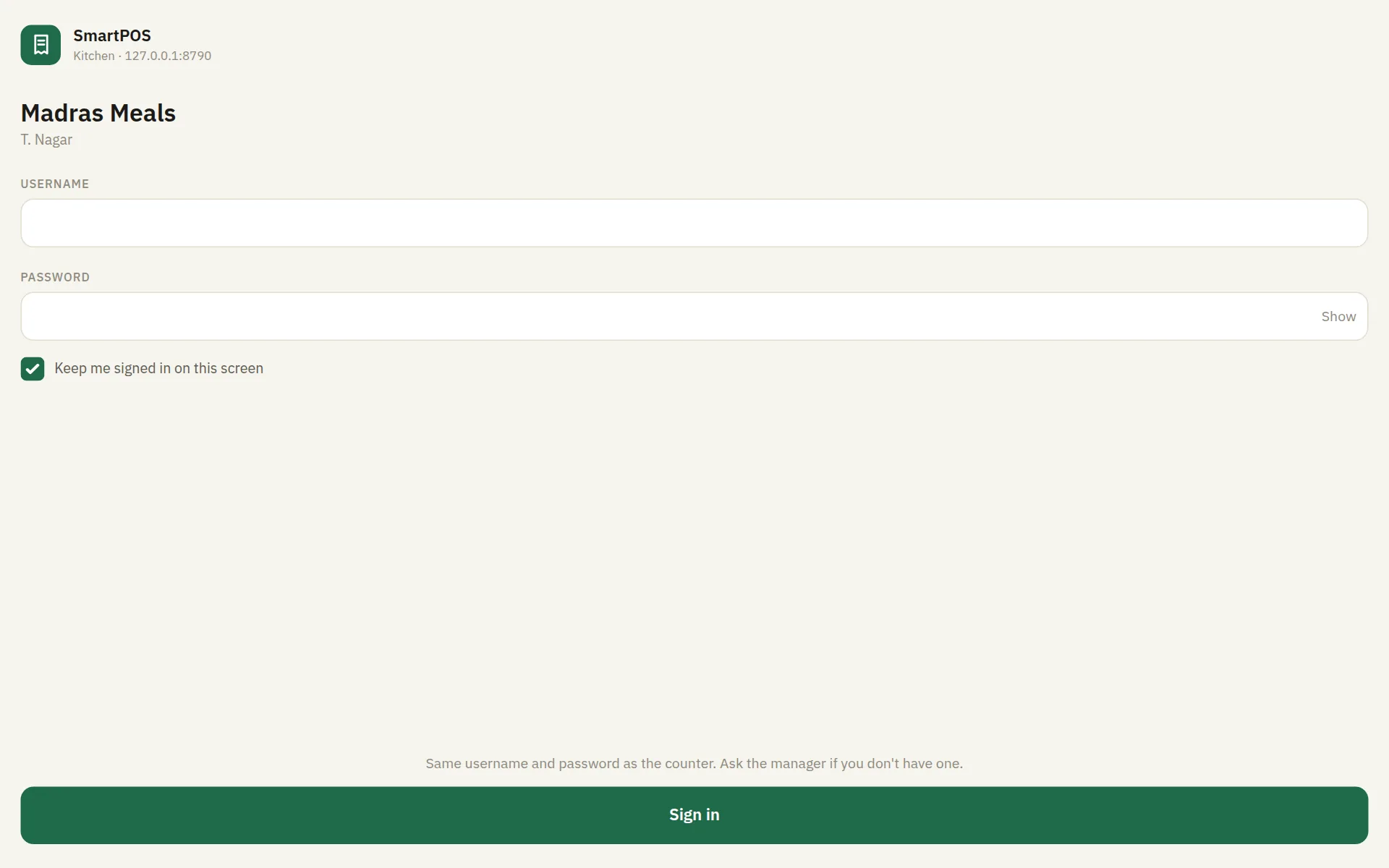
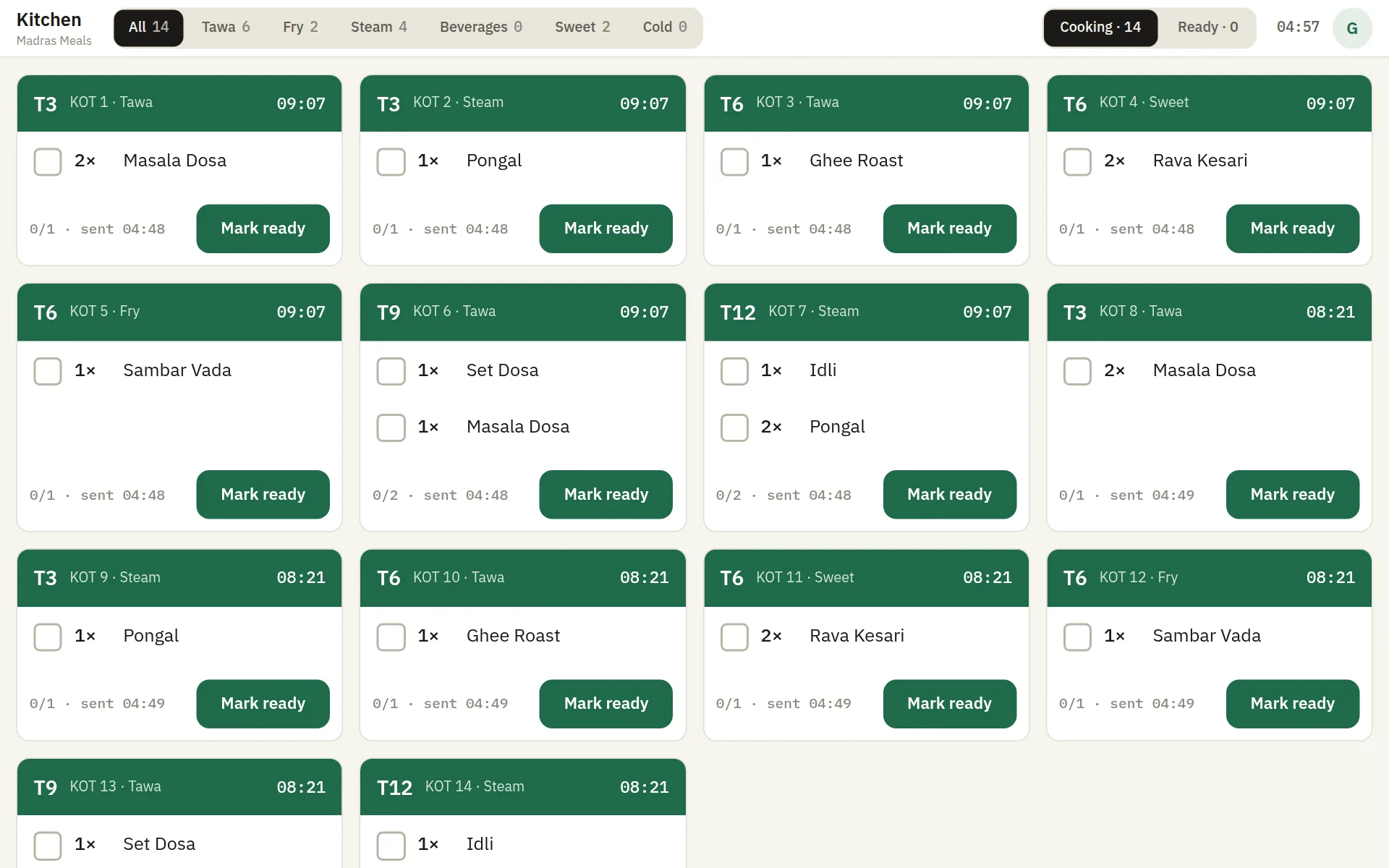
A tablet at the pass shows live tickets per station, so the kitchen stops chasing paper KOTs.

🖥️

Customer display

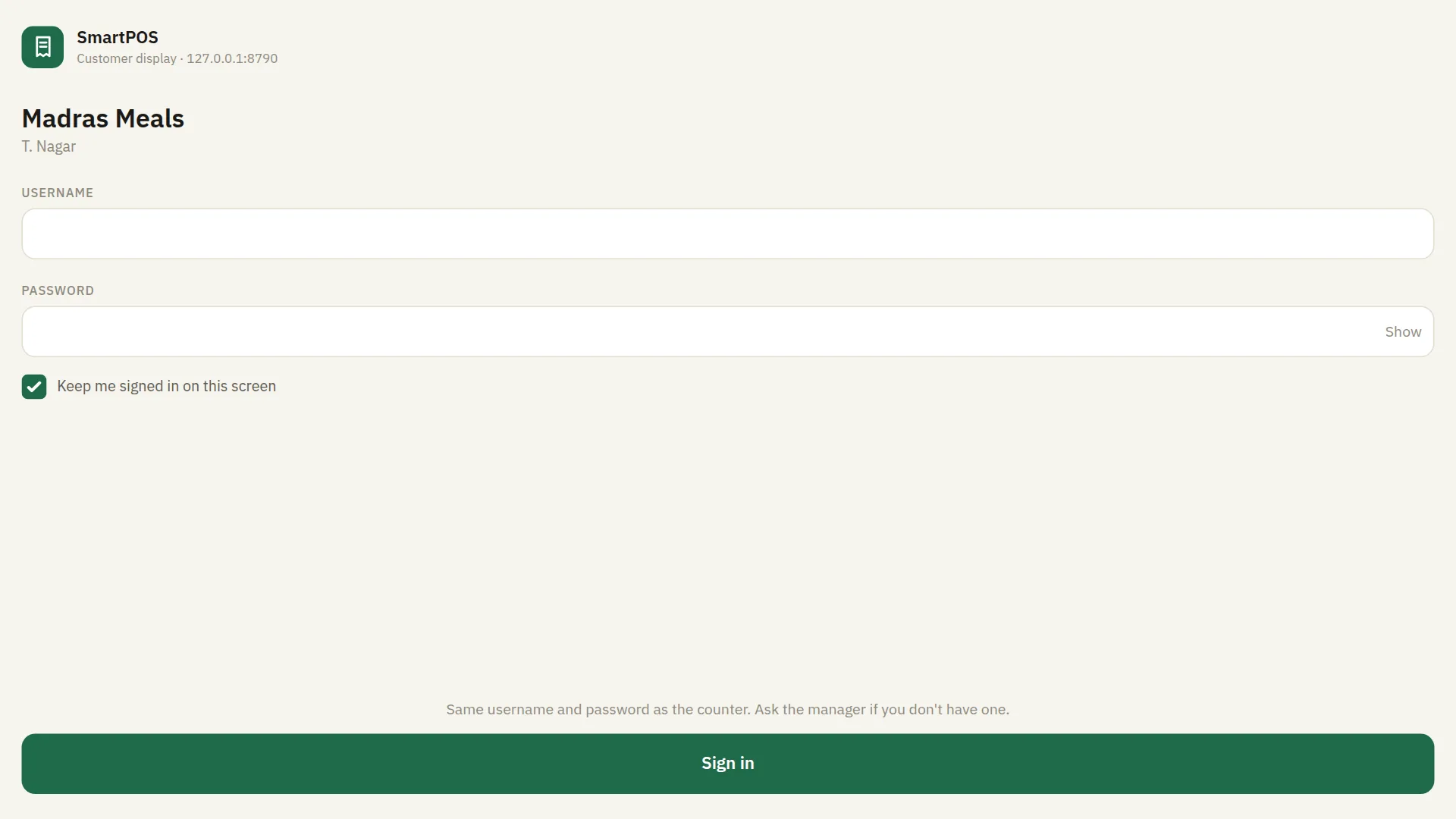
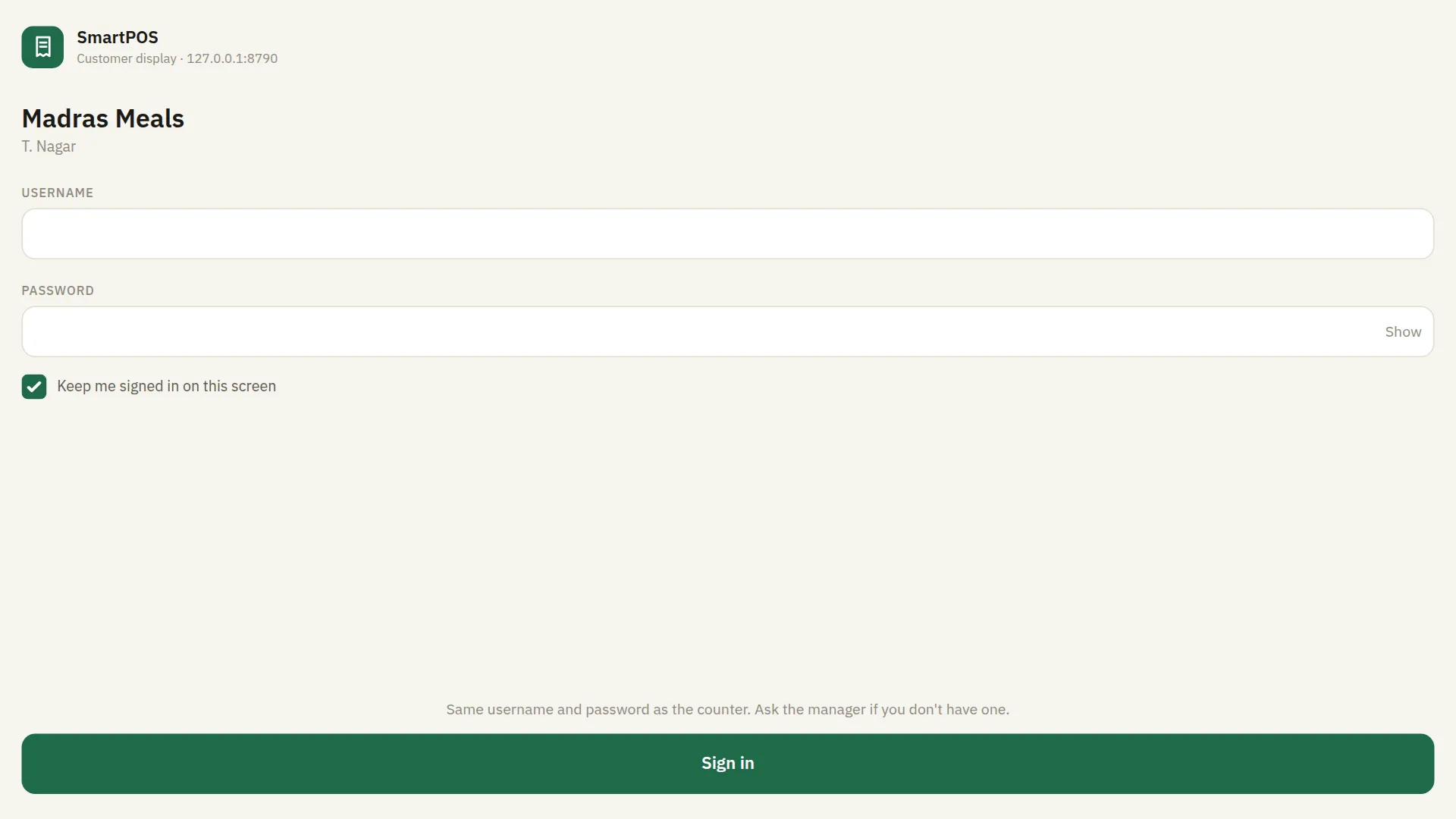
A second screen facing the guest shows the bill as it is rung up.

Exactly what touches the internet

Most POS software that calls itself offline is quietly talking to someone. Here is the complete list for SmartPOS, so you can judge it for yourself.

What Where it goes Internet needed Optional?
Billing, KOTs, printing, tables, reportsYour counter PCNever
Waiter phones, kitchen screen, customer displayYour own Wi-FiNeverOff by default
Thermal printersUSB or your networkNeverPer printer
BackupA folder on your diskNeverOptional
Licence activationTechSlide licence serverOnce, at activationRequired once
Licence re-checkTechSlide licence serverWhenever the PC is onlineRuns in the background
Swiggy and Zomato ordersThe Dyno service on this PCOnly for online ordersOptional
App updatesGitHub ReleasesOnly to fetch an updateCan be turned off
Import from RestoPOS cloudYour RestoPOS tenantOnly during the importOptional, one-time

There is no analytics, crash reporting, telemetry, remote logging or cloud sync of your orders in SmartPOS. Your menu, your bills and your guests are on your disk and nowhere else.

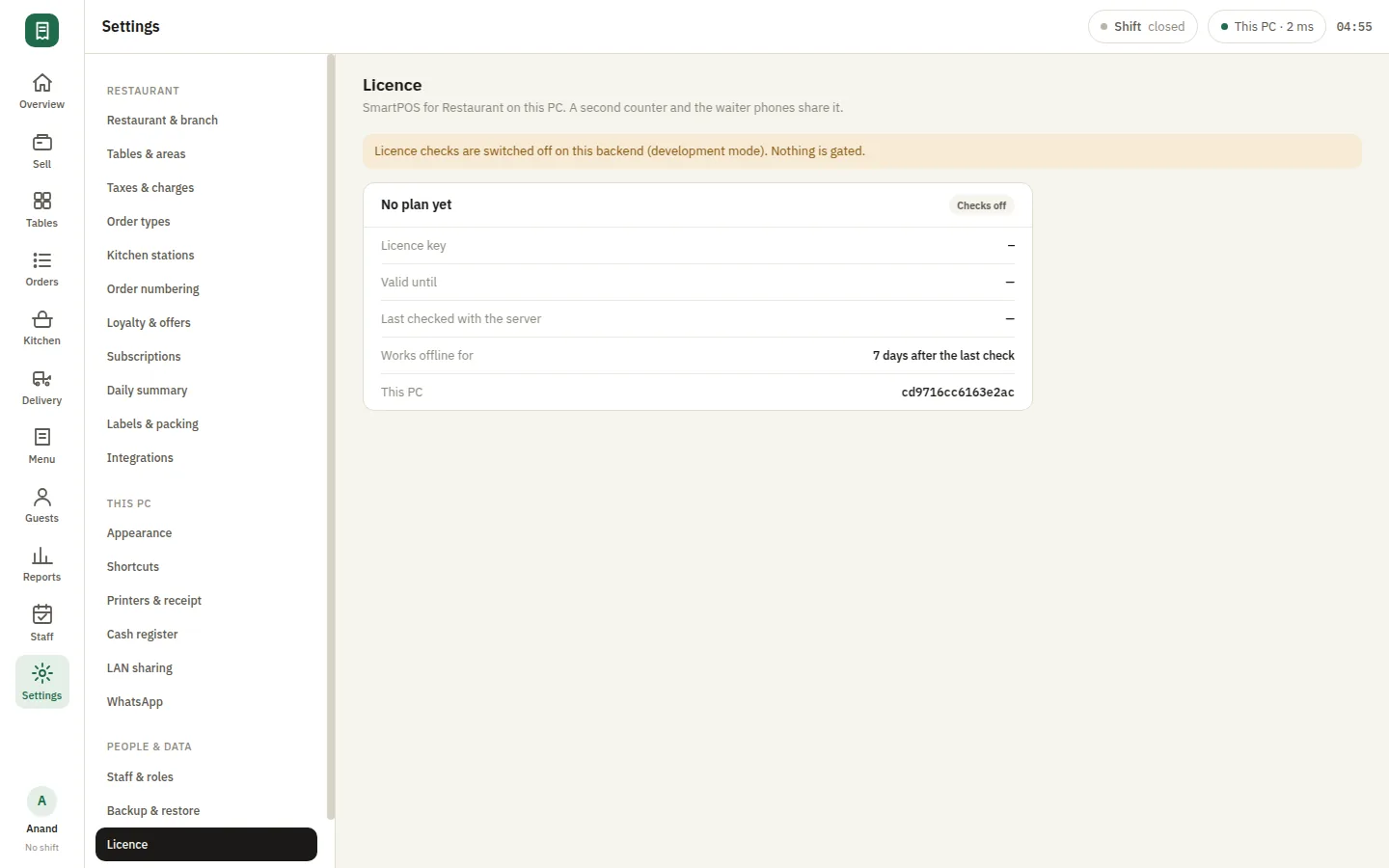
The licence is checked once when you activate, and quietly re-checked whenever the PC is online. A counter that stays disconnected for more than a week will ask you to reconnect it briefly before it carries on.

Licence pricing

One licence per restaurant, bought once.

Every module, screen by screen

What each part of SmartPOS does, shown on the screen it actually runs on.

Billing that keeps up with the counterCORE

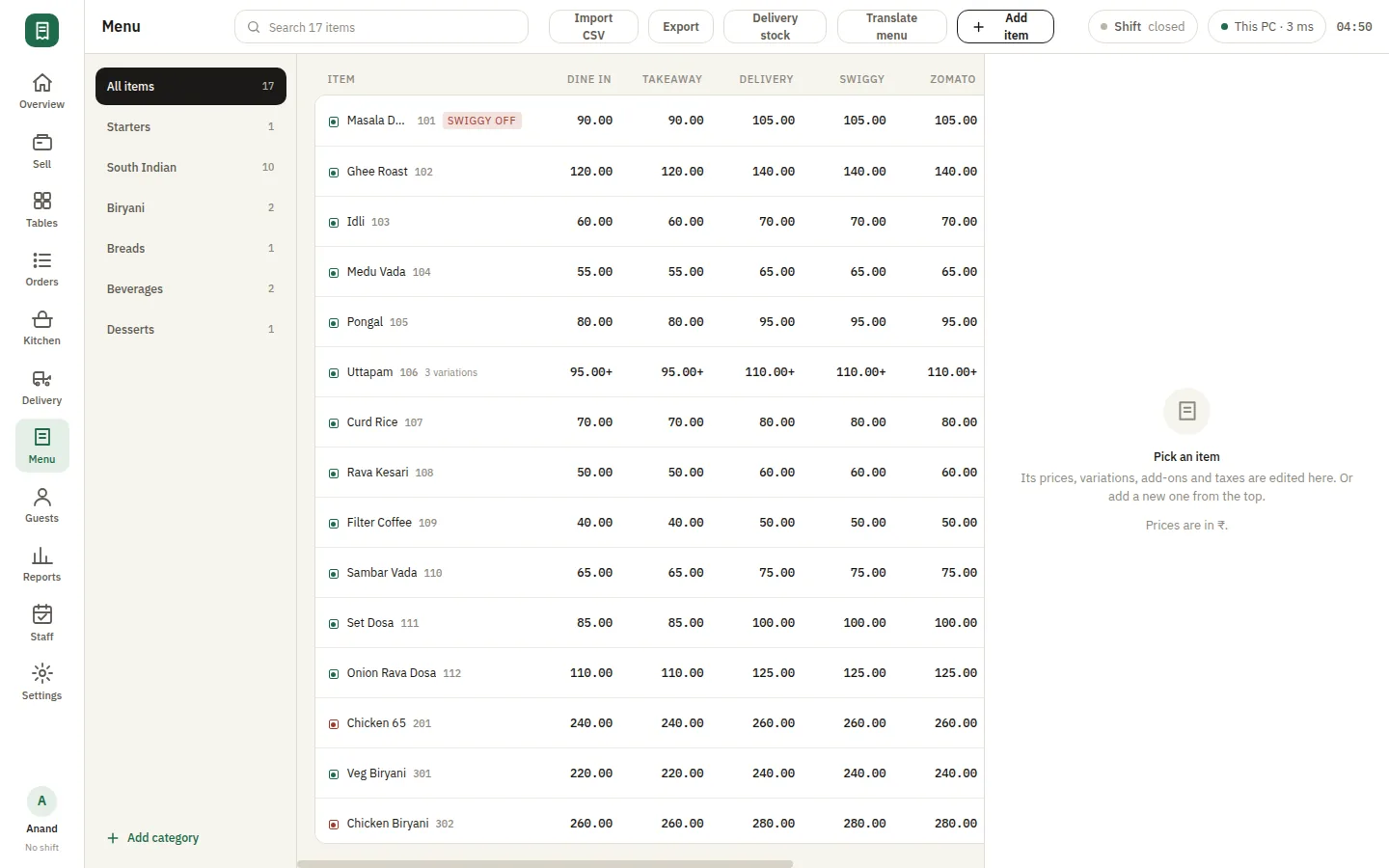
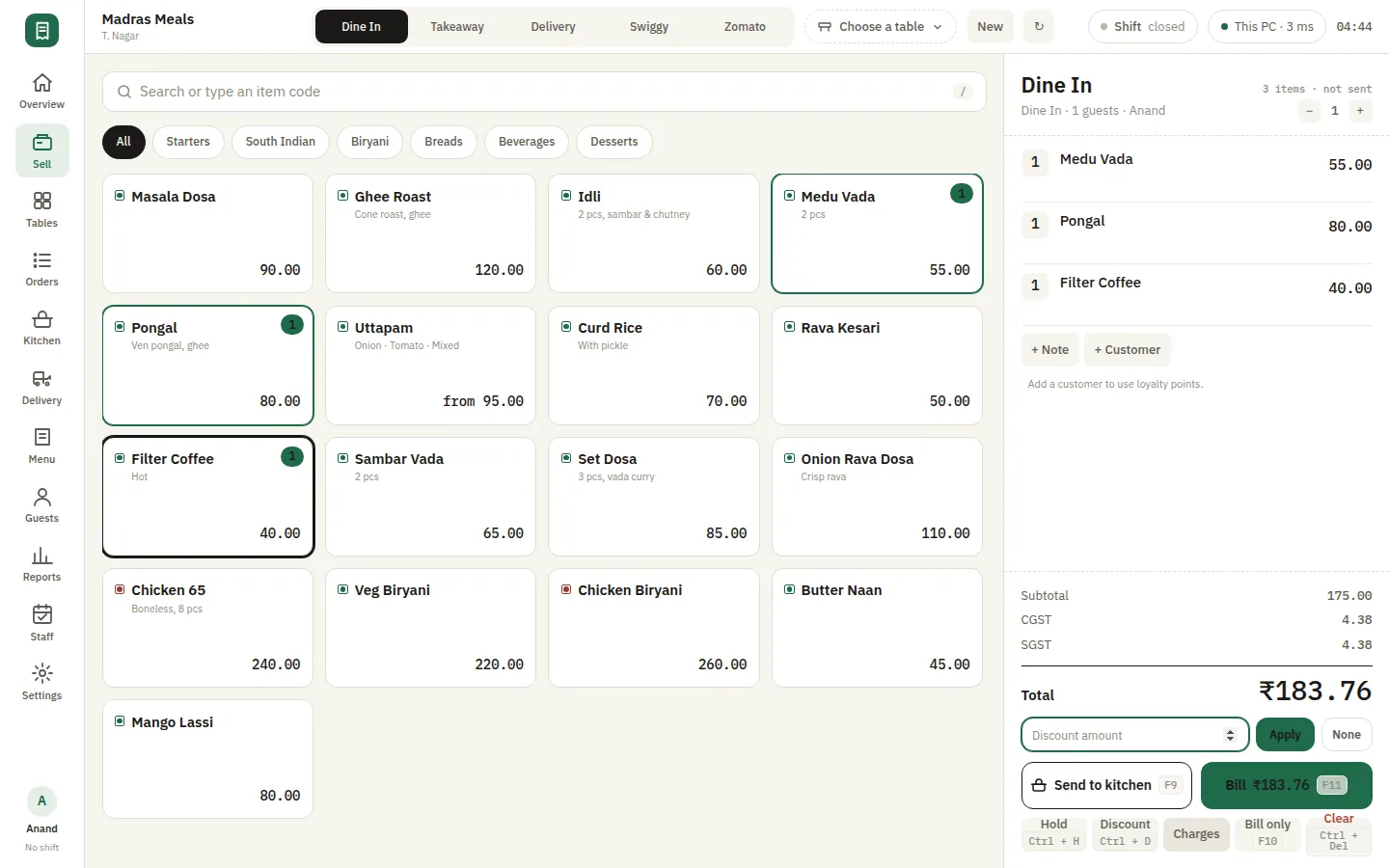
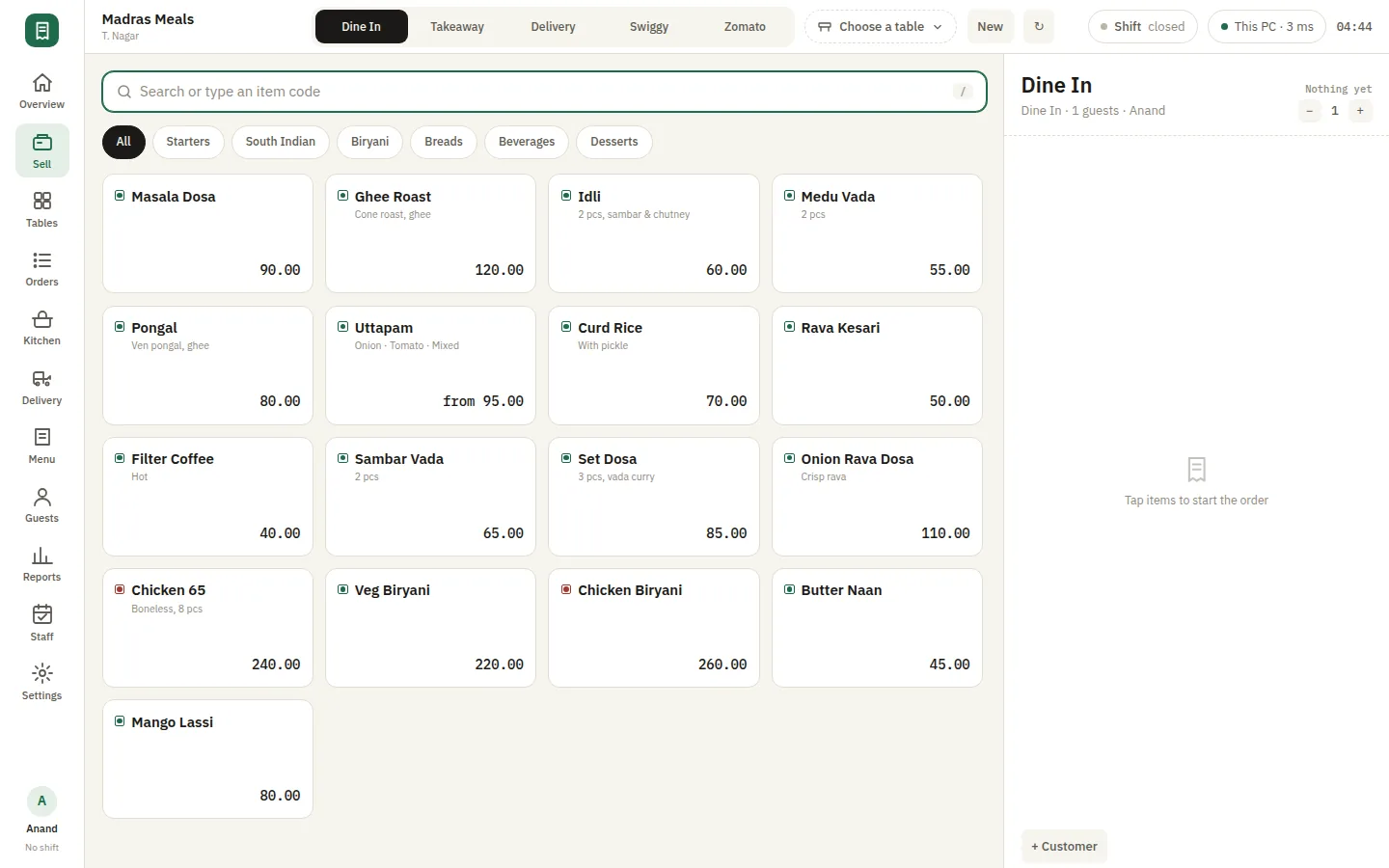
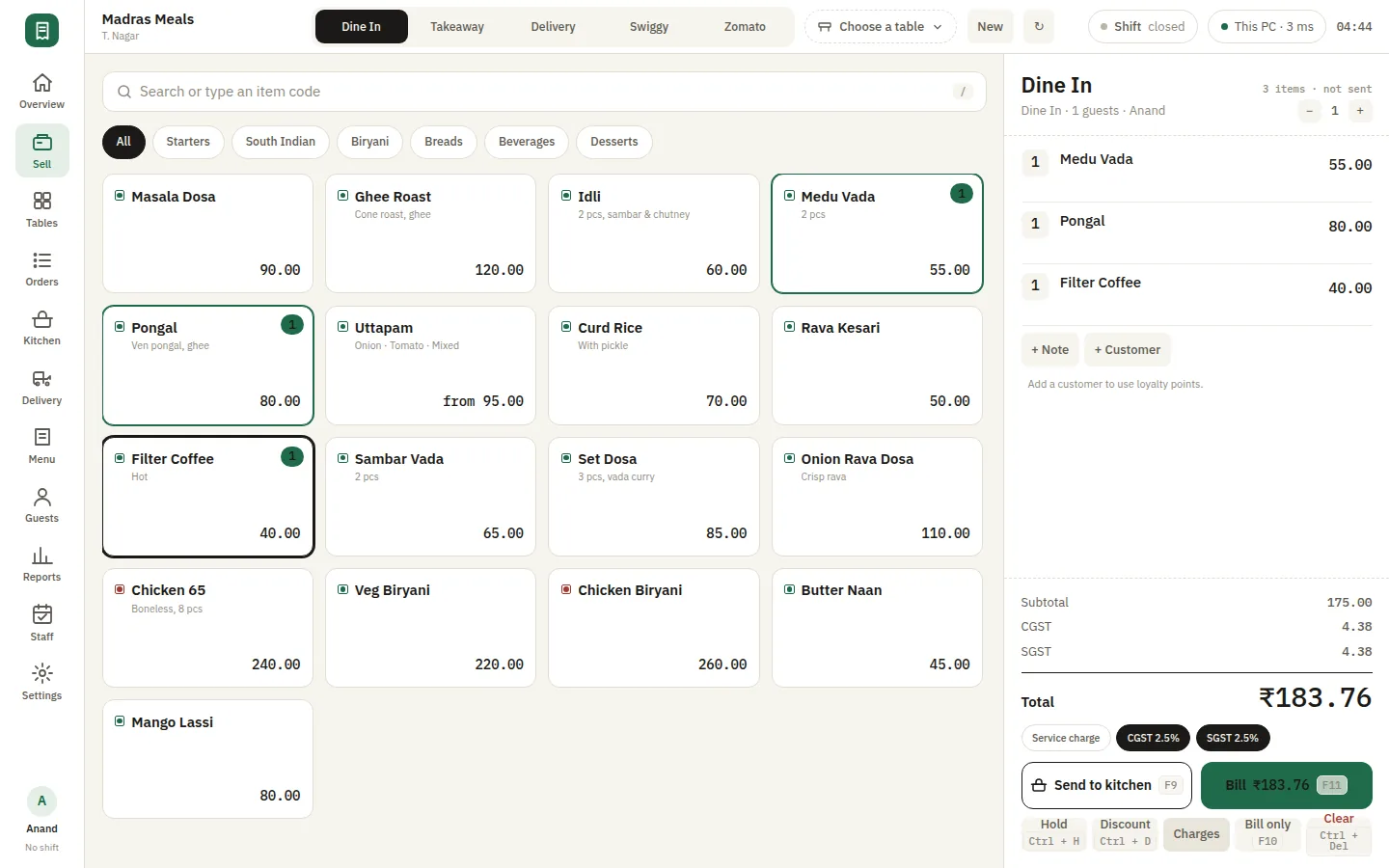
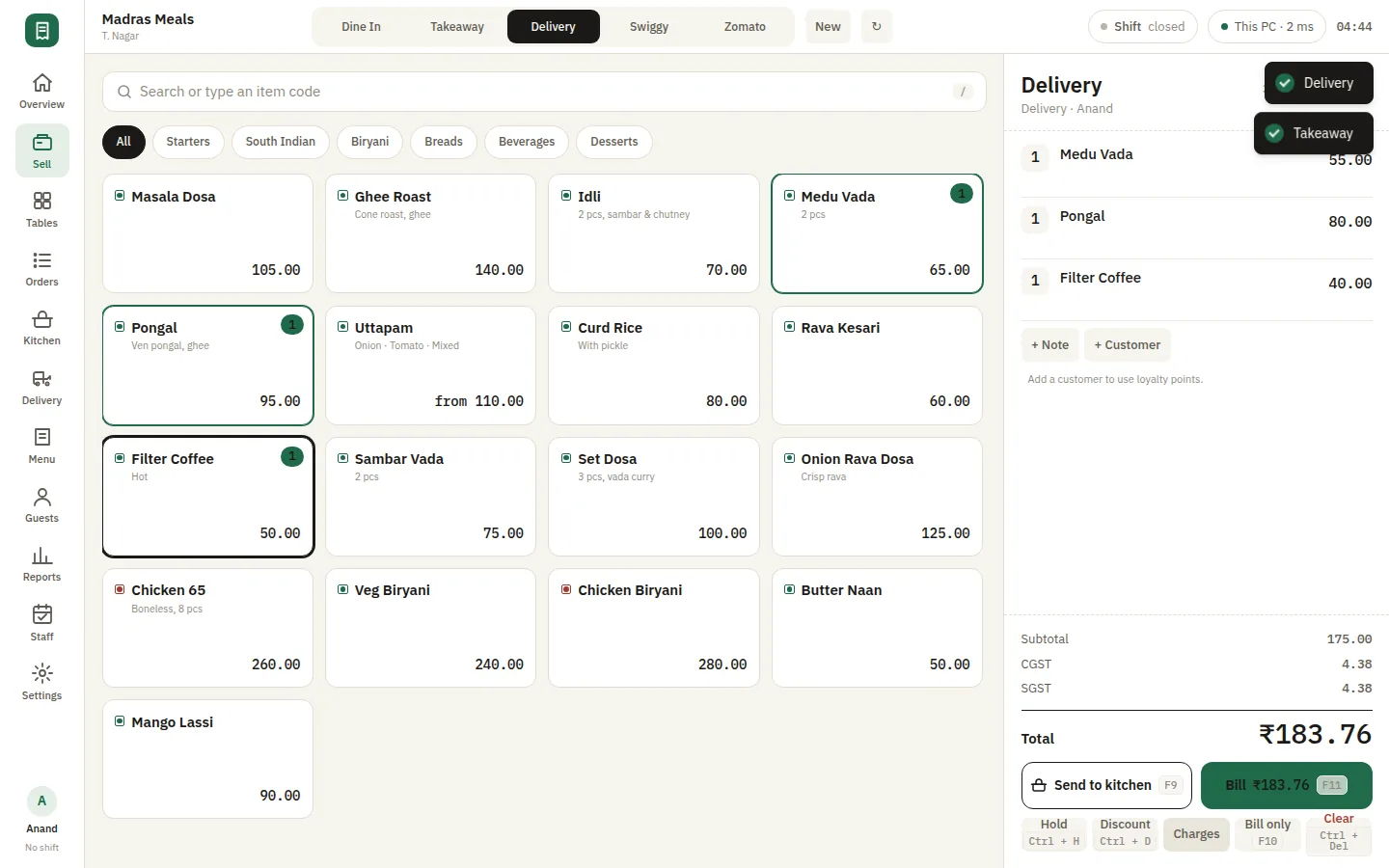
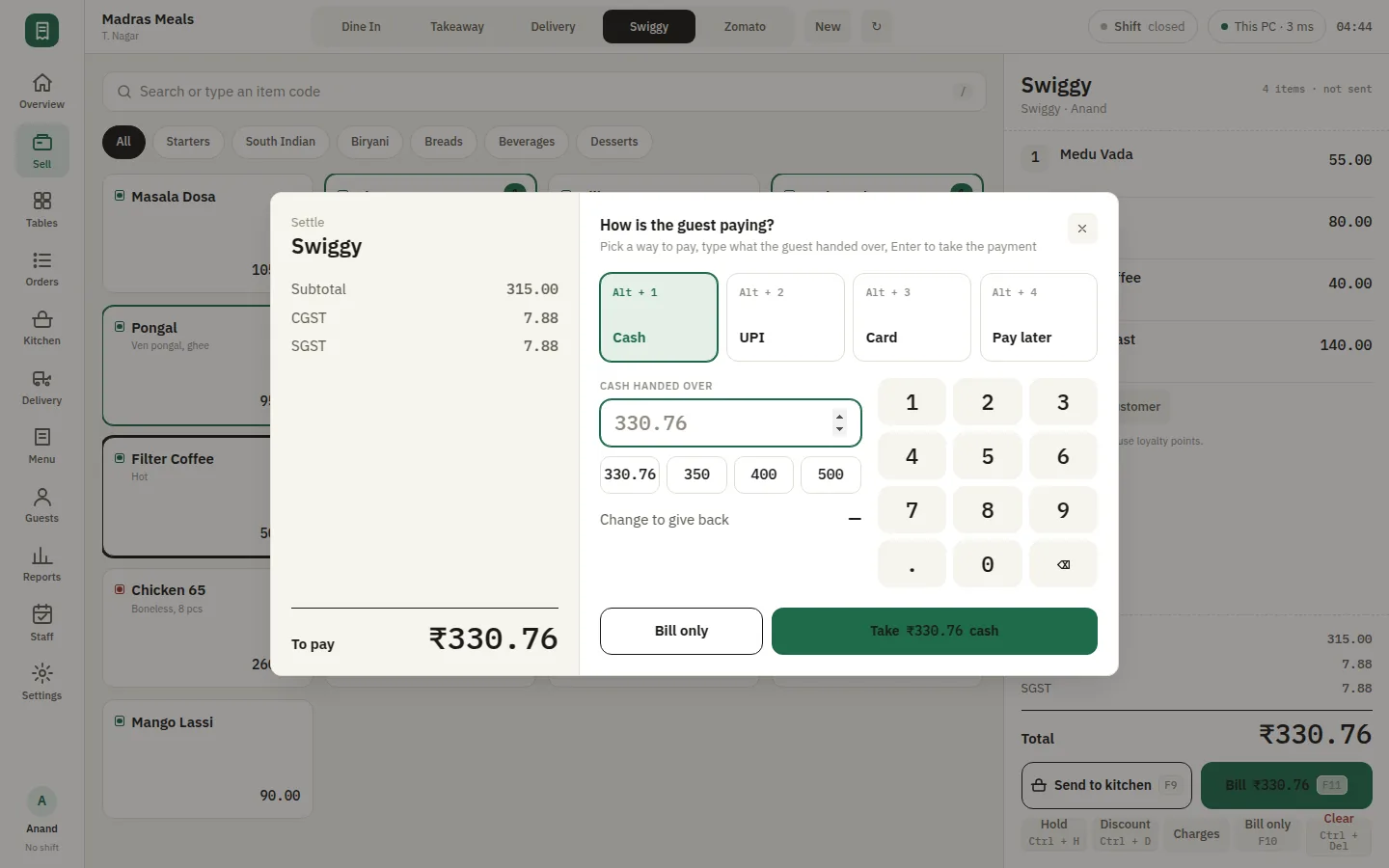
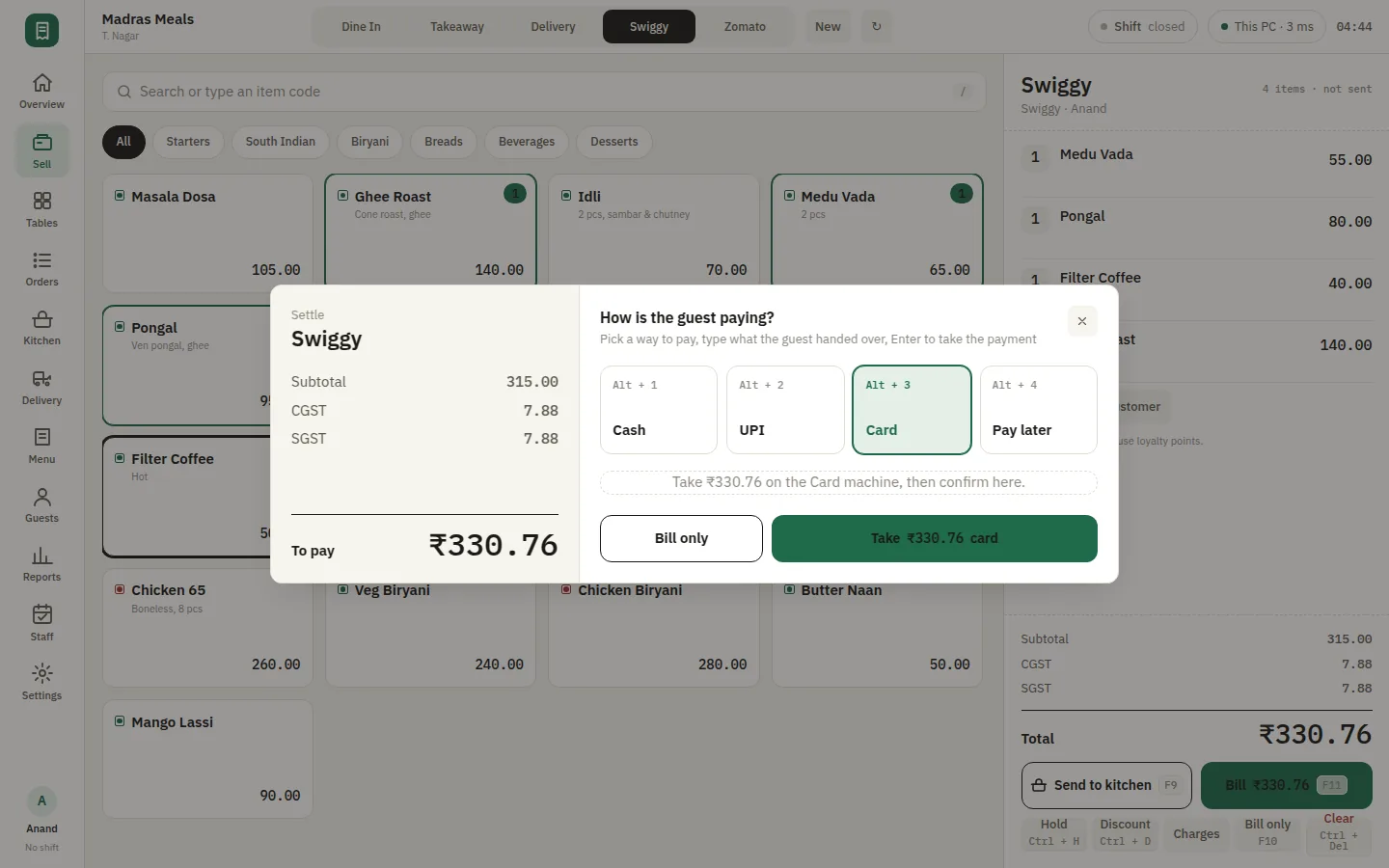
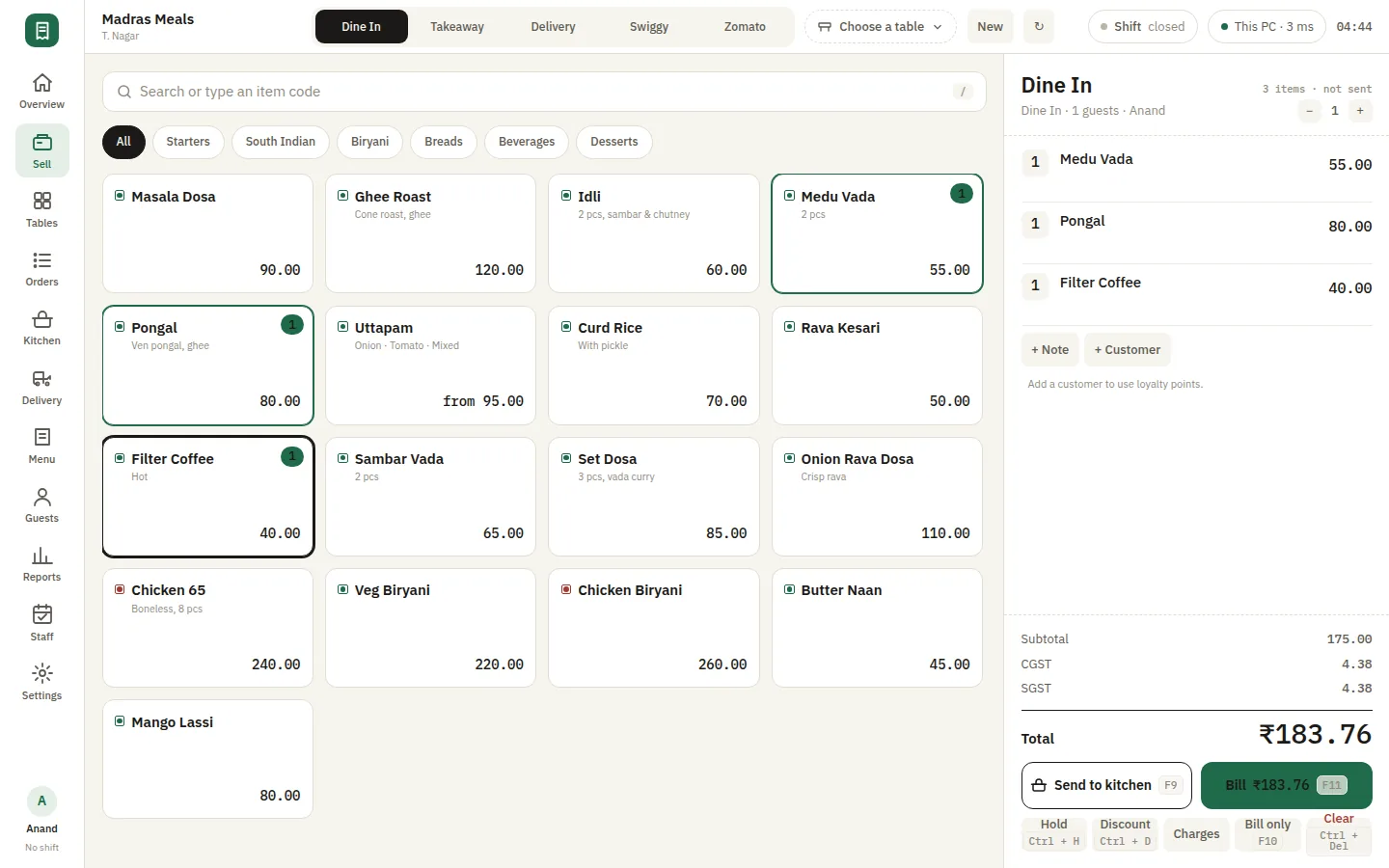
The Sell screen is where the day happens: tap items off the menu grid, pick variations and add-ons, and send the KOT to the kitchen without leaving the keyboard. Charges and discounts apply to the bill in one step, and settlement takes cash, card, UPI or a split across them. Every GST-compliant receipt prints to your thermal printer straight from the counter PC, with no internet in the path and nothing to wait for.

  • Menu grid, variations and add-ons
  • Cash, card, UPI or a split across them
  • GST receipts print straight to your thermal printer
SmartPOS Sell — Sell receipt
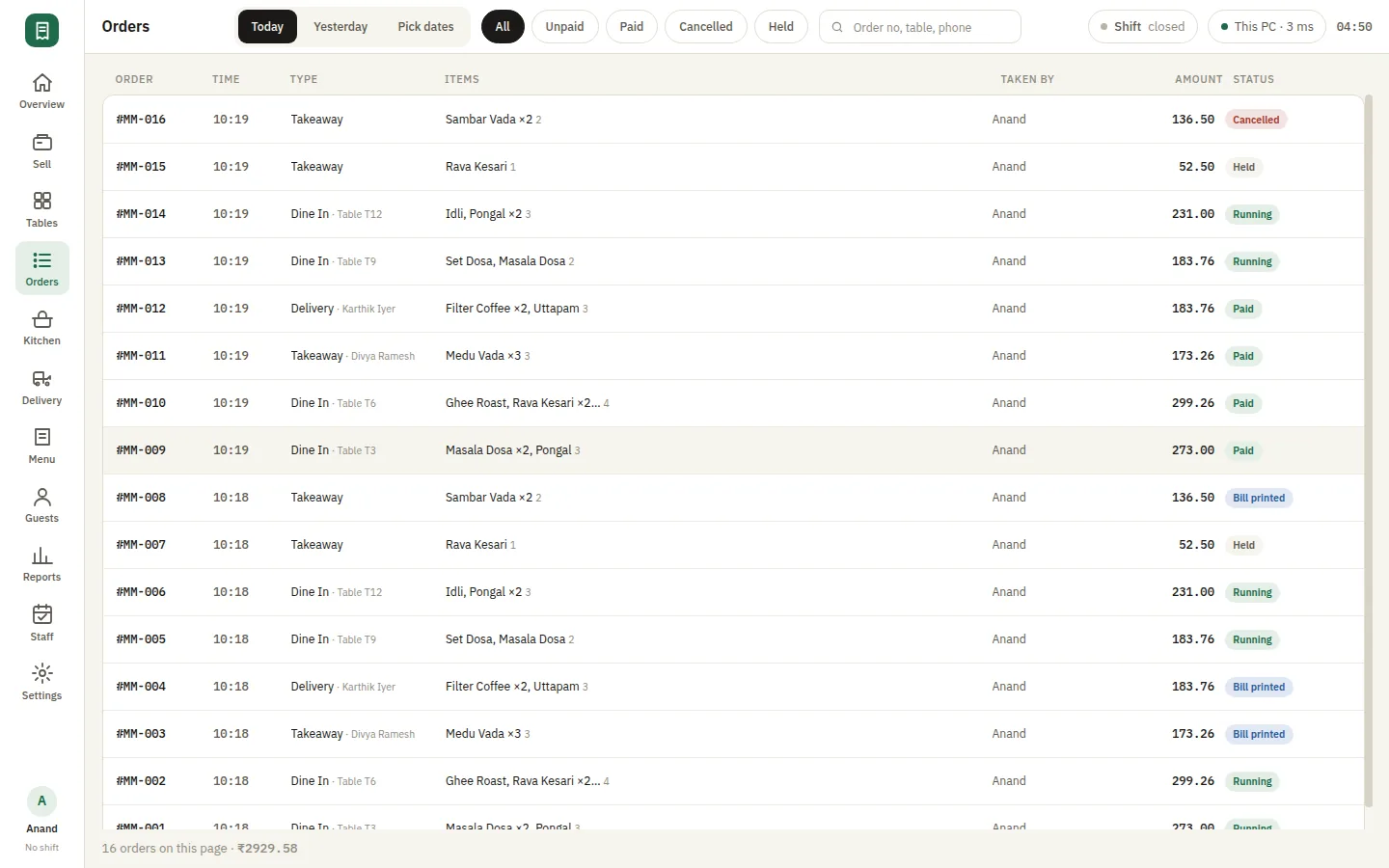
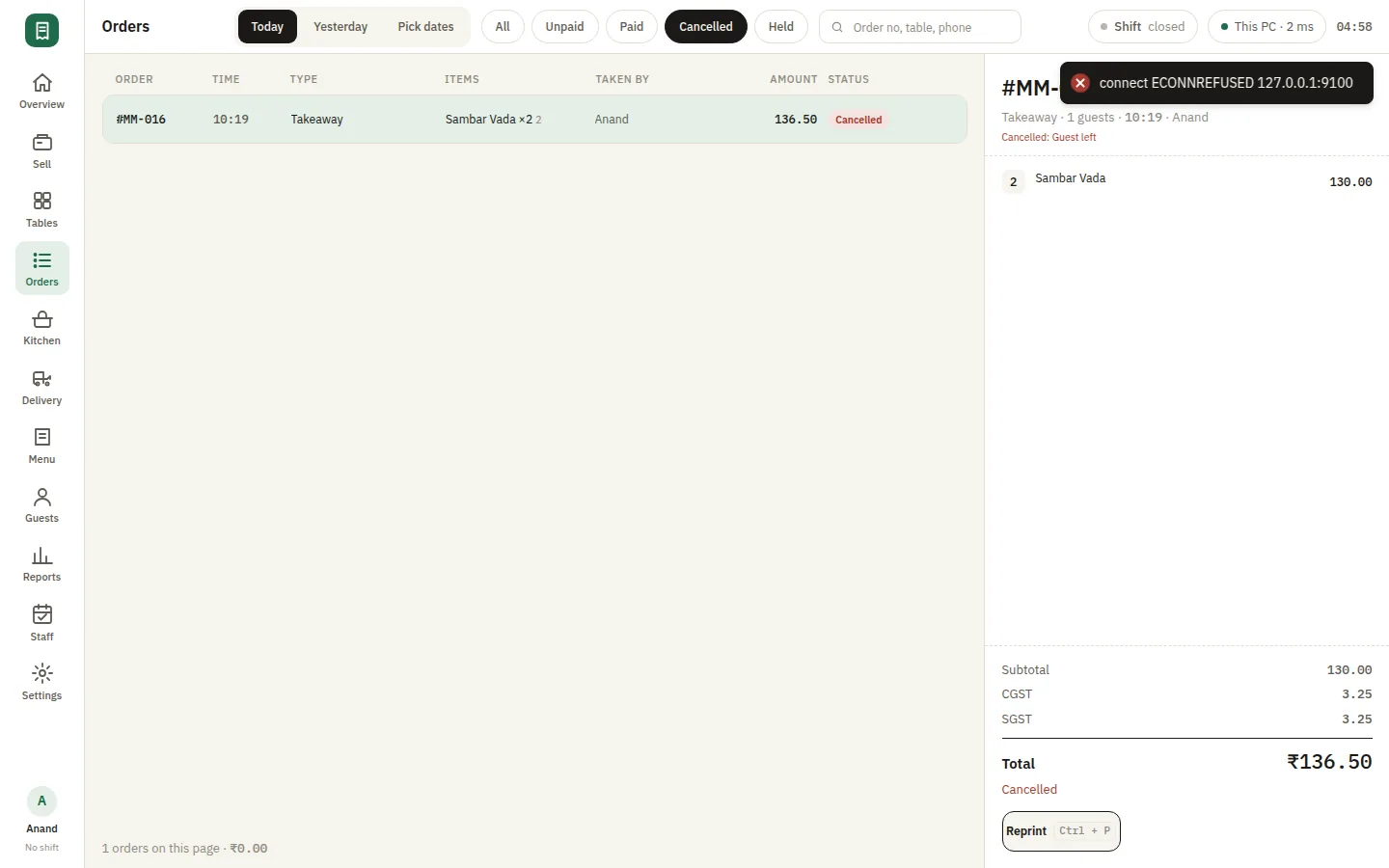
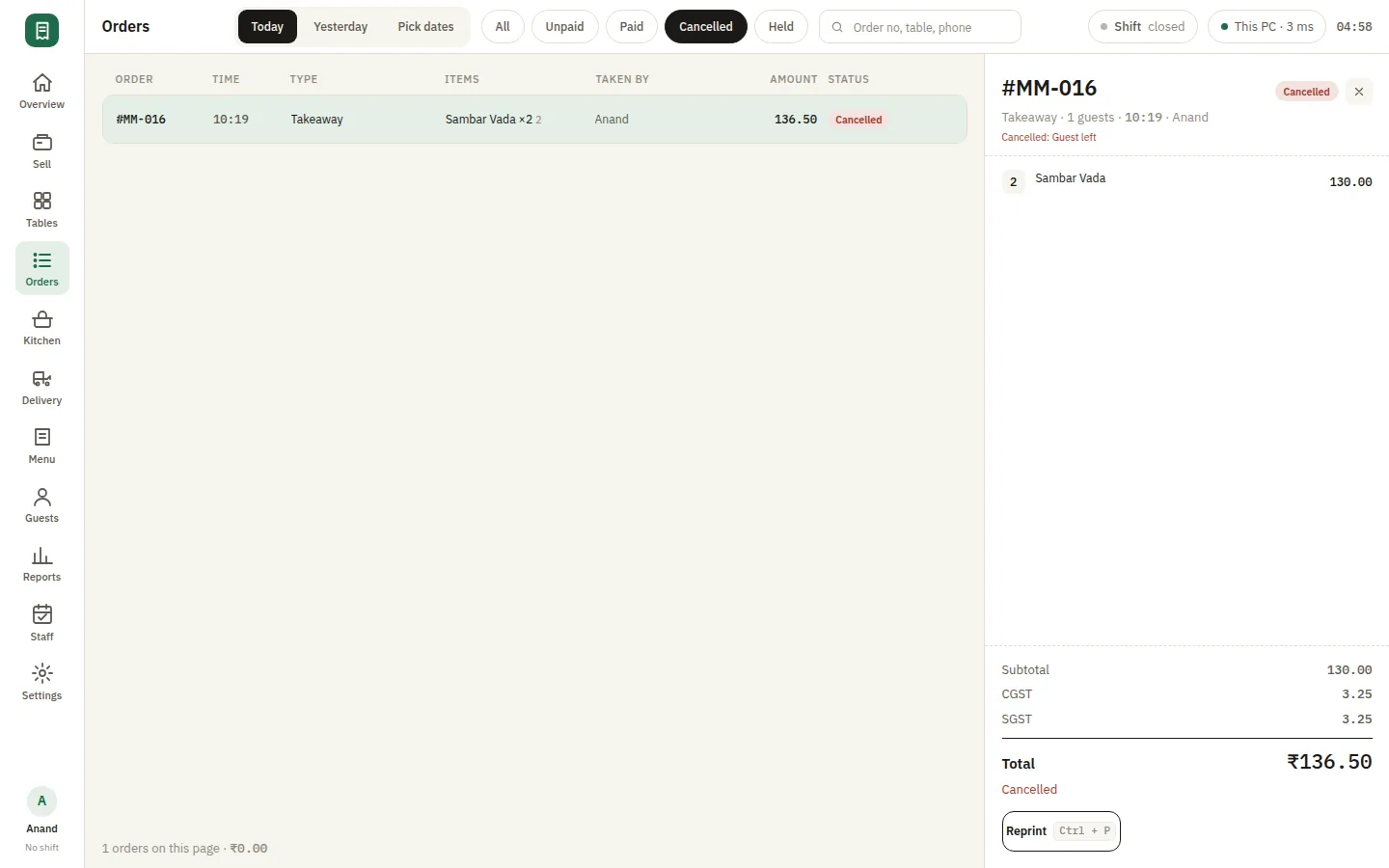
SmartPOS Orders — Orders list

Every bill of the day, still on your machineCORE

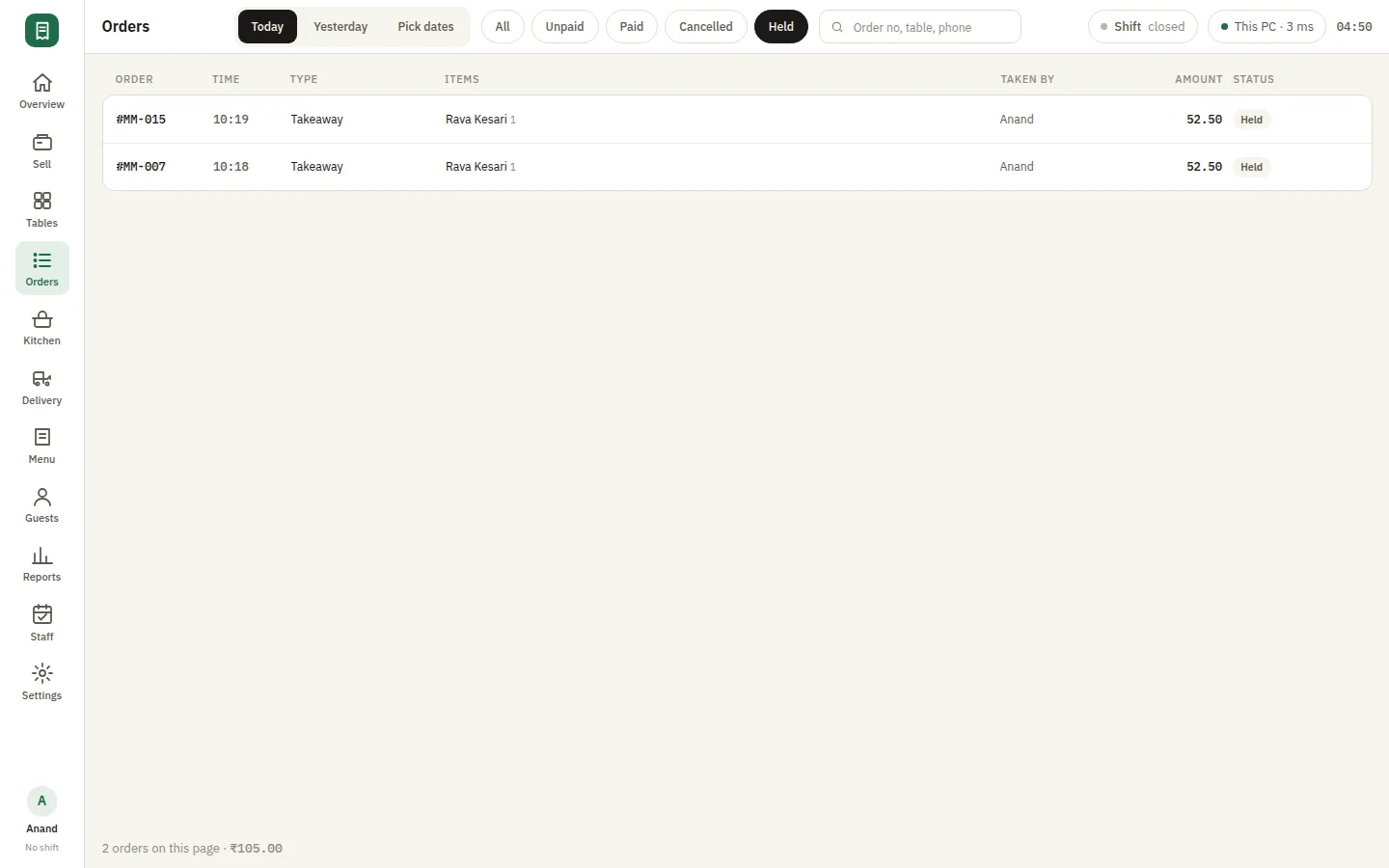
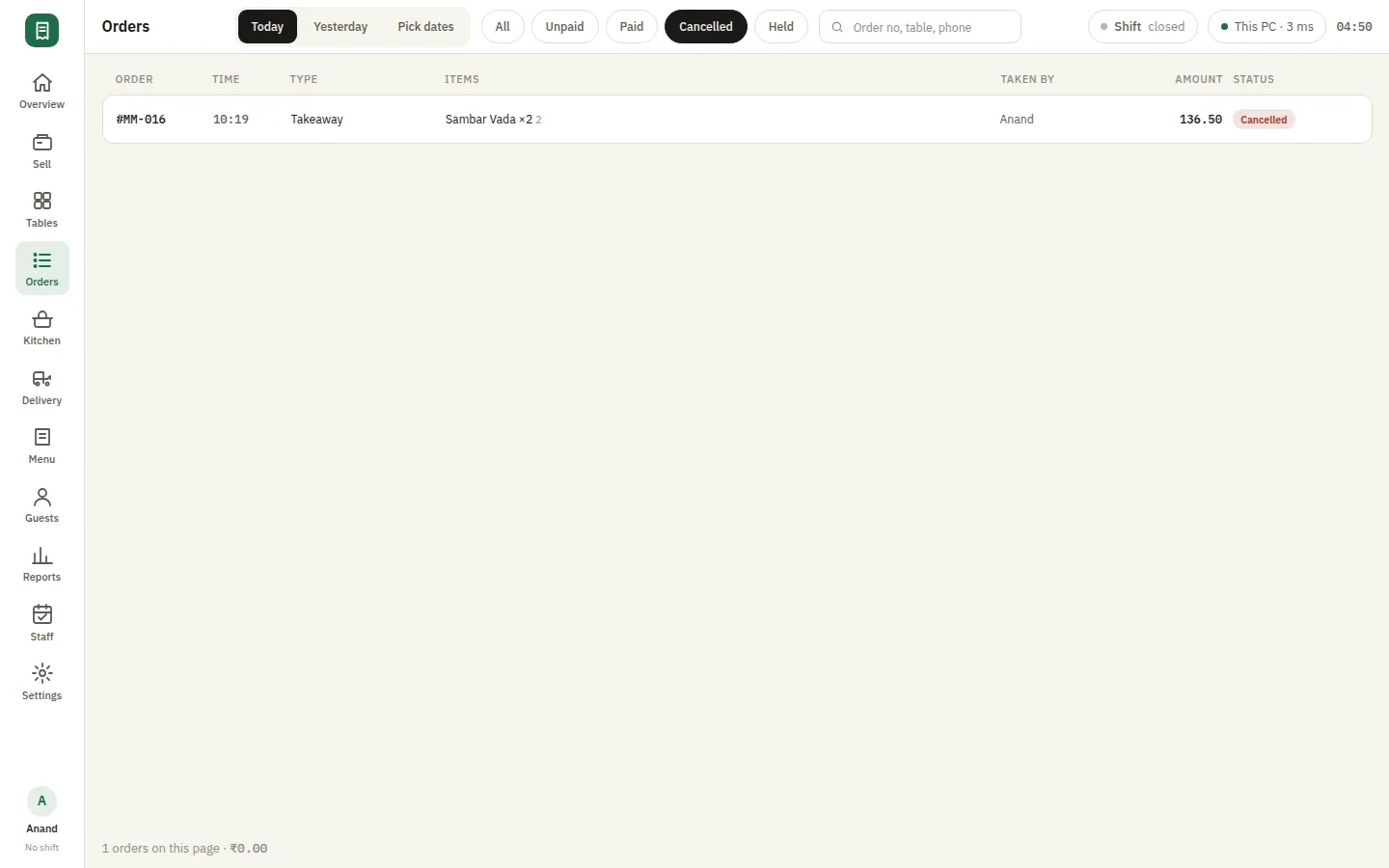
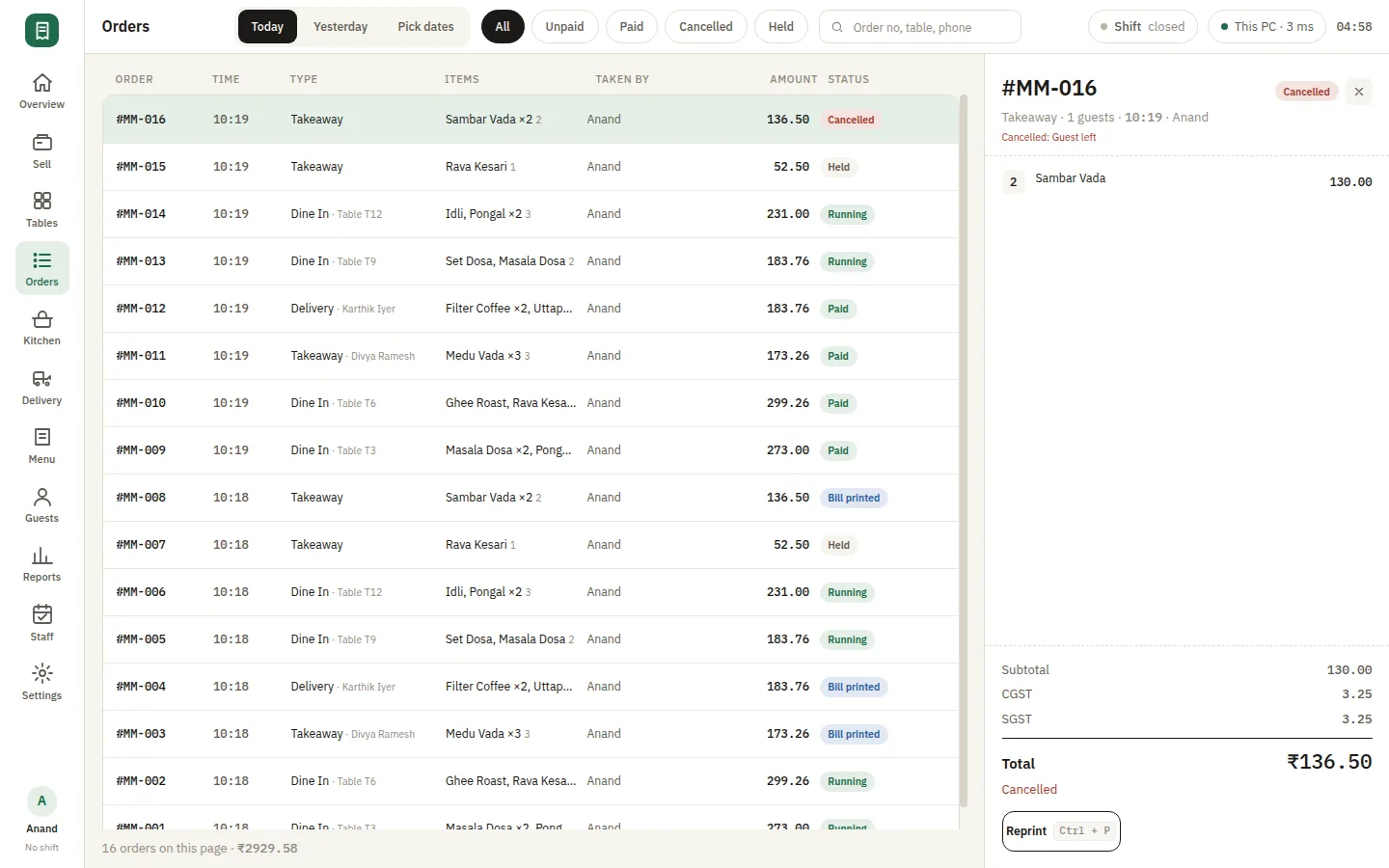
Orders keeps the full history of what you sold — running, held, settled and cancelled — on the counter PC rather than in somebody's cloud. Open any bill to see what was ordered, who took it and how it was paid. Reprint a lost receipt, cancel with a reason that lands in the audit log, or refund a line without unpicking the whole bill. Nothing ages out and nothing needs a connection to look up.

  • Running, held, settled and cancelled
  • Reprint a lost receipt in one tap
  • Refund a line without unpicking the bill
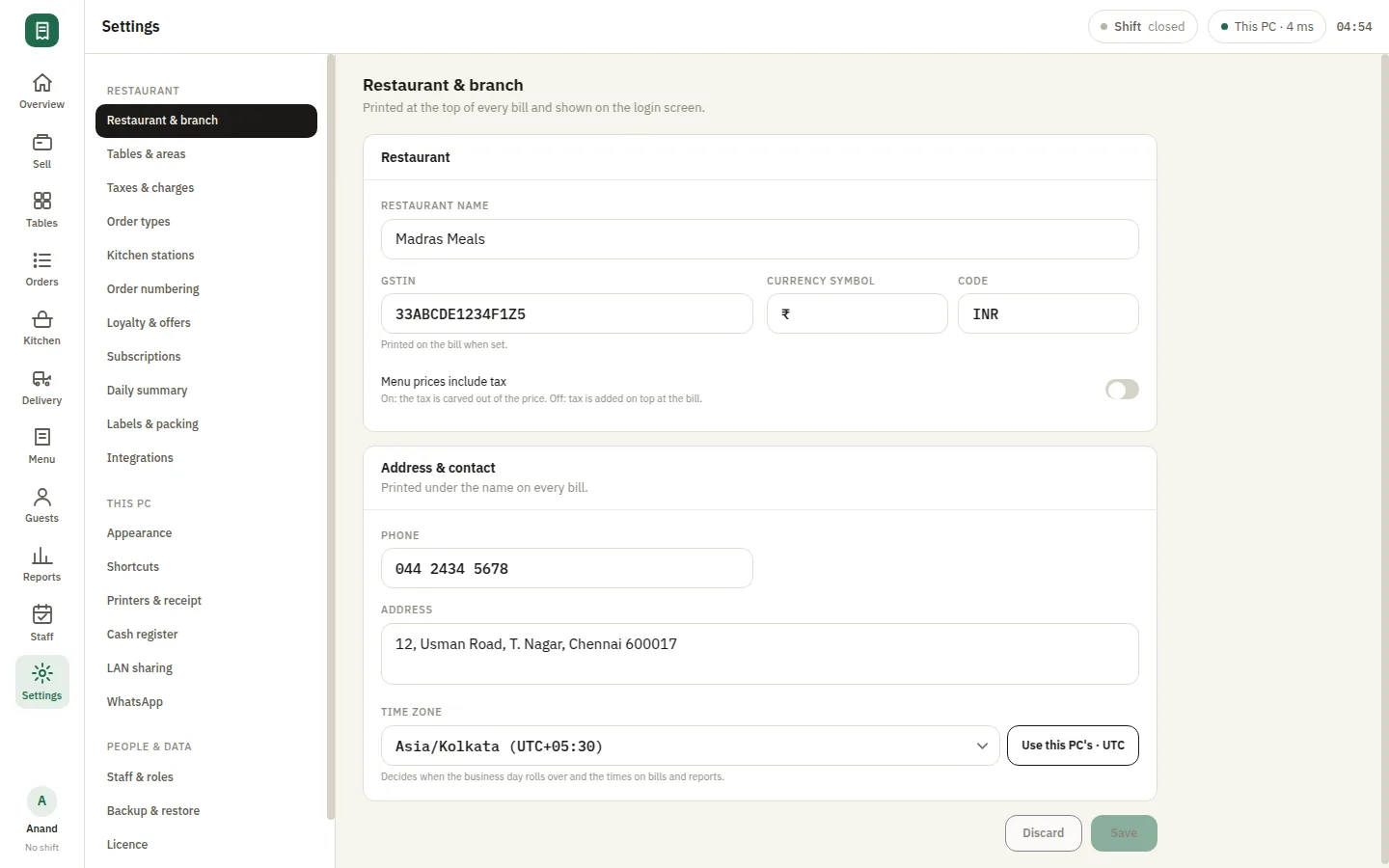
SmartPOS Settings — Settings restaurant branch

Set it up once, on your own termsCORE

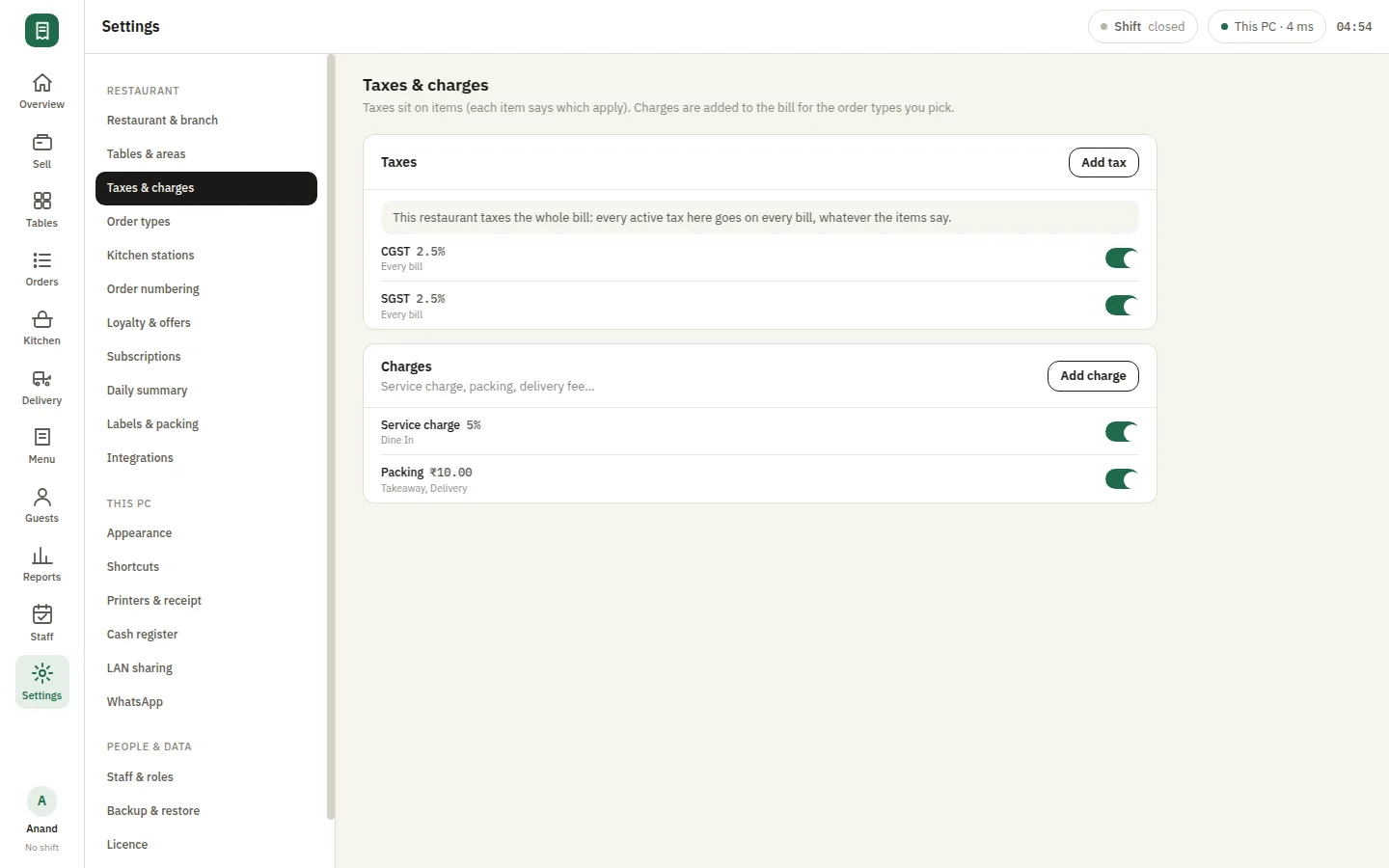
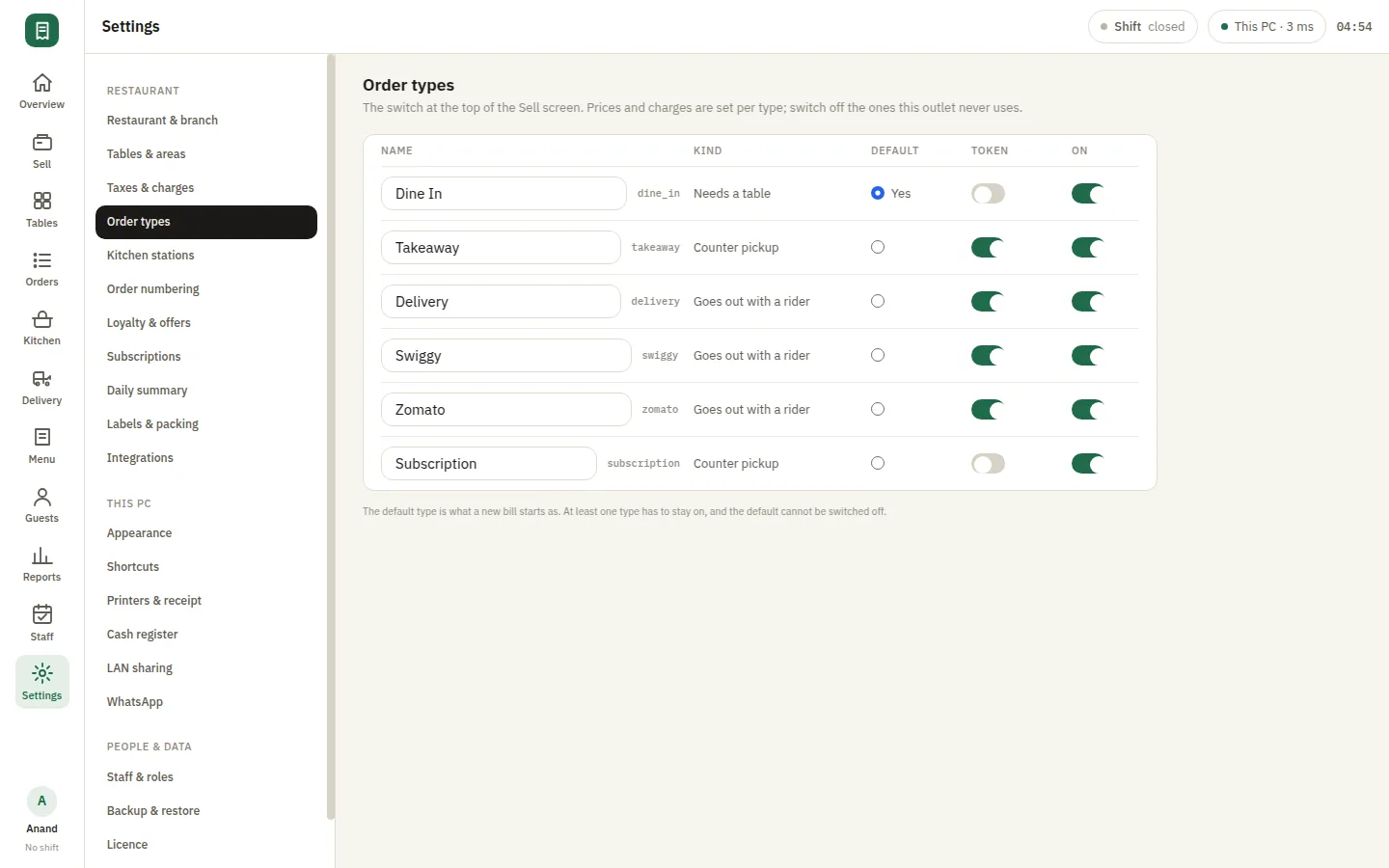
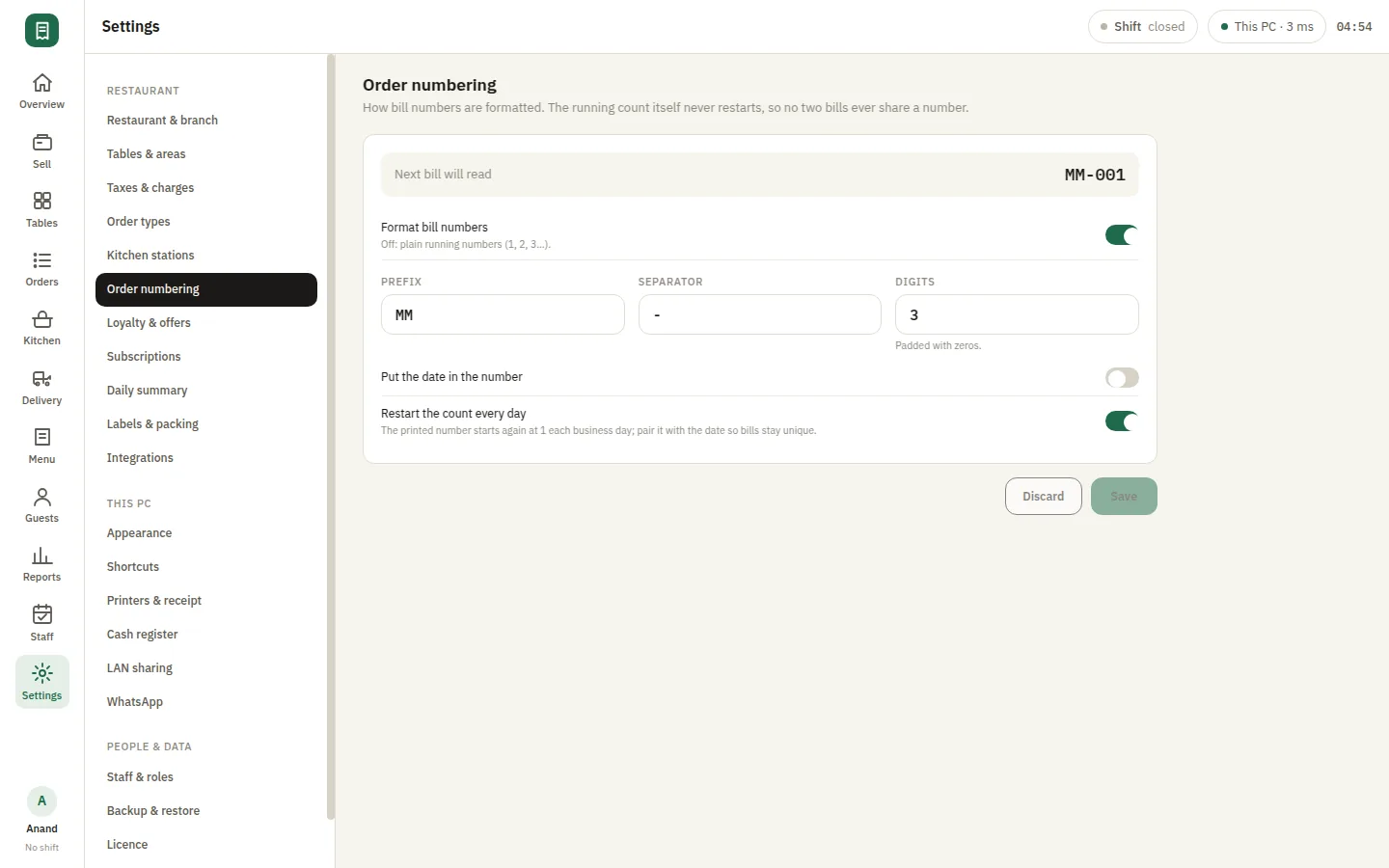
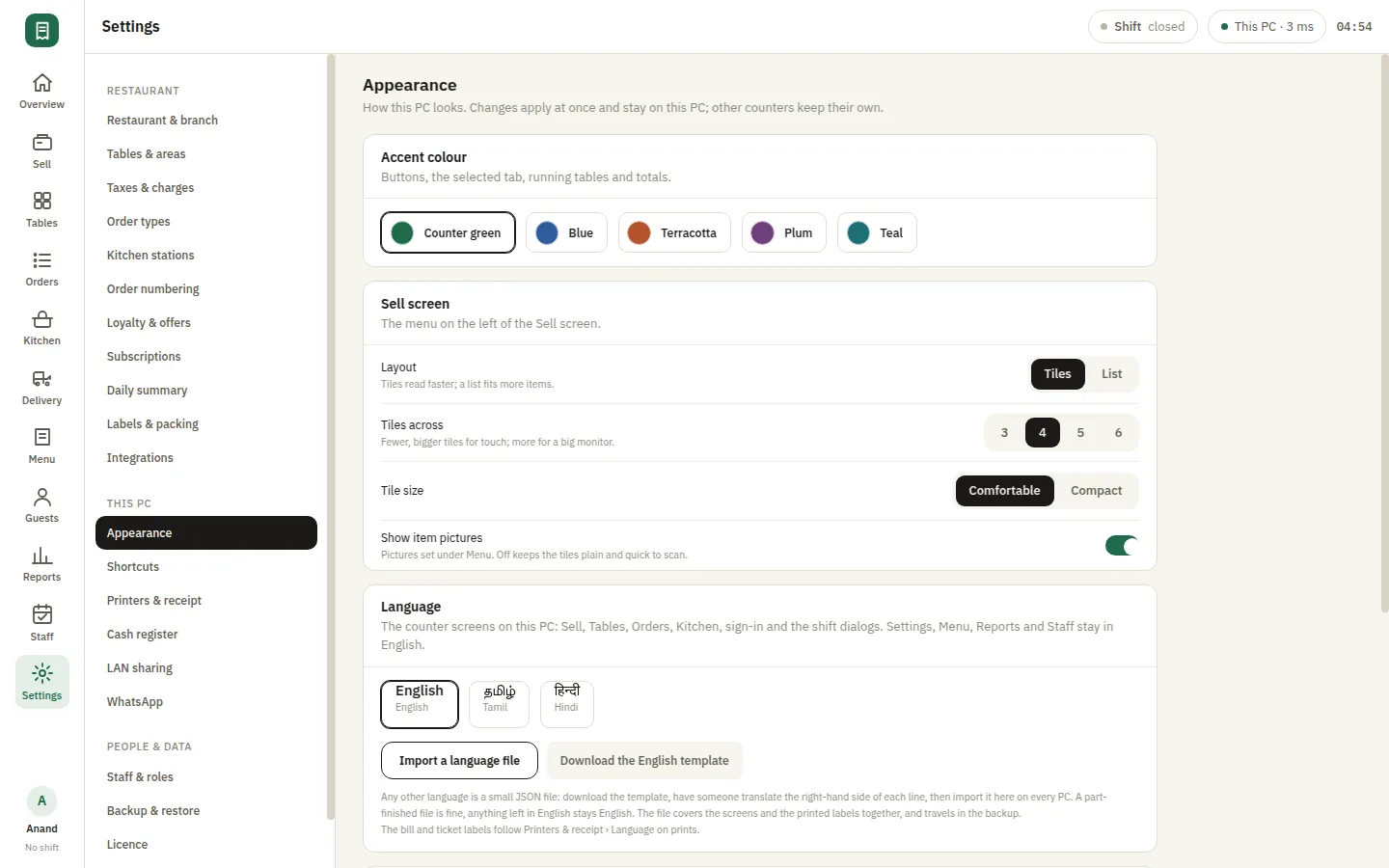
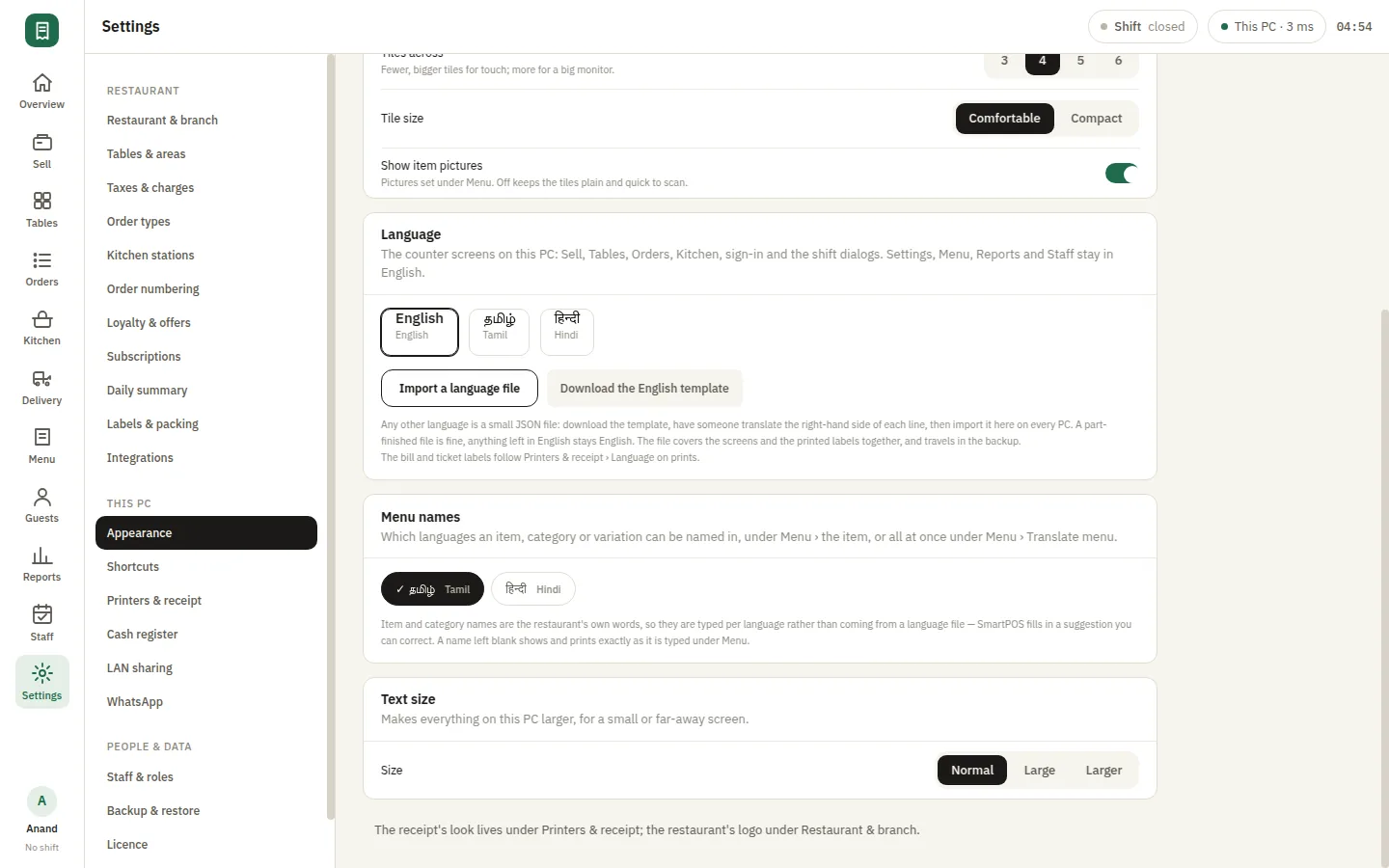
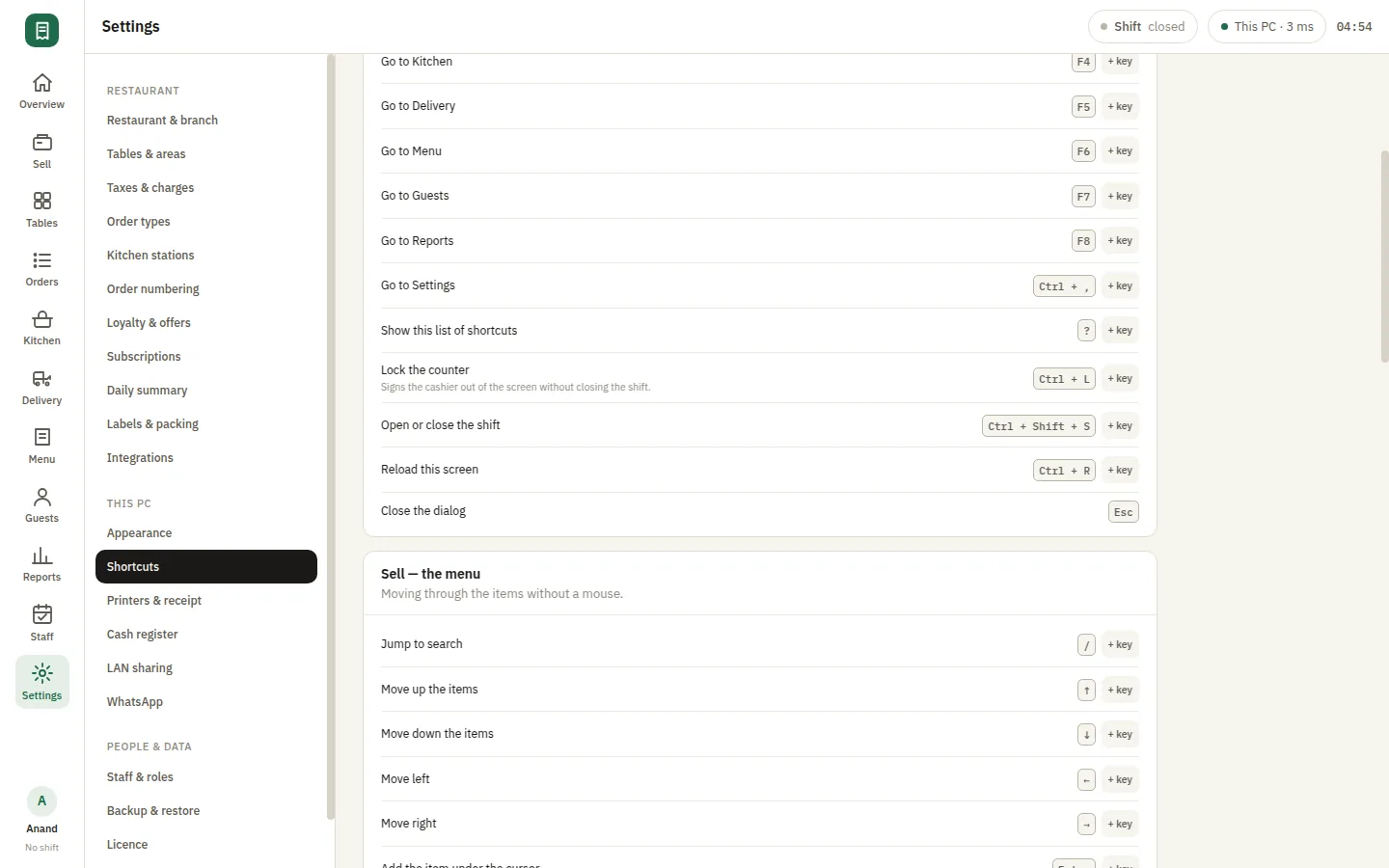
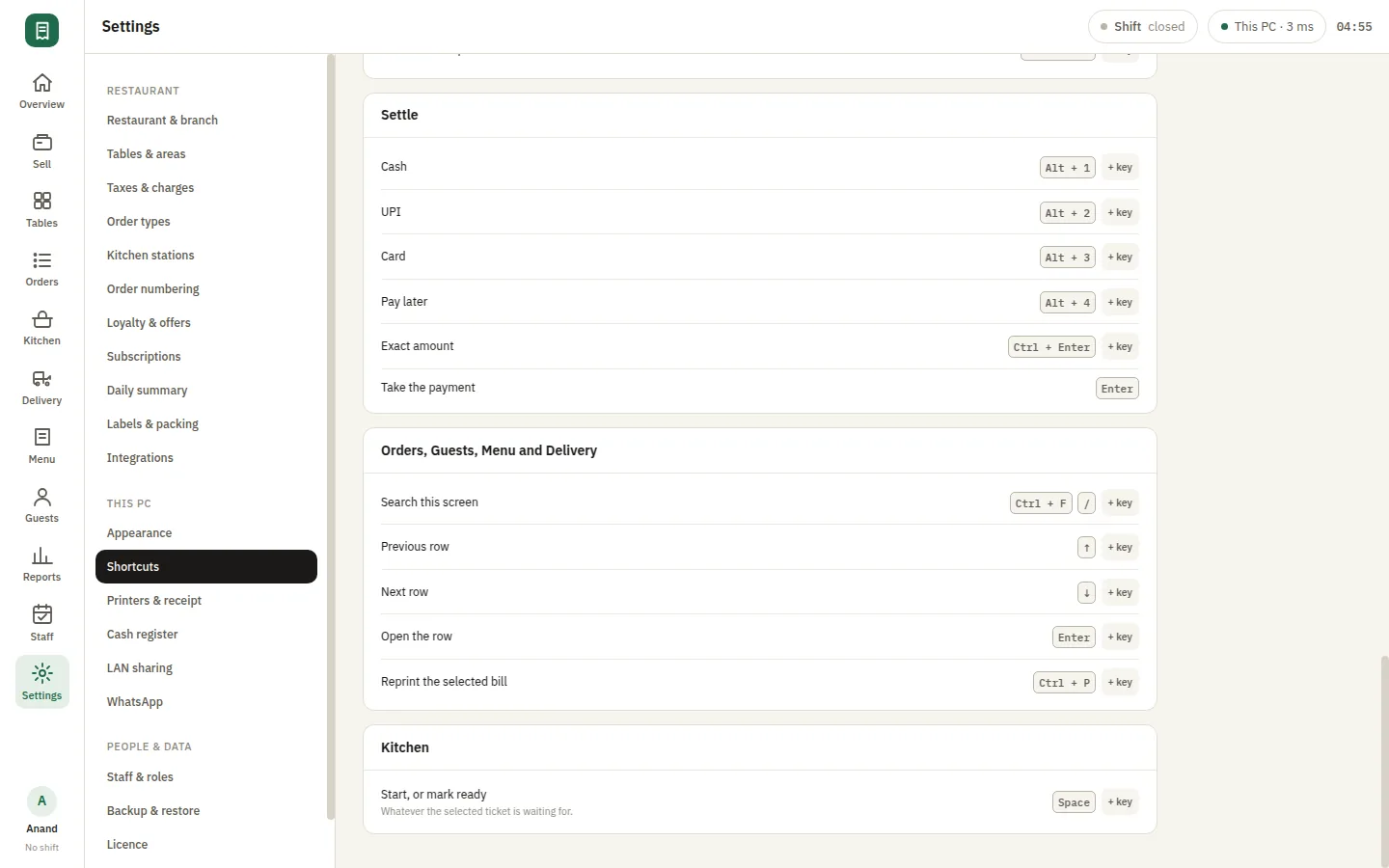
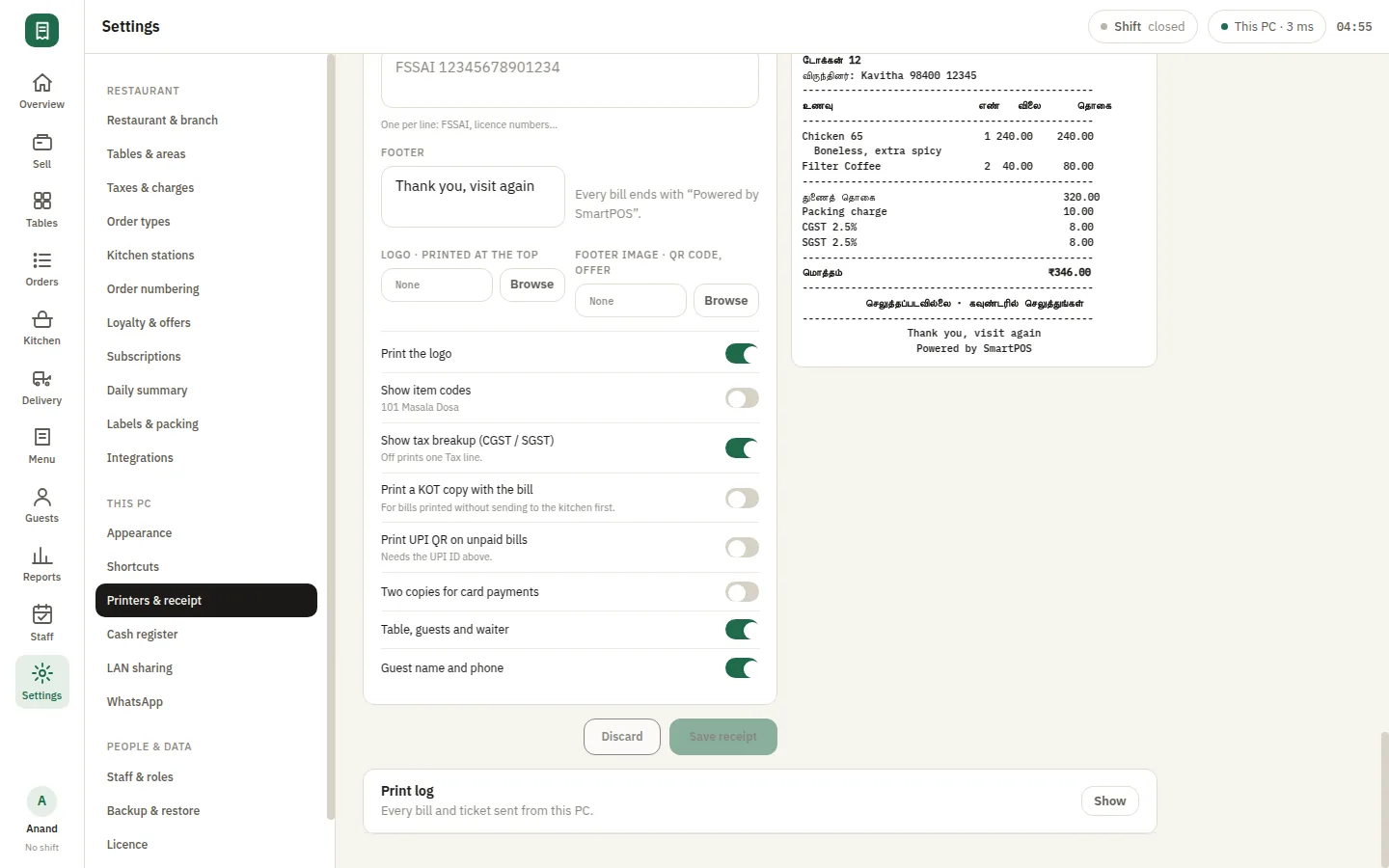
Settings holds the things you decide once and stop thinking about: restaurant and branch details, tax slabs and service charges, order types, bill numbering, receipt layout and the printers behind it. Appearance and keyboard shortcuts are yours to shape around how the counter actually works. It is all stored on the PC, so a setup that suits your restaurant is not something a vendor can change under you.

  • Restaurant, tax slabs and service charges
  • Order types, bill numbering and receipt layout
  • Printers, appearance and keyboard shortcuts

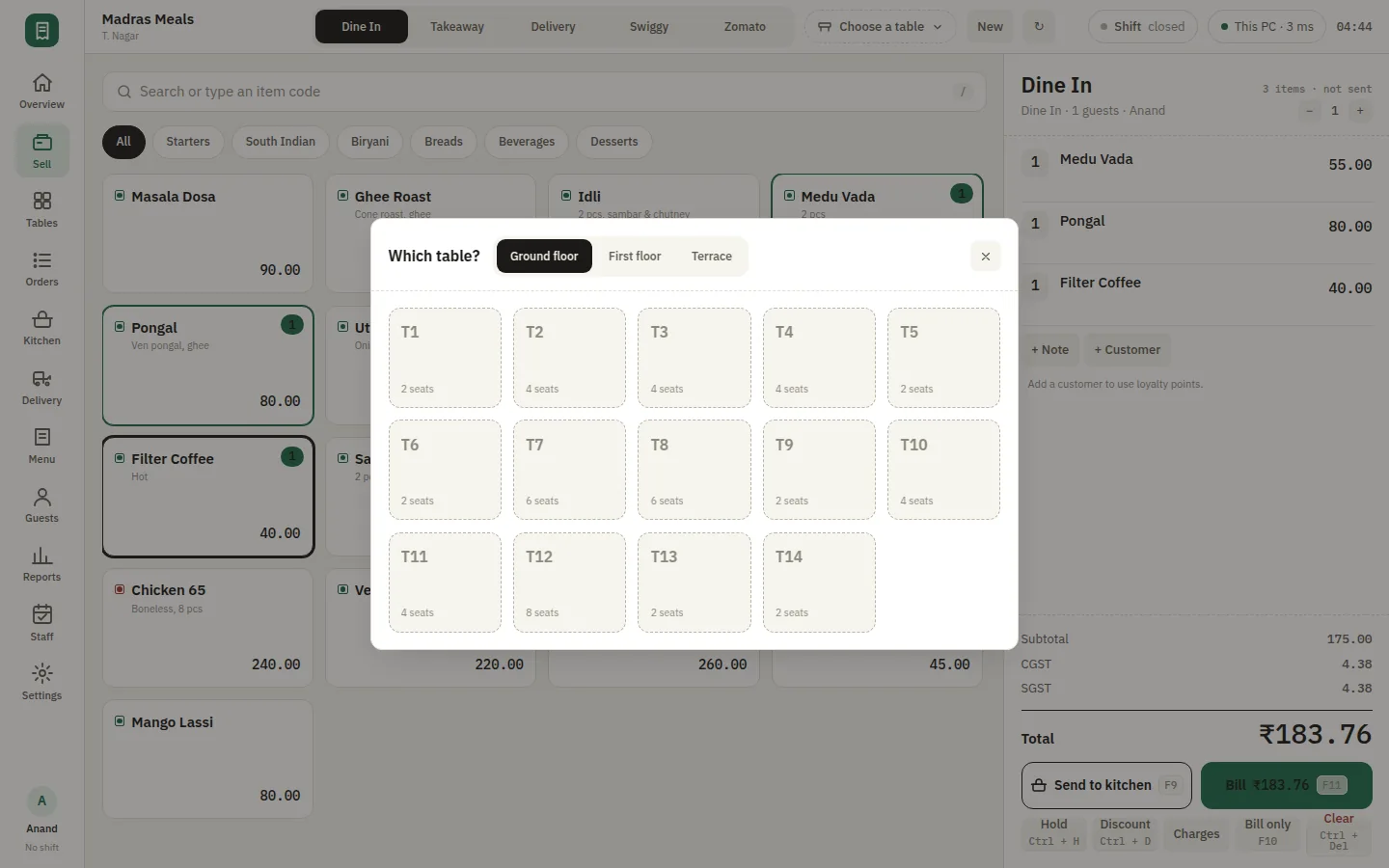
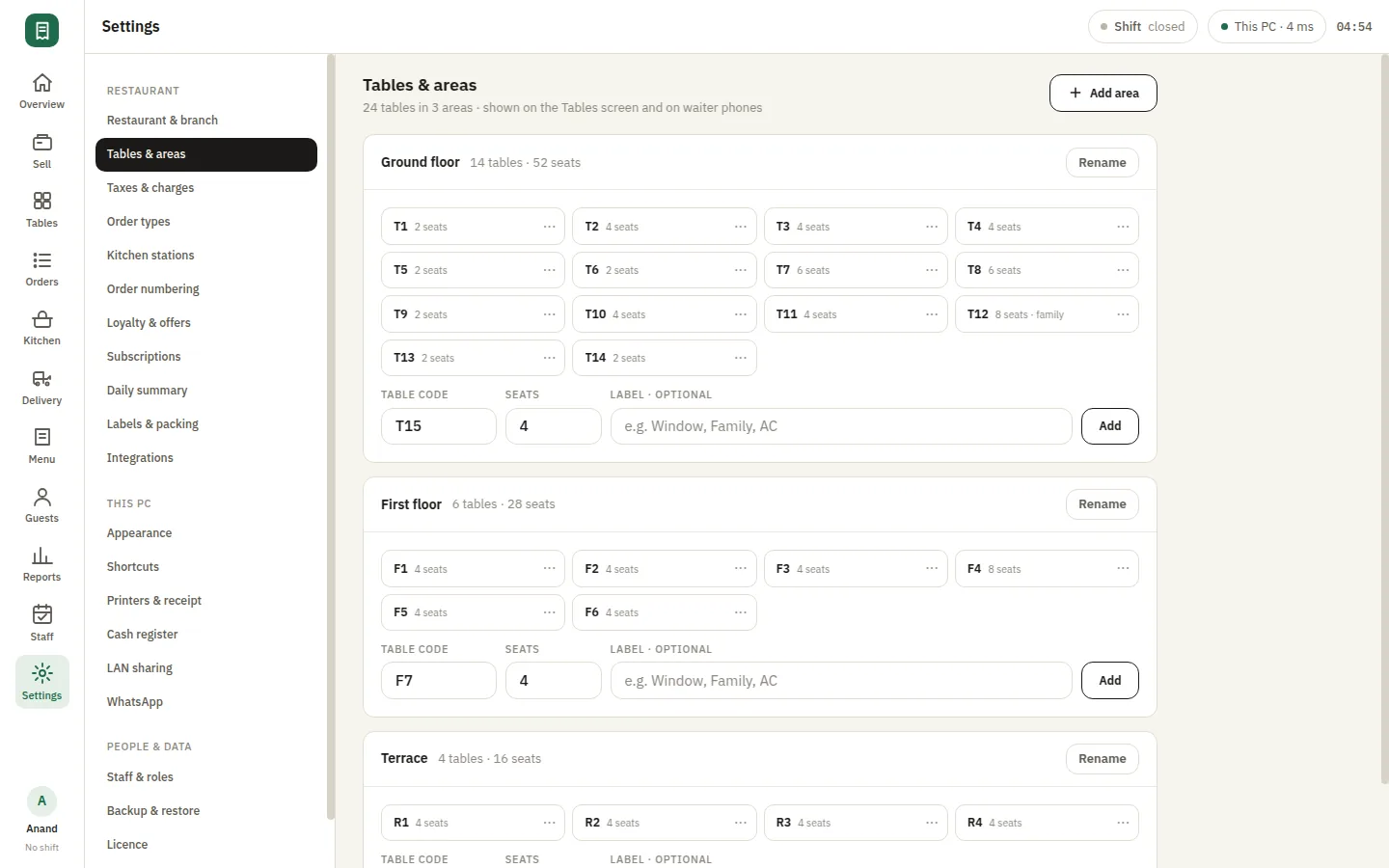
Floors, tables and rounds without paper

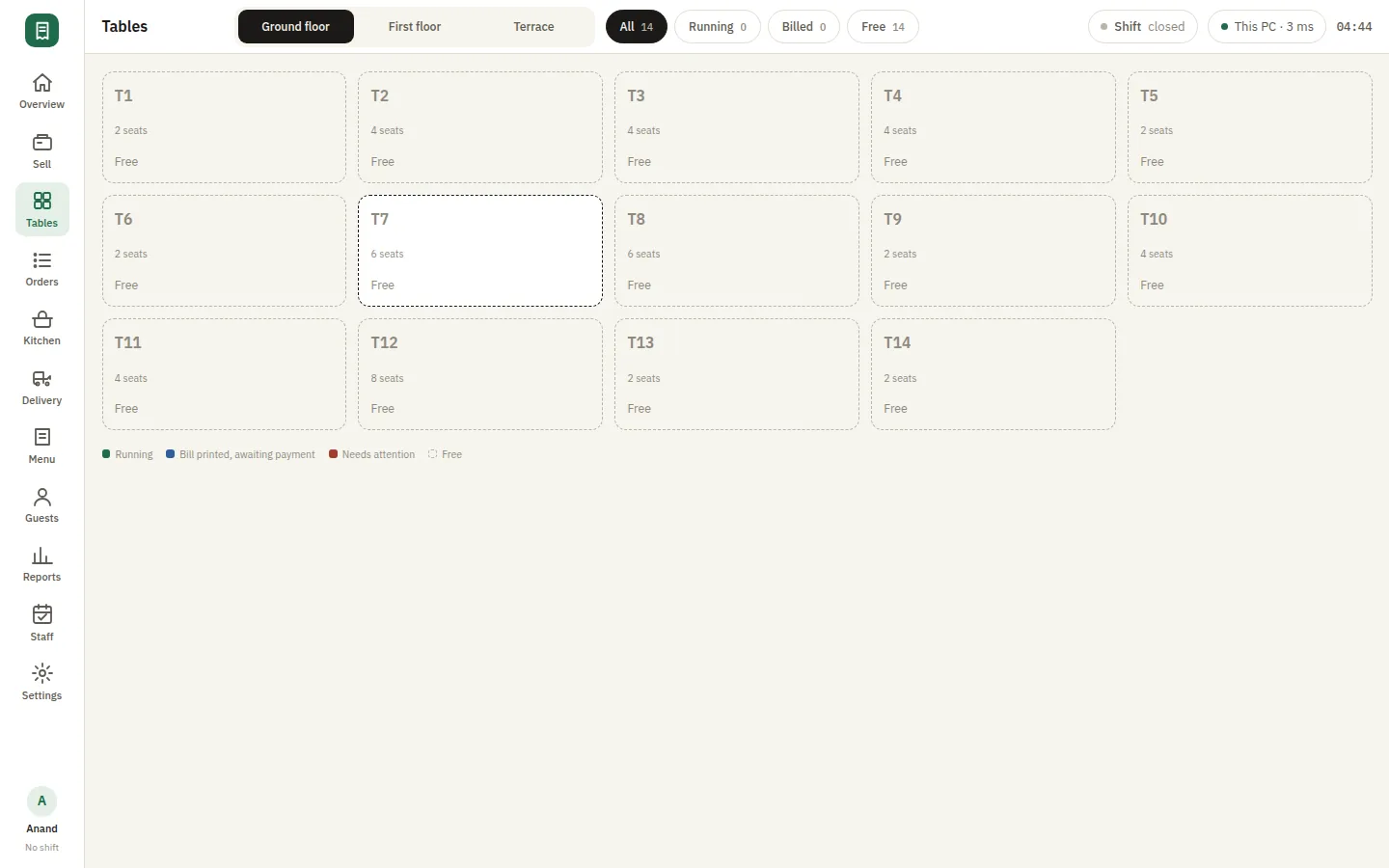
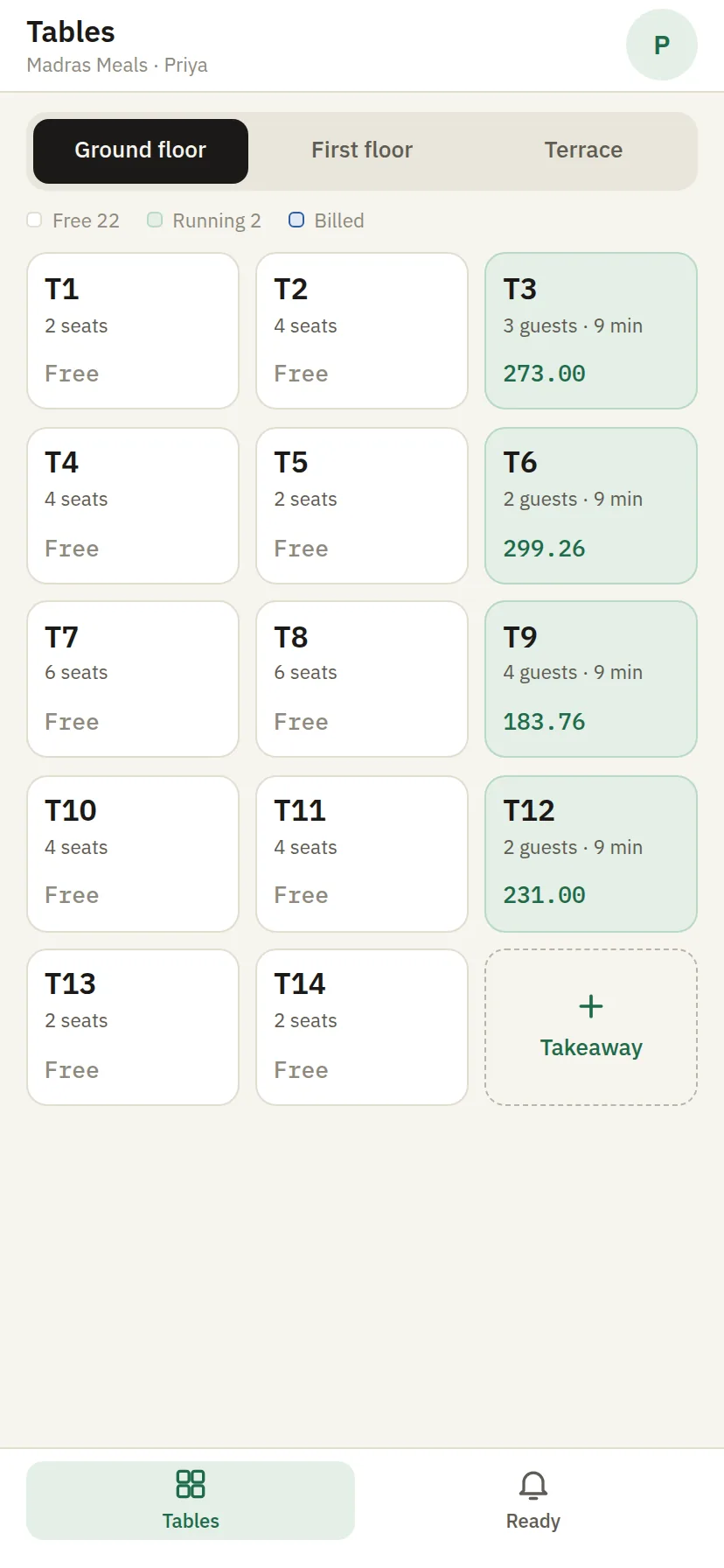
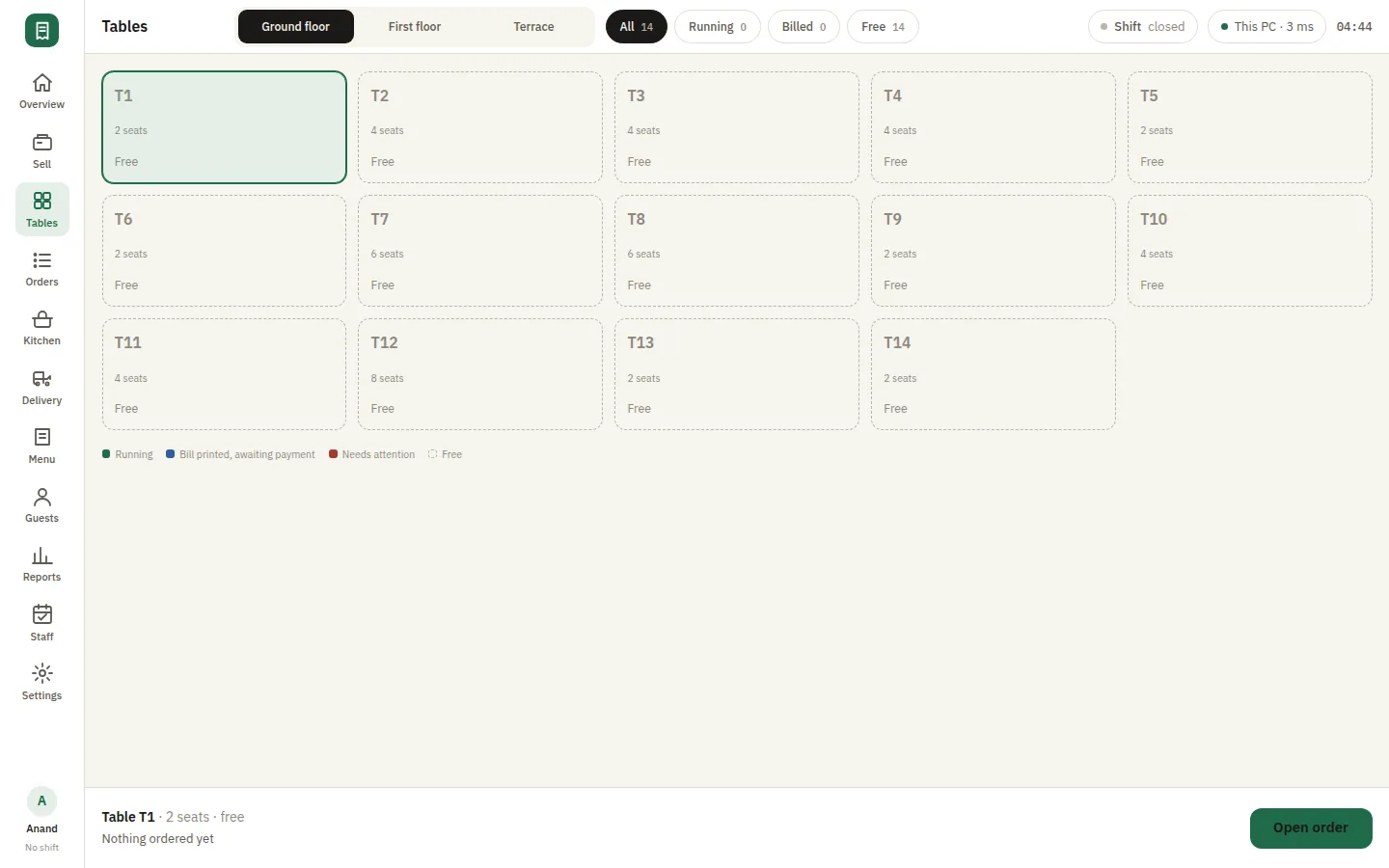
Lay out your floor areas and dine-in tables the way the restaurant is really arranged, then run service off the table map. A running table shows what is already on it, and each new round joins the same bill rather than starting another one. Moving a guest, merging a bill or seeing at a glance which table is waiting takes a tap, which is what keeps a busy dining room from drifting out of order.

  • Floor areas laid out as the room really is
  • Rounds join the same running bill
  • Move or merge a table in a tap
SmartPOS Tables — Tables
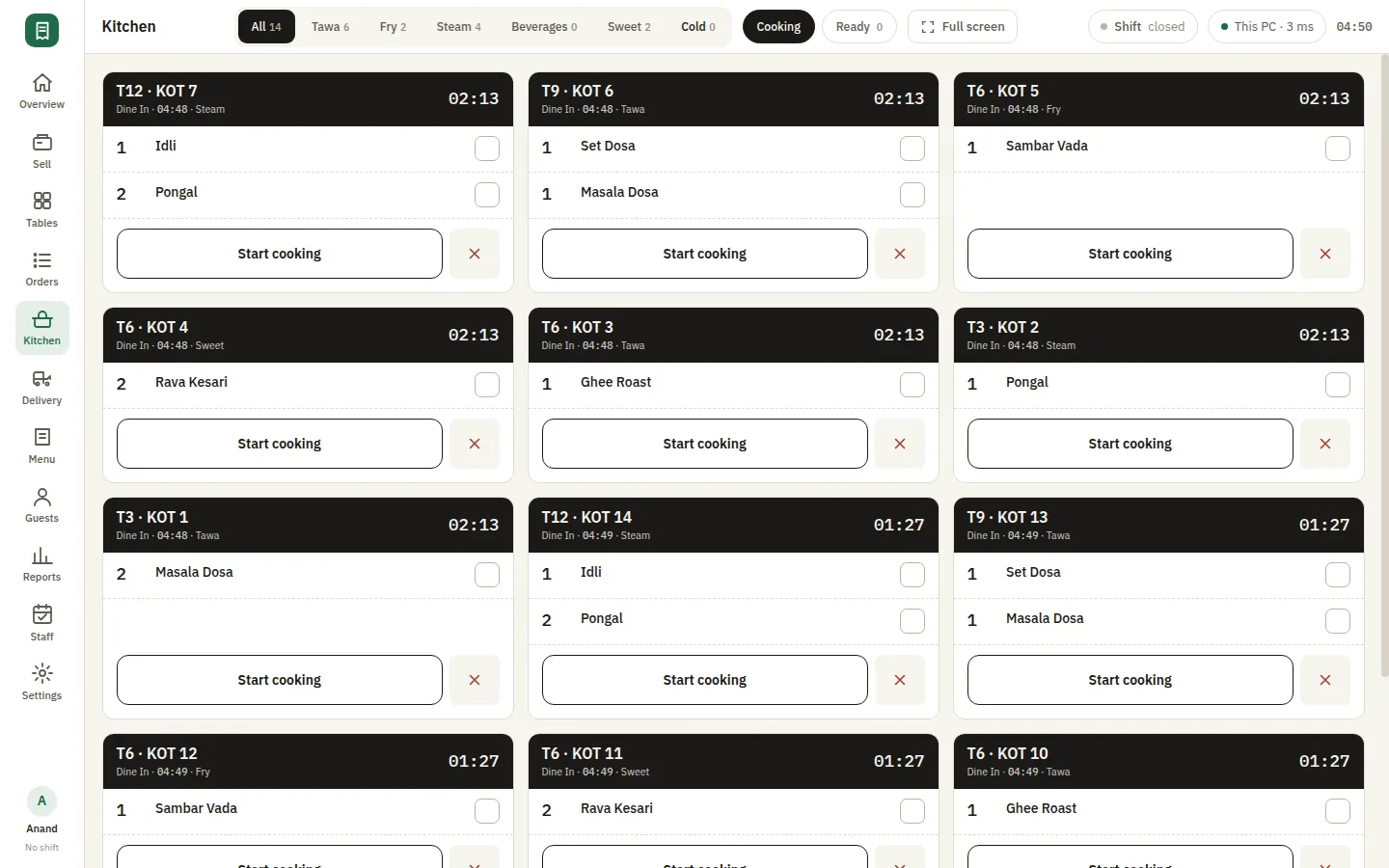
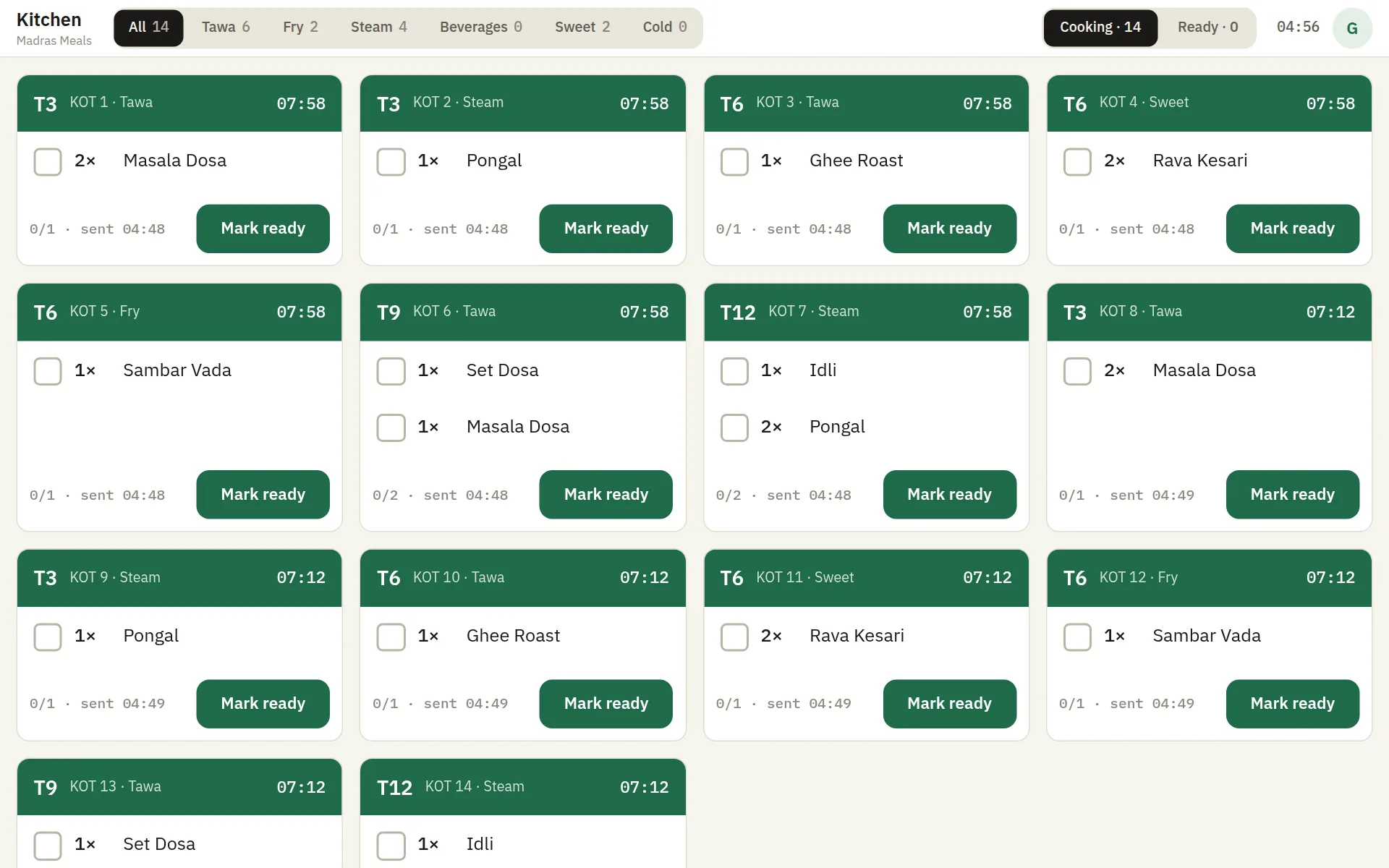
SmartPOS Kitchen — Kitchen cooking

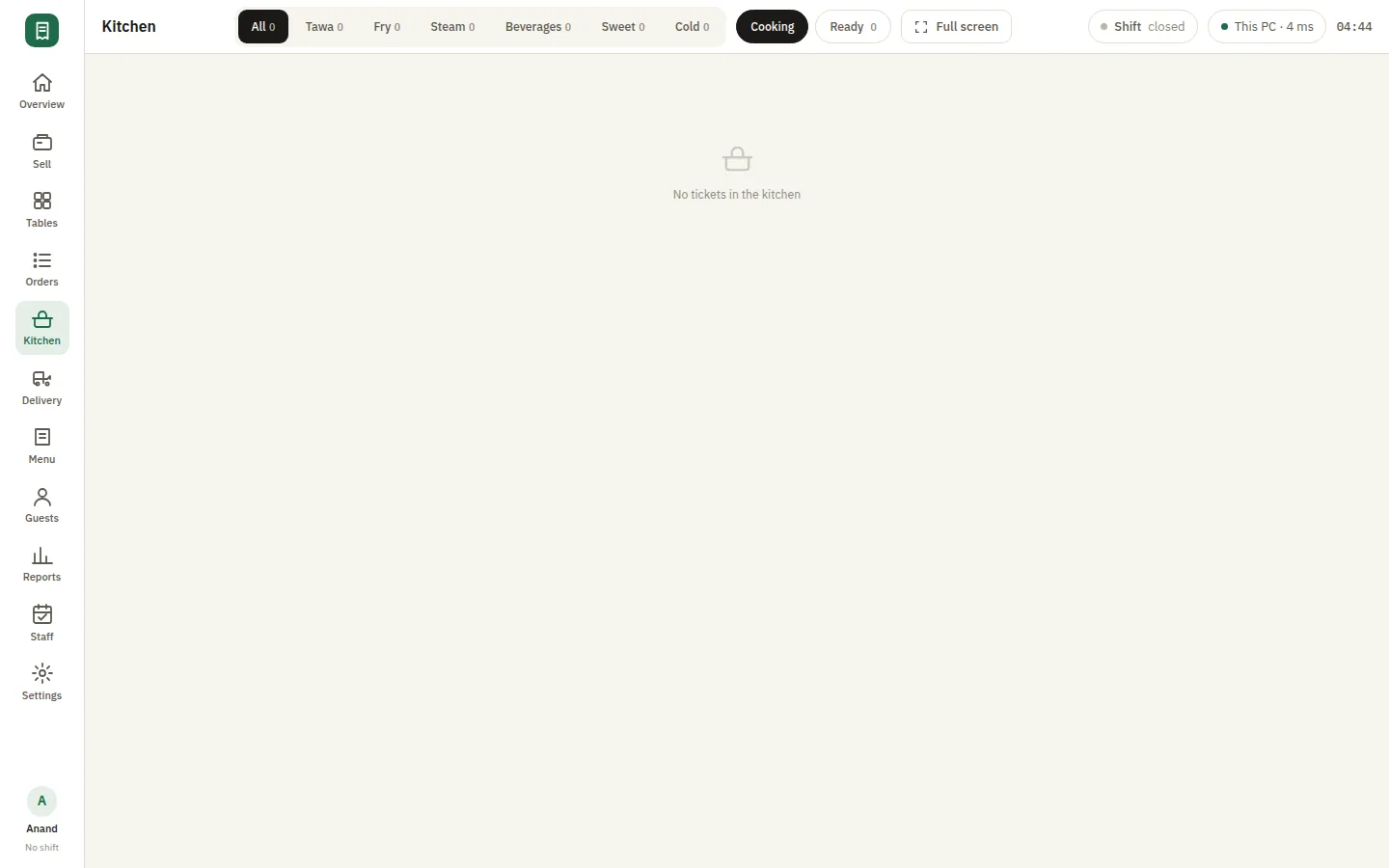
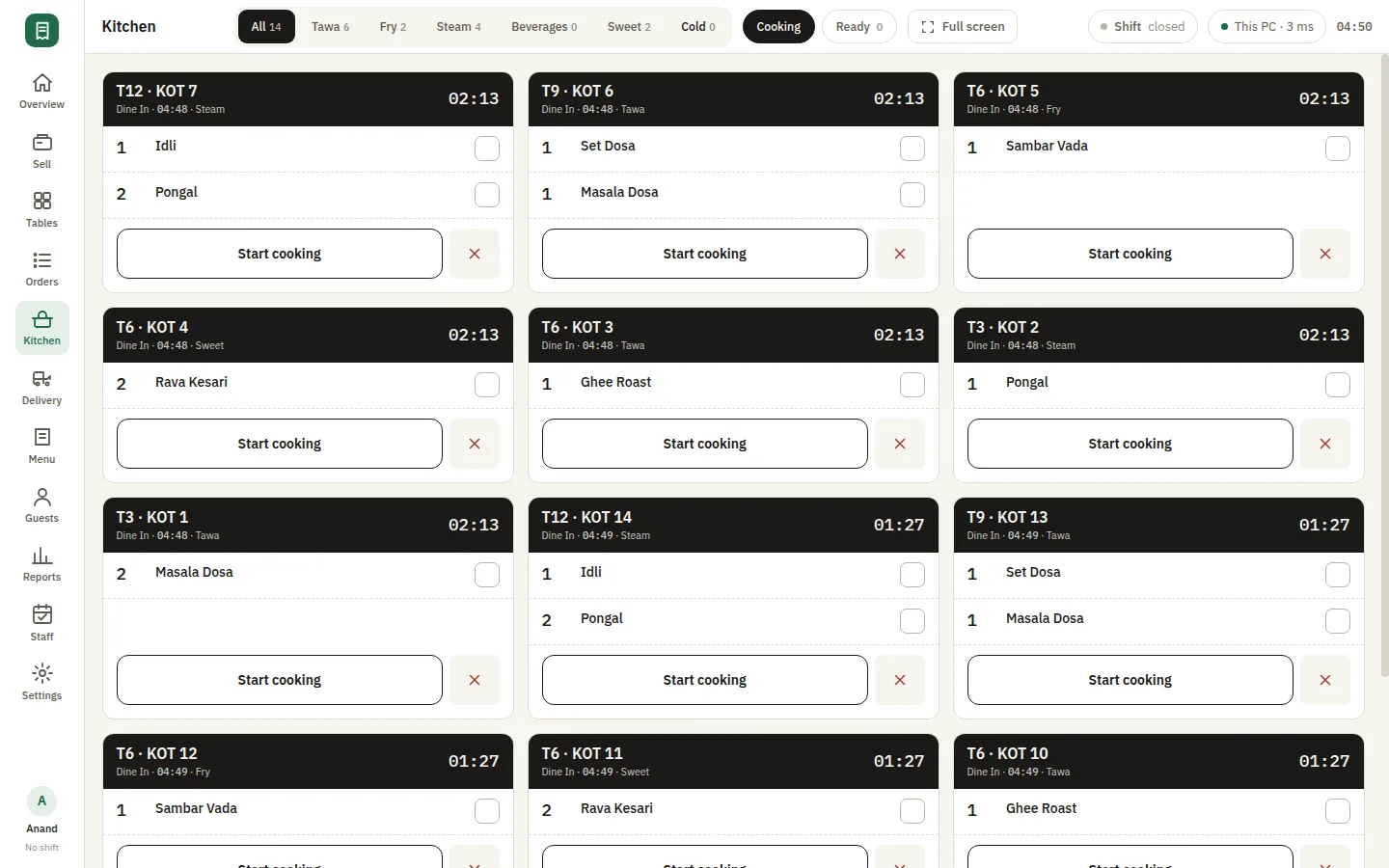
A kitchen screen instead of a spike of chits

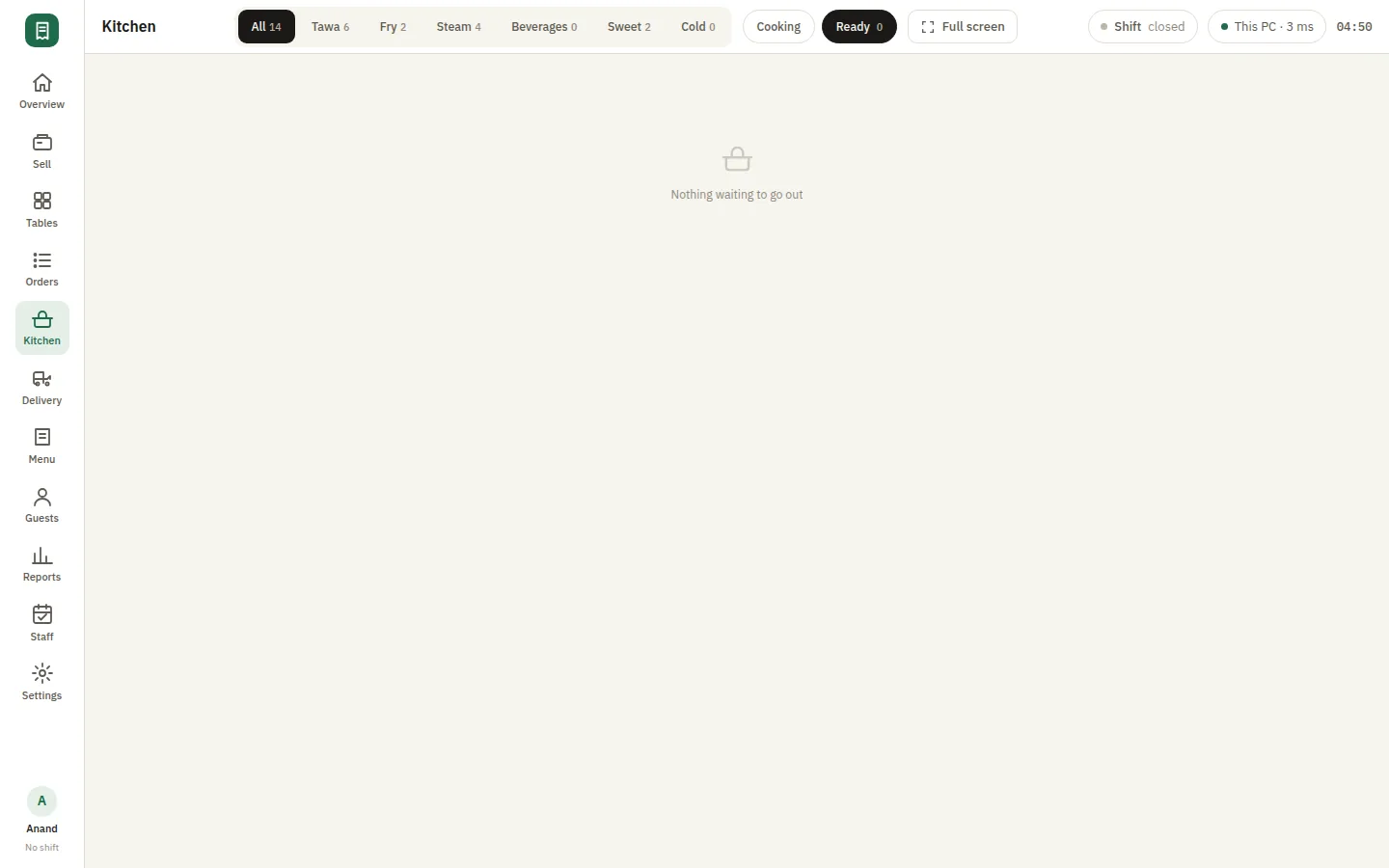
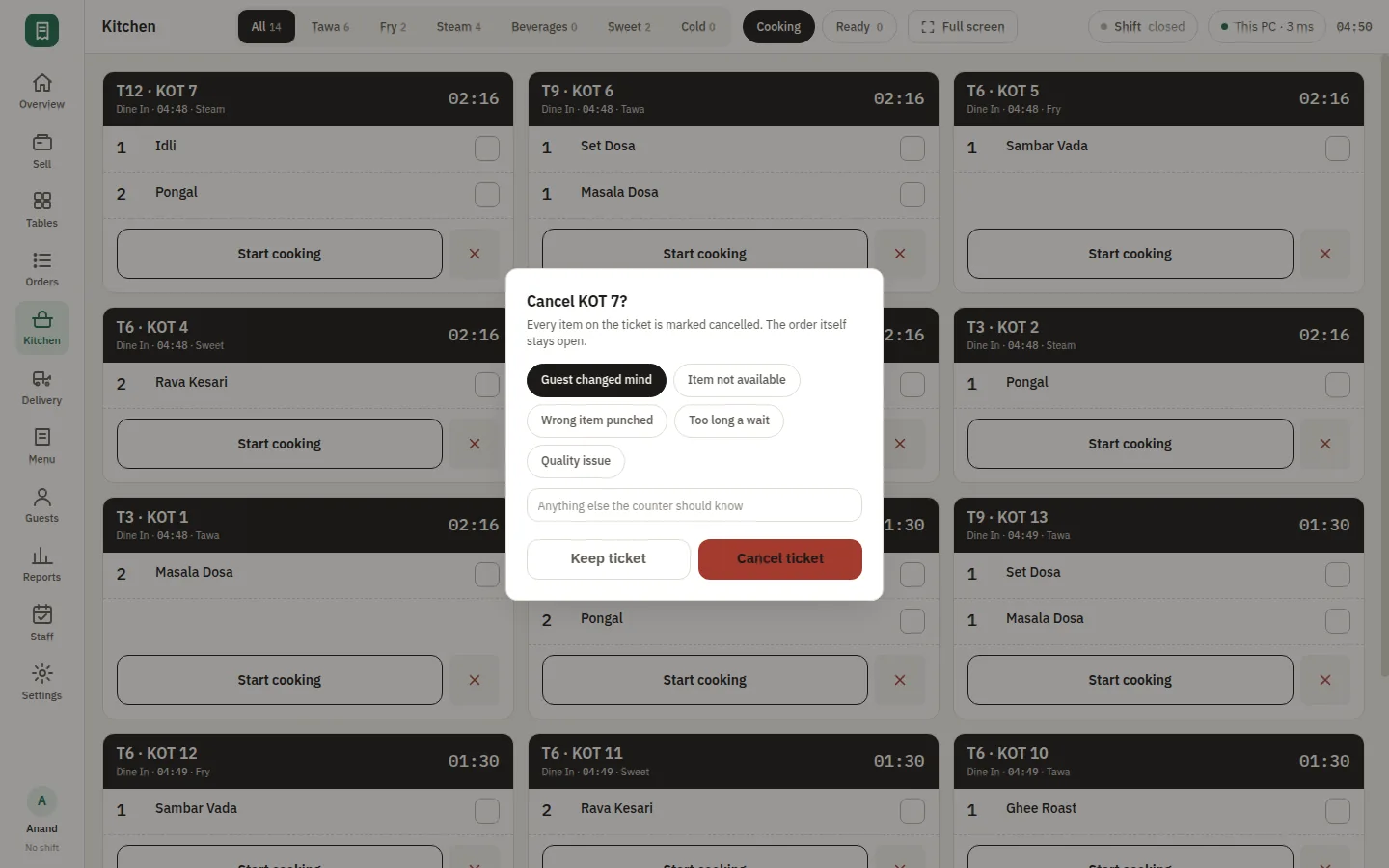
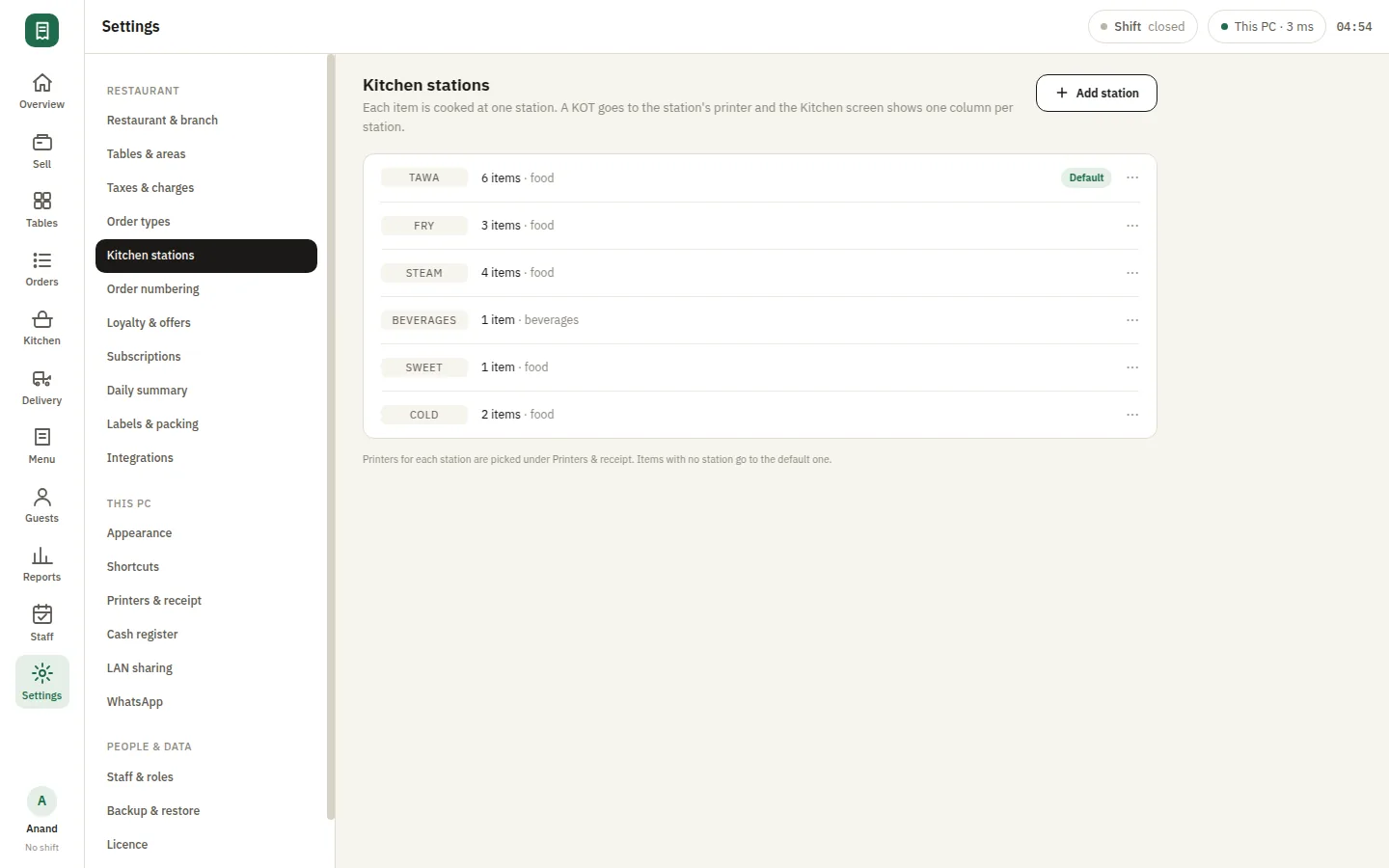
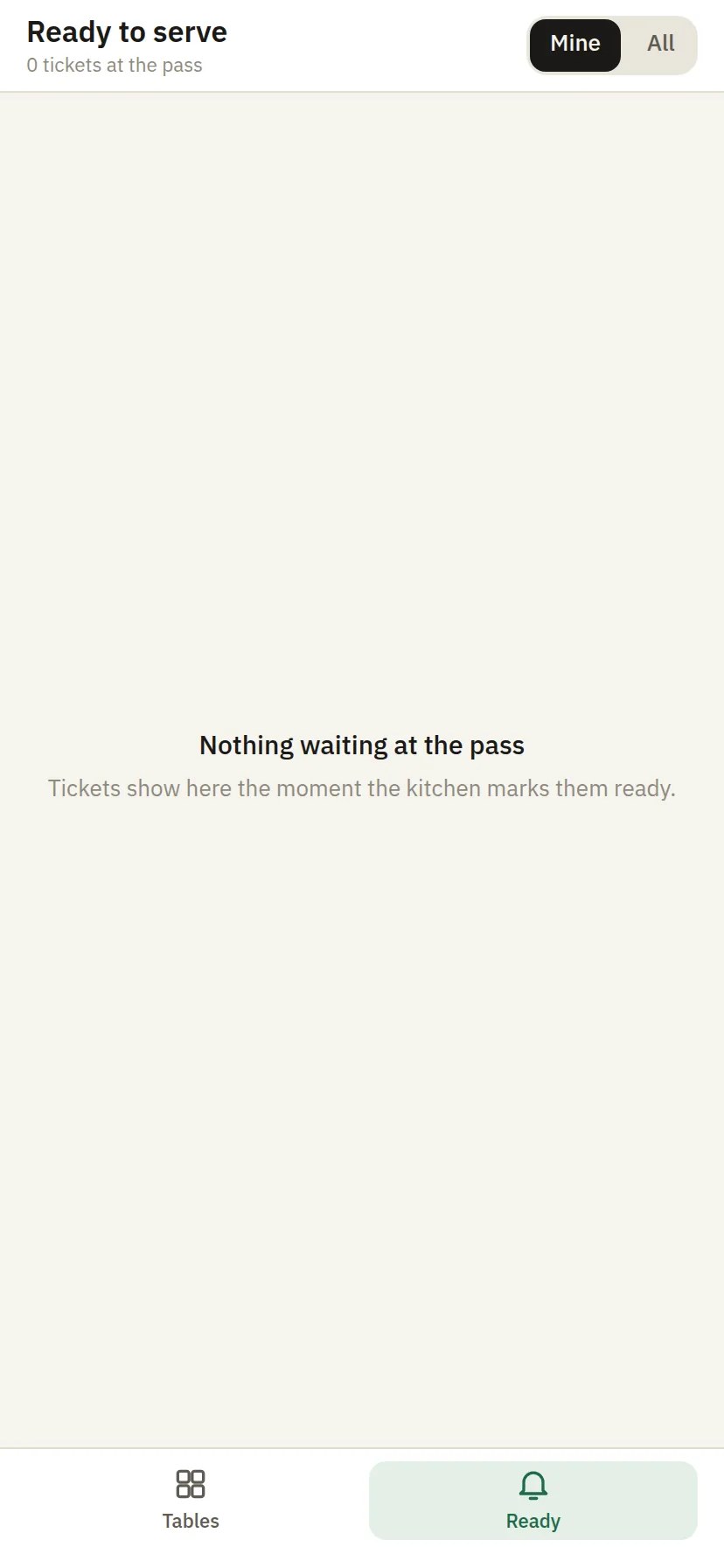
Tickets land on a kitchen display the moment the KOT is sent, grouped by station so the tandoor and the curry section each see their own work. Marking a ticket ready tells the counter without anyone shouting across the pass. The screen runs on any tablet or old monitor on your own Wi-Fi with no internet, so a kitchen display costs you a spare device rather than a subscription.

  • Live tickets grouped per station
  • Mark ready without shouting across the pass
  • Runs on any spare tablet over your Wi-Fi

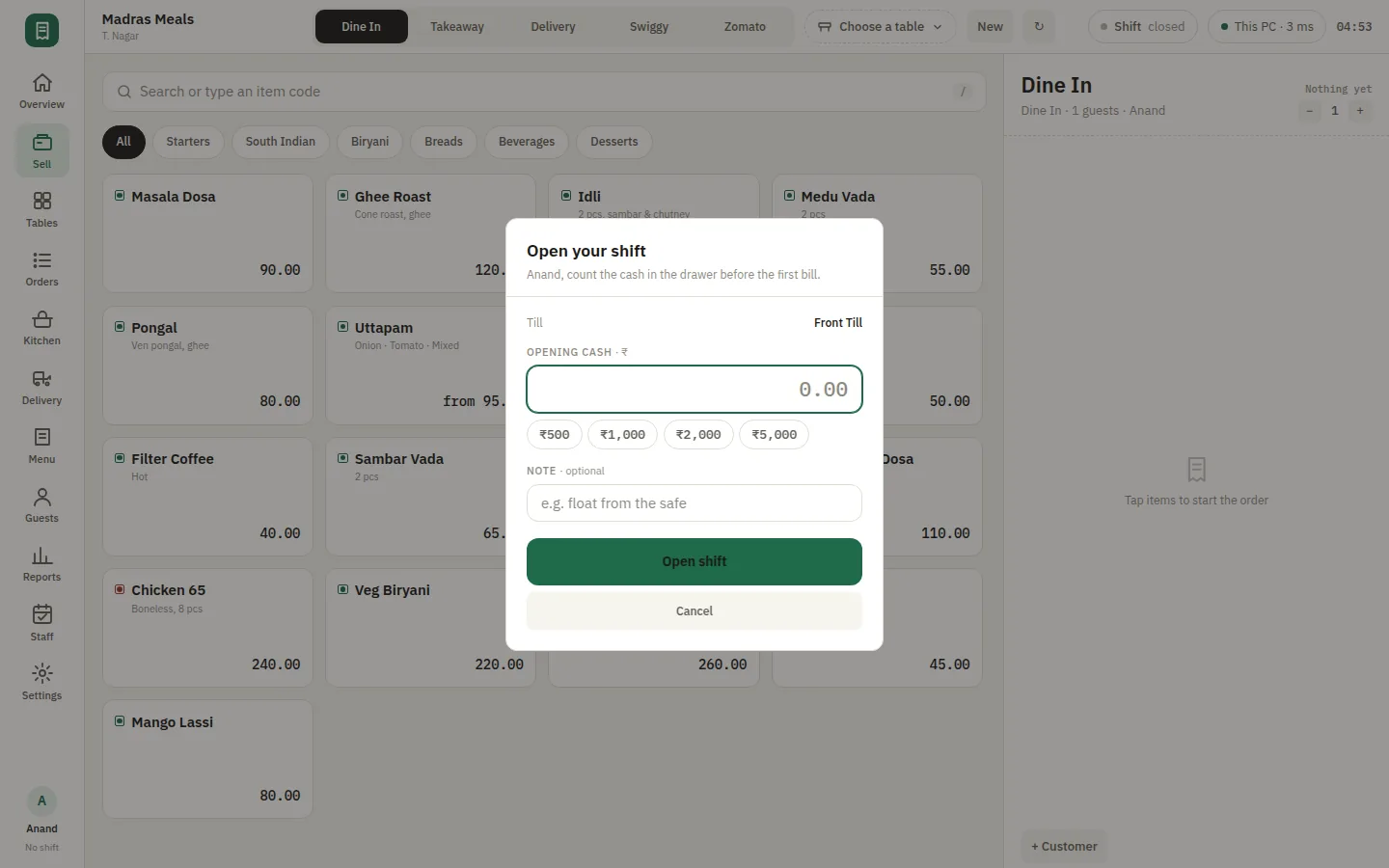
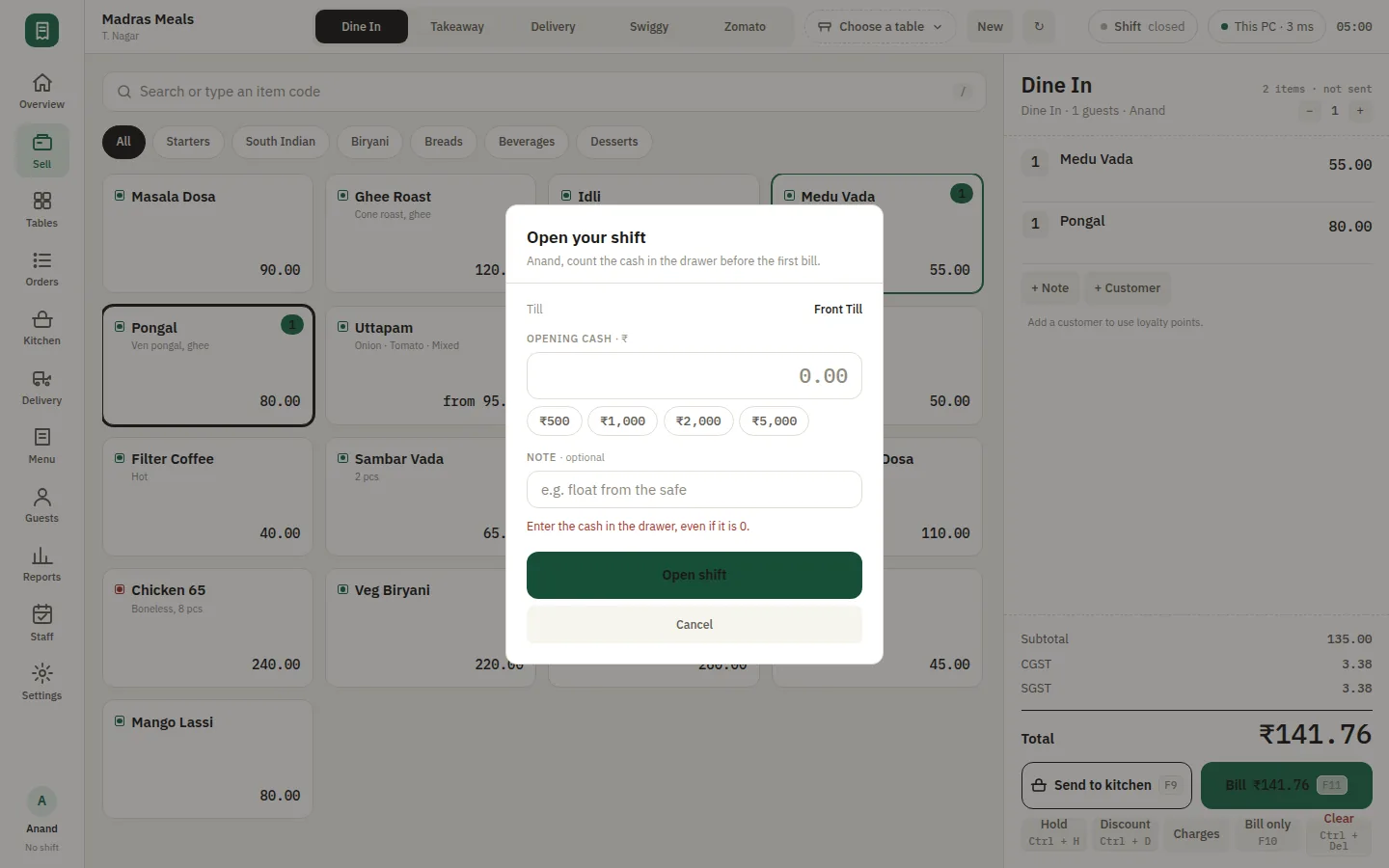
A till that balances at the end of the night

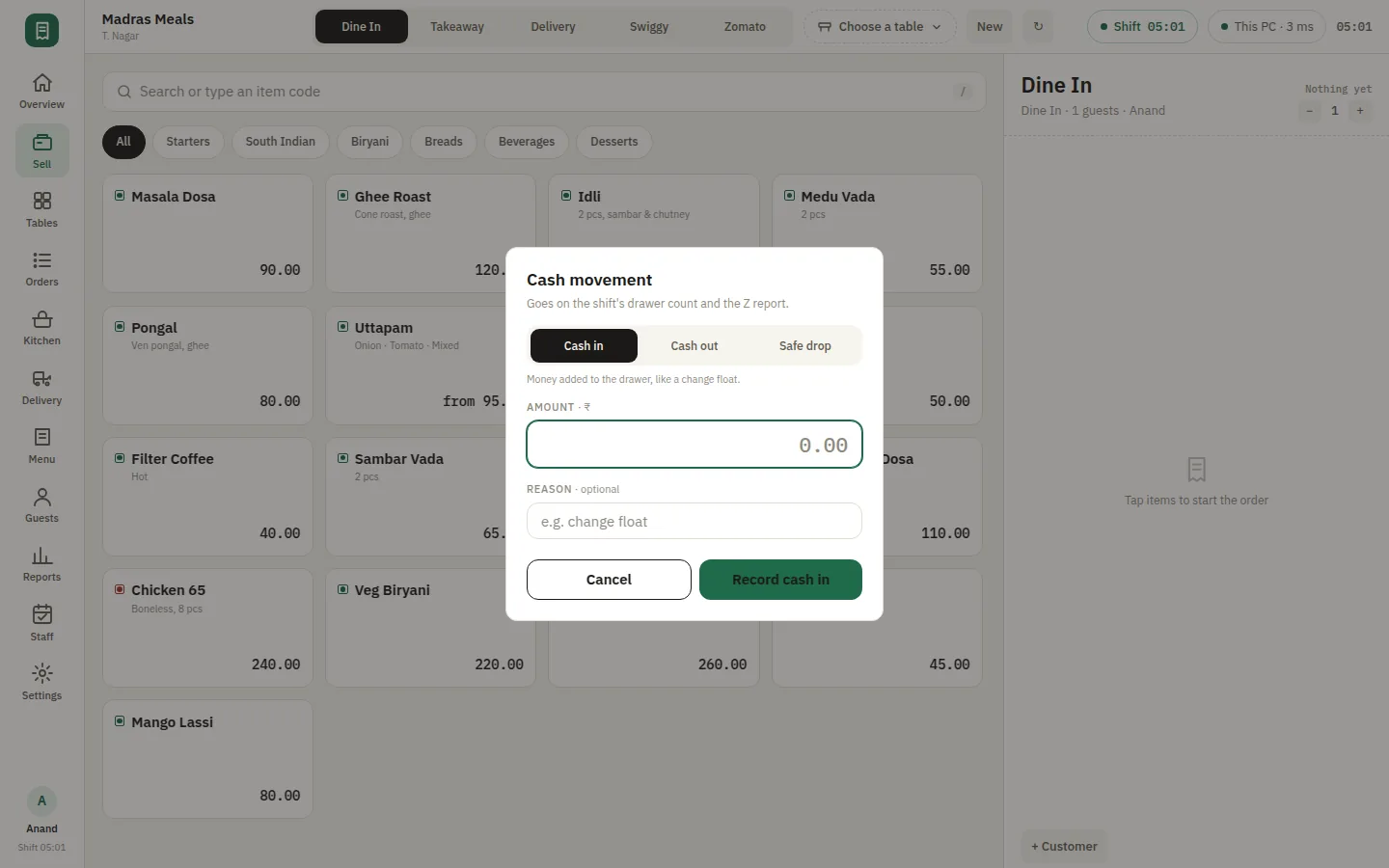
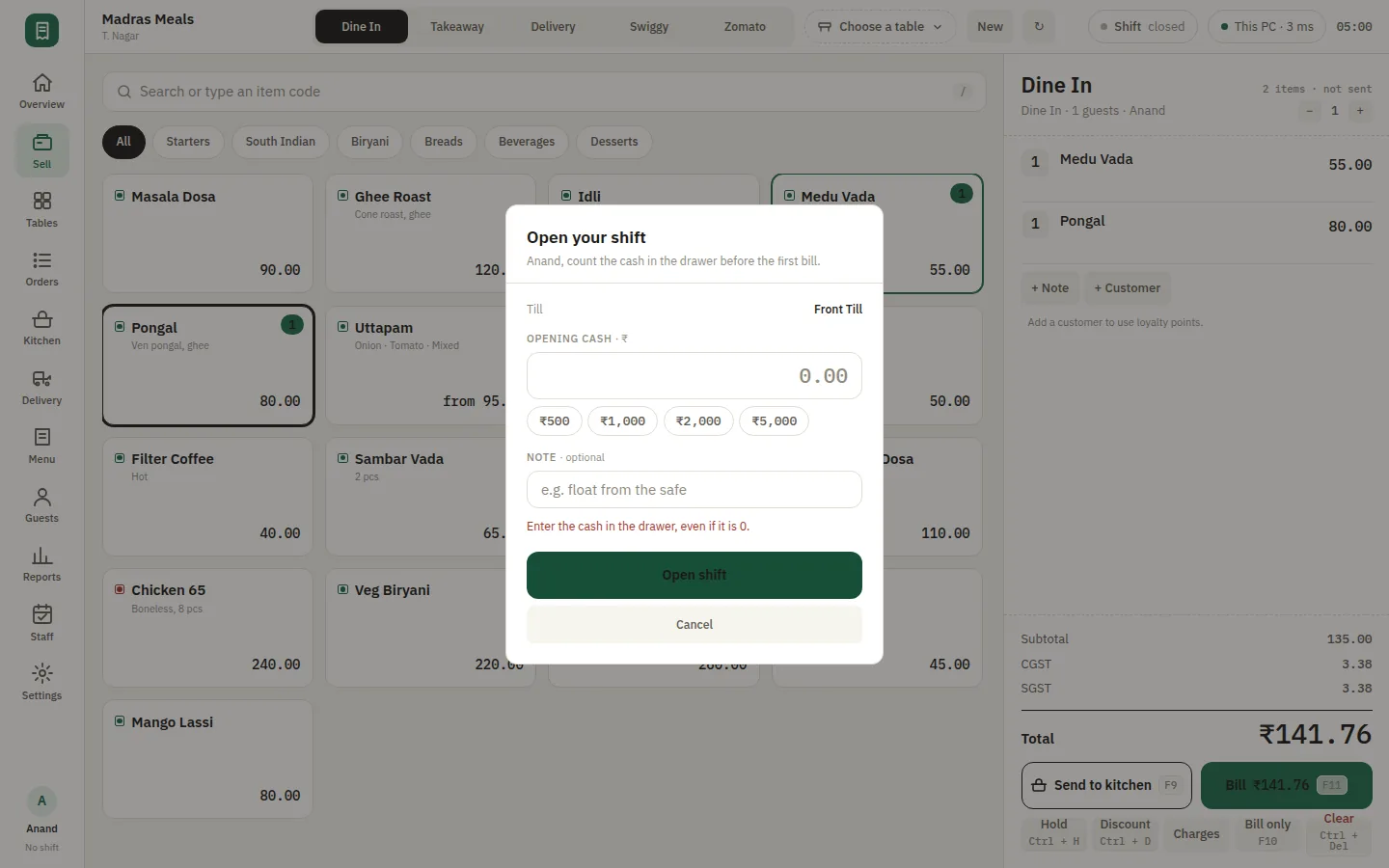
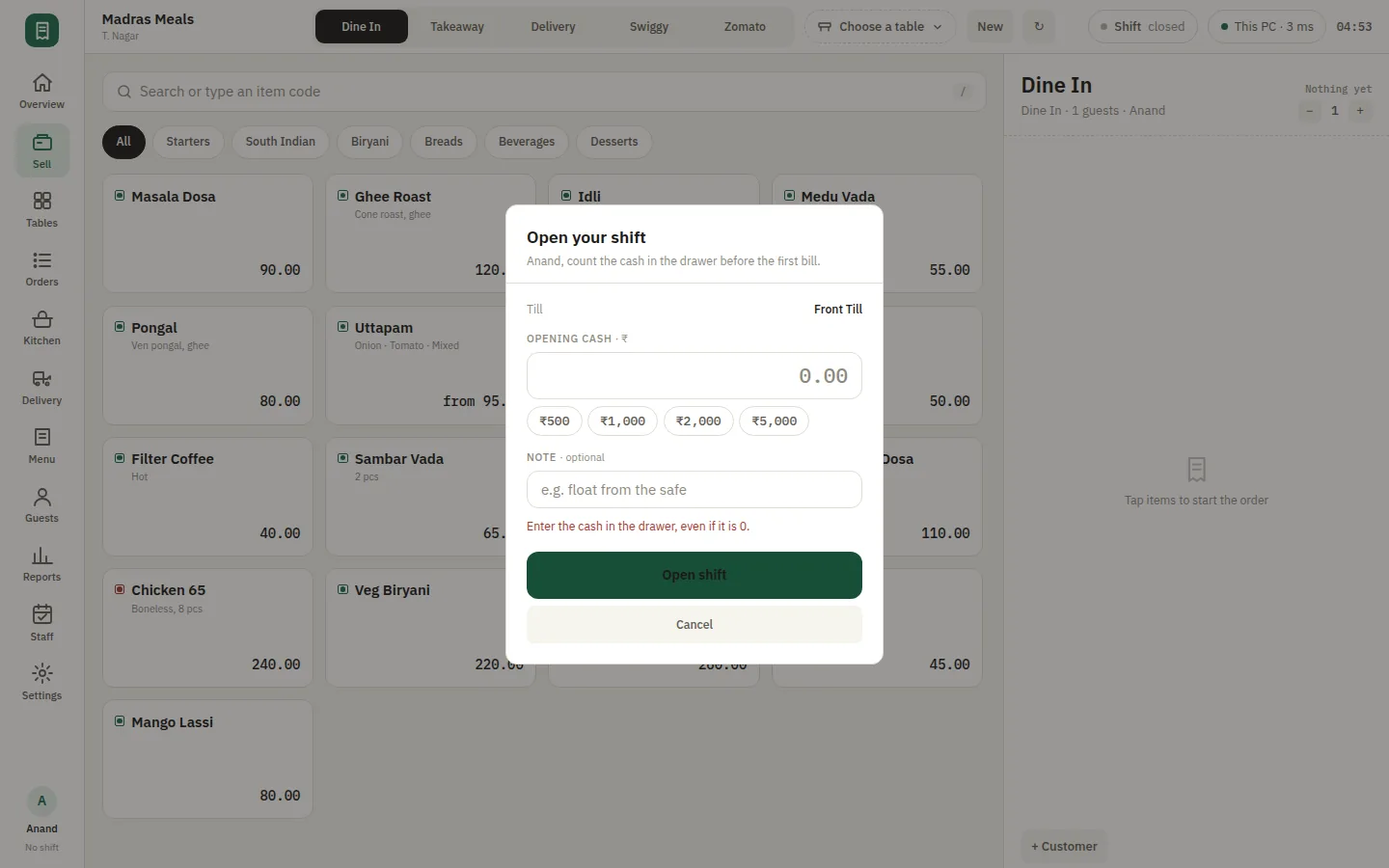
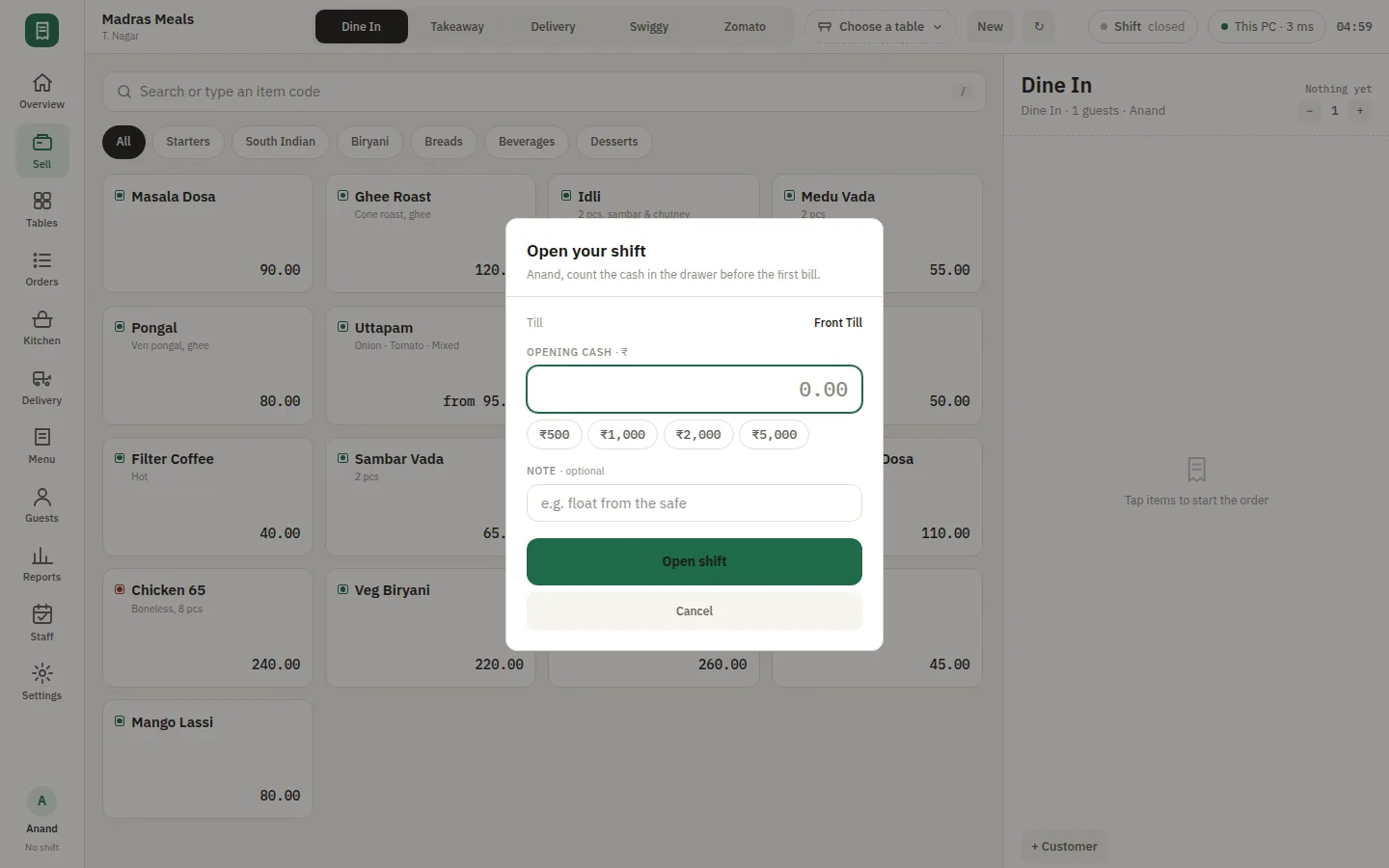
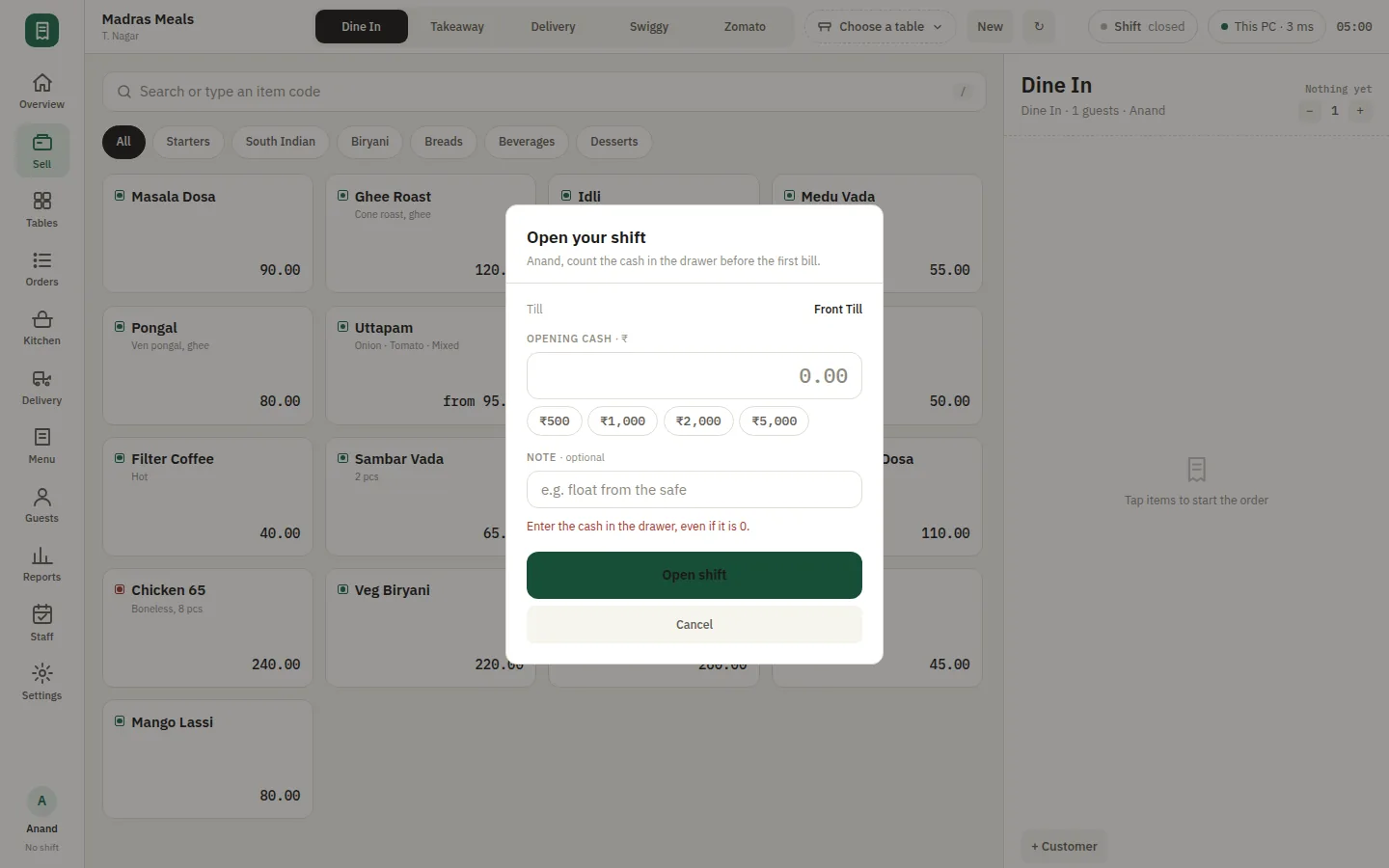
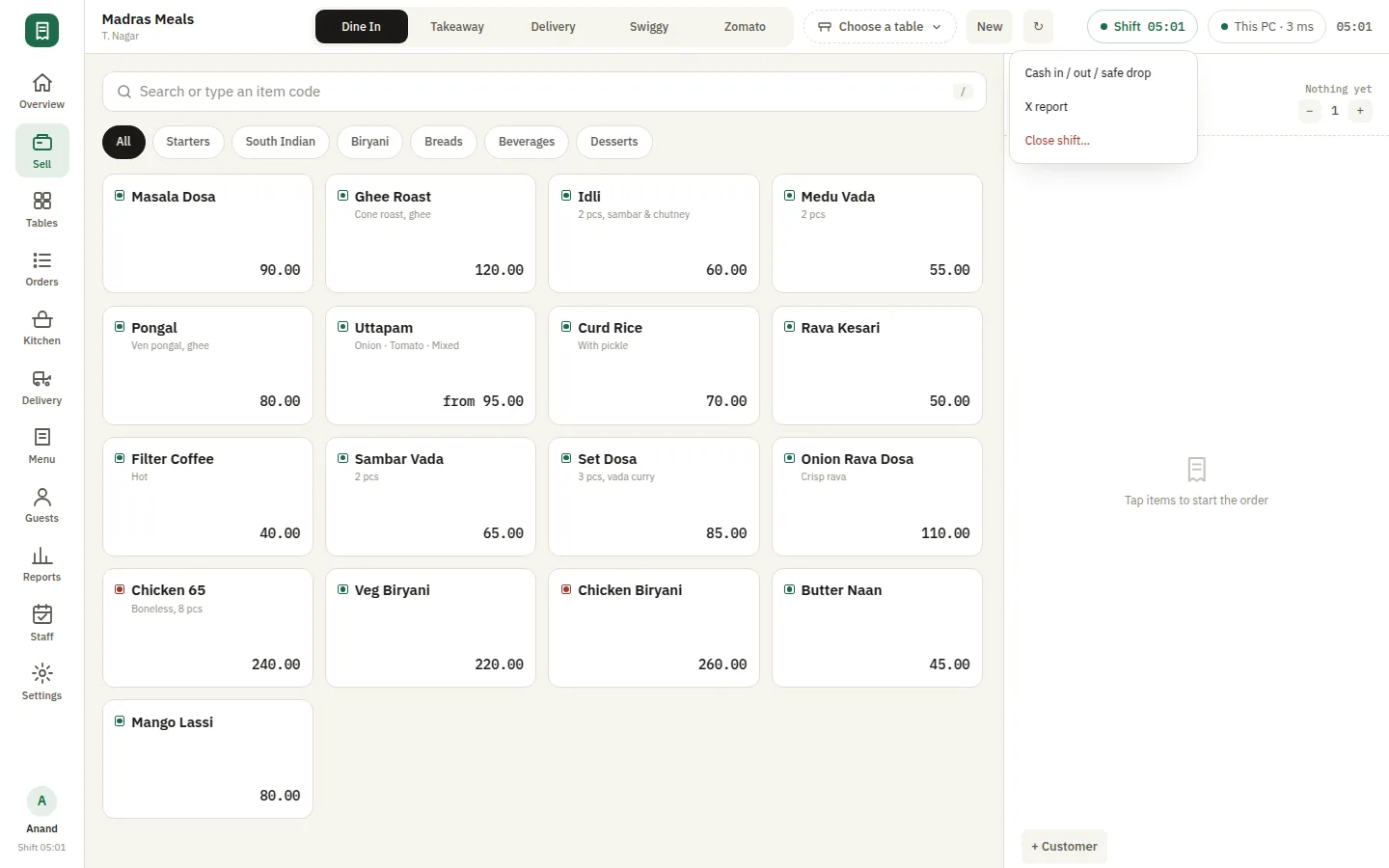
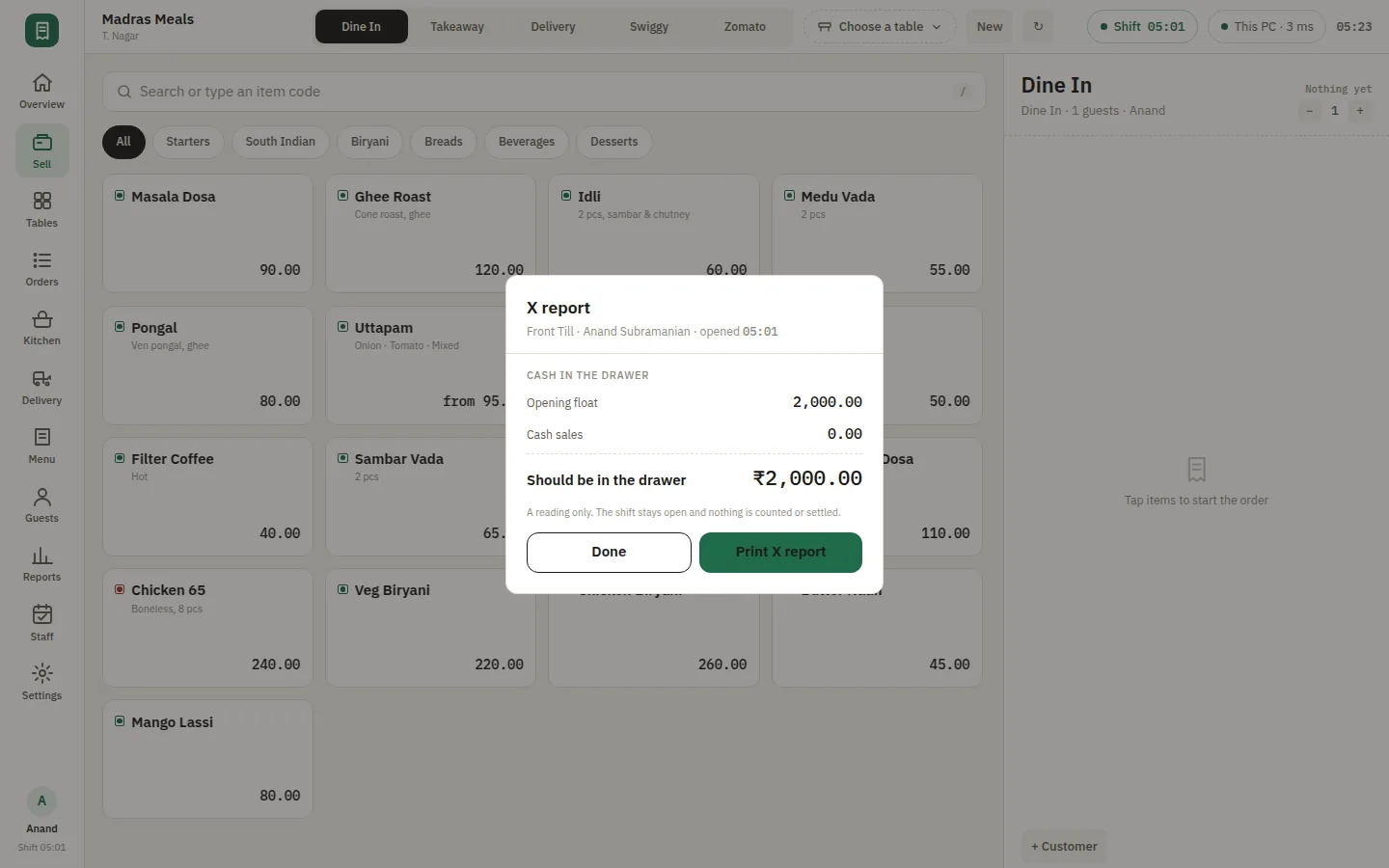
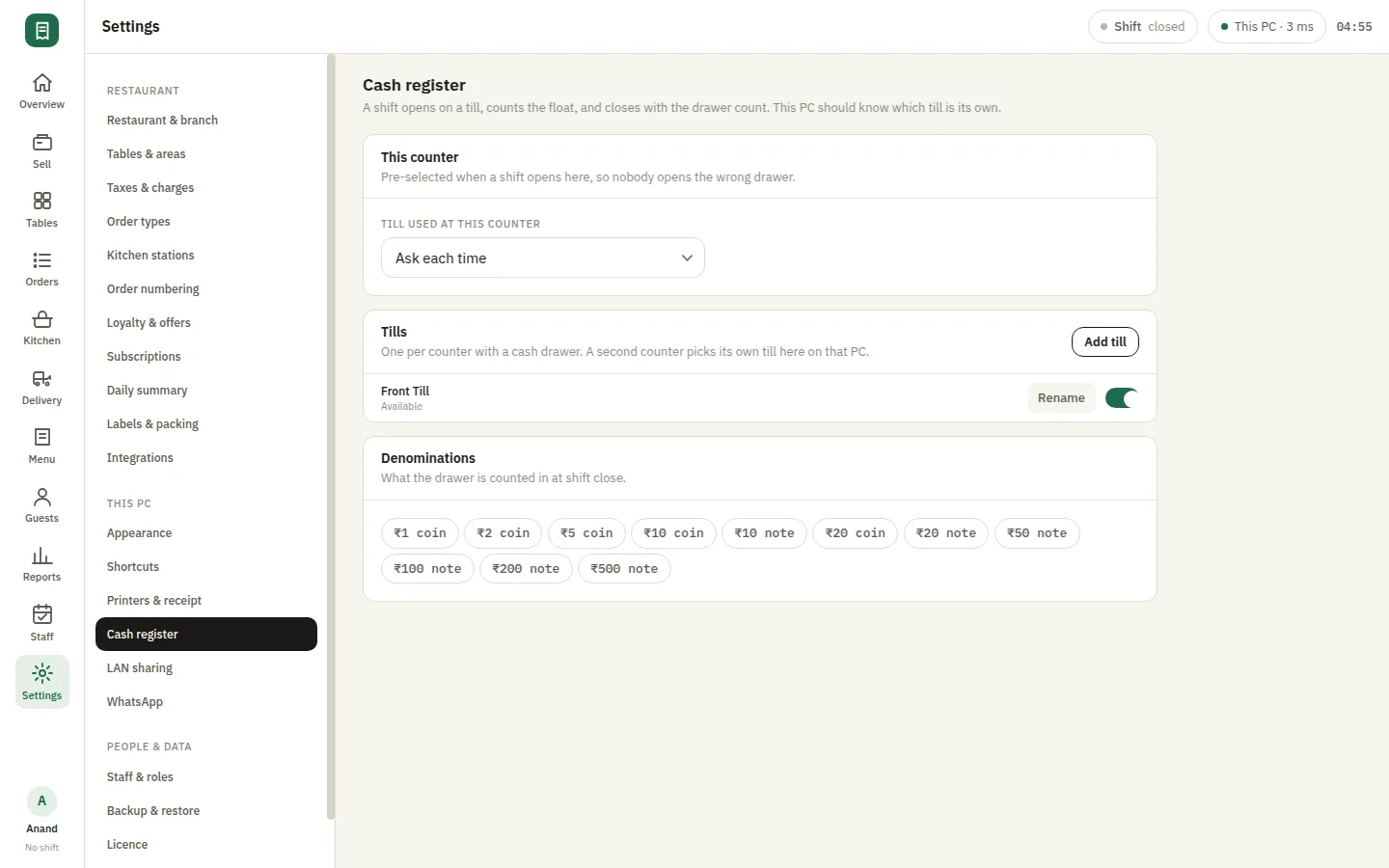
Open the shift with a float, record cash in and cash out against a reason as the day goes, and close with a count that has something to check against. The X report shows where the till stands mid-shift without closing it; the Z report closes the day. Because every movement is logged against the staff member who made it, a short drawer is a question with an answer rather than an argument.

  • Open with a float, close with a count
  • Cash in and out against a reason
  • X report mid-shift, Z report at day end
SmartPOS Cash register — Shift cash in
SmartPOS Guests — Guests list

Regulars the counter actually remembers

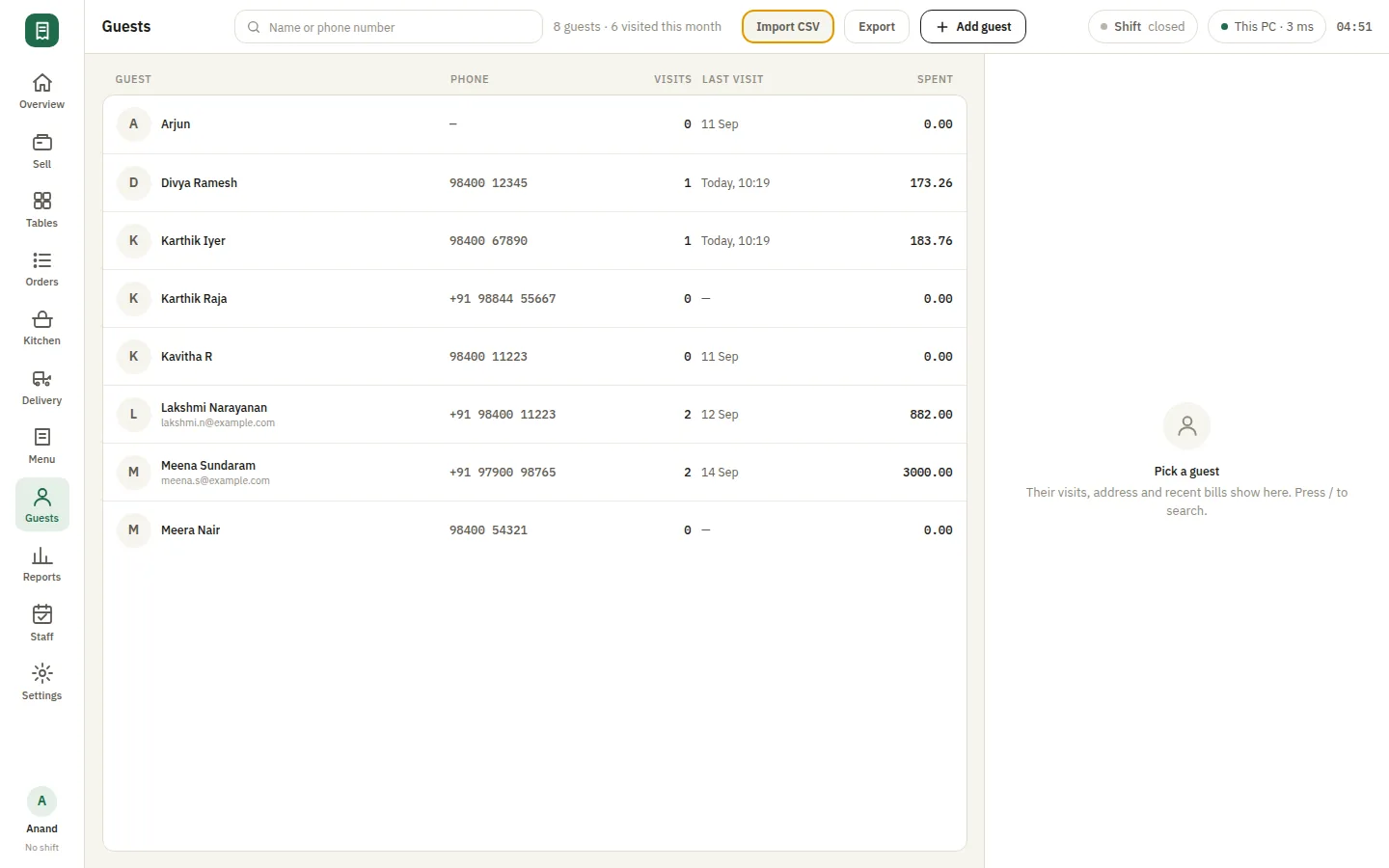
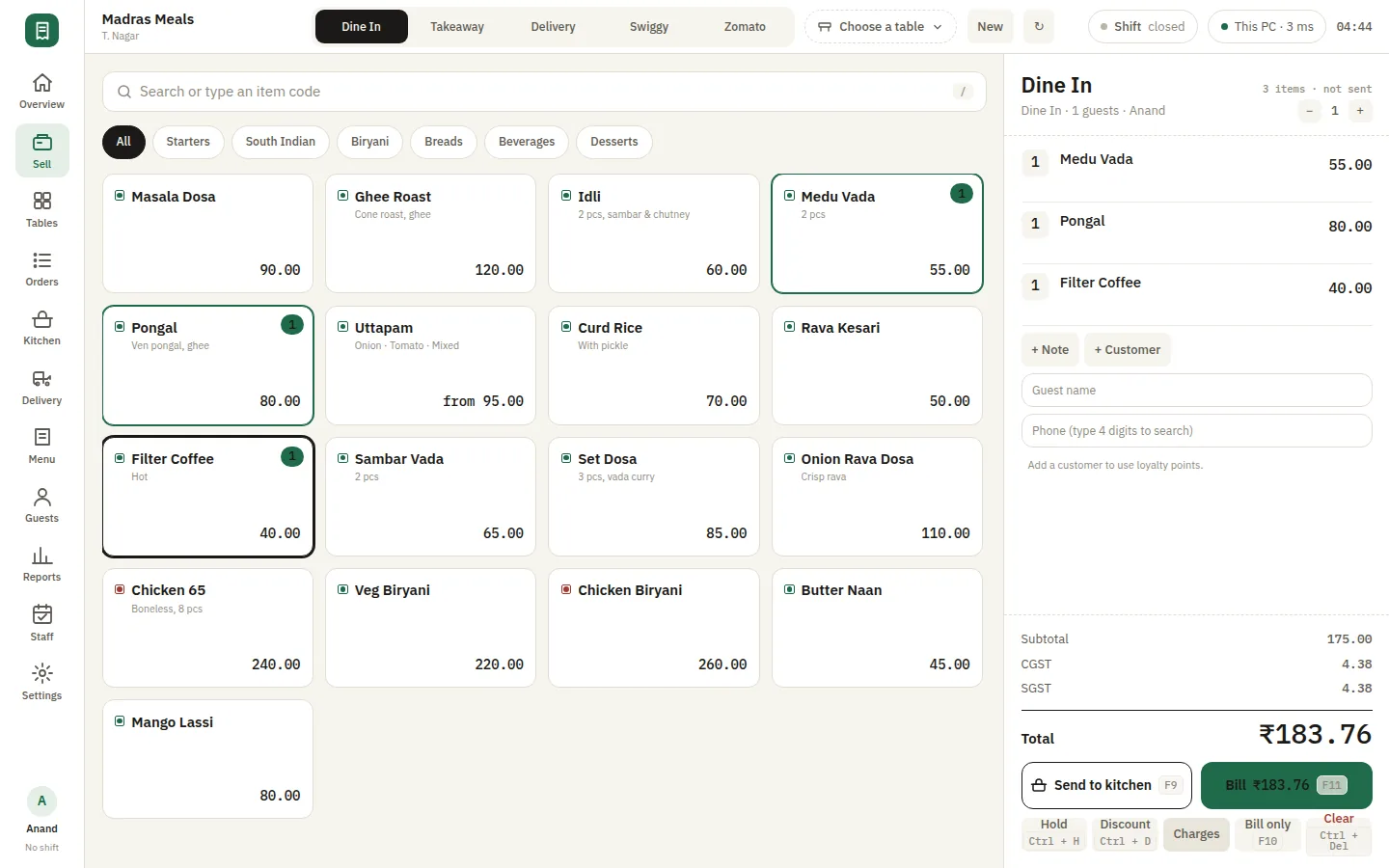
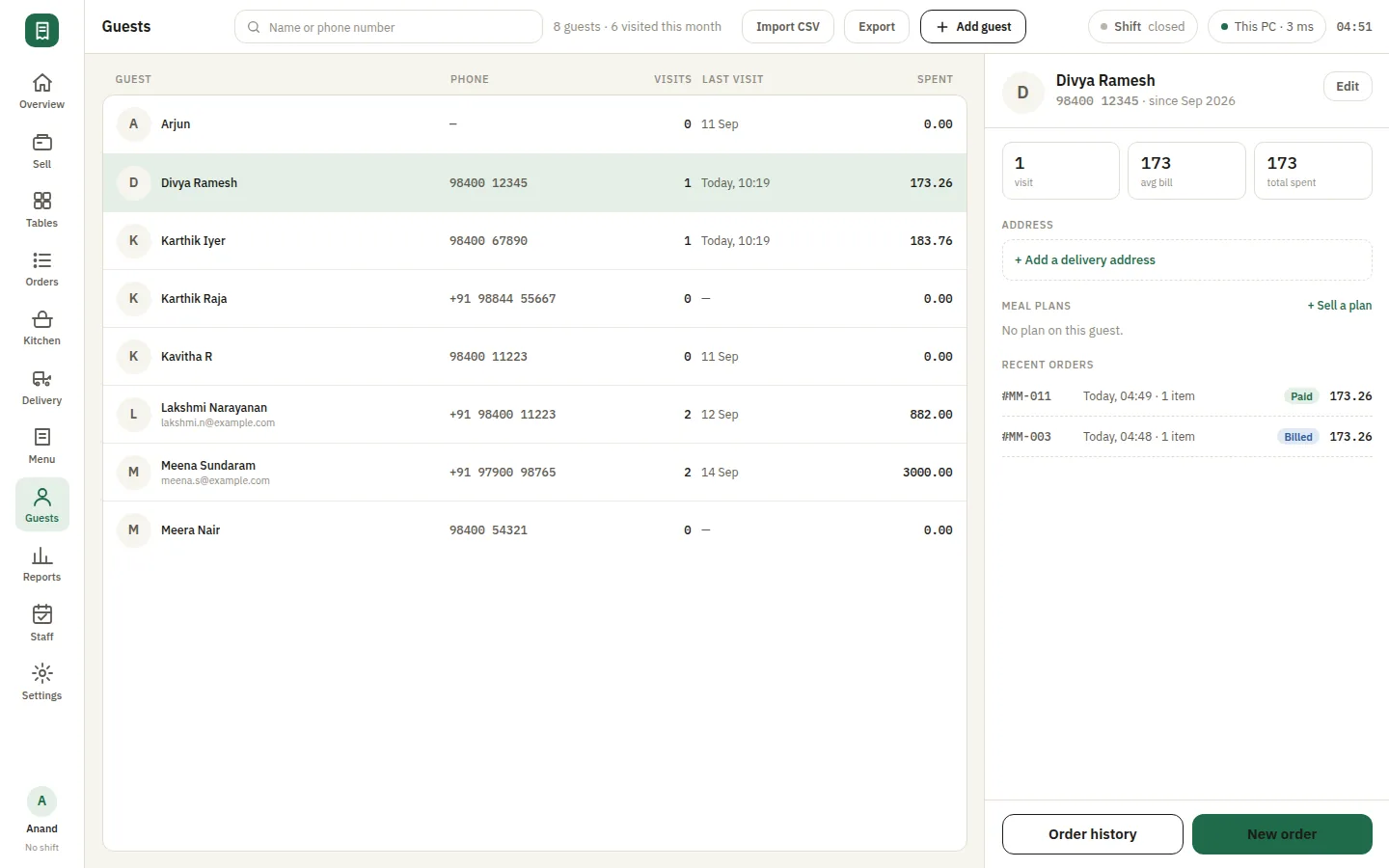
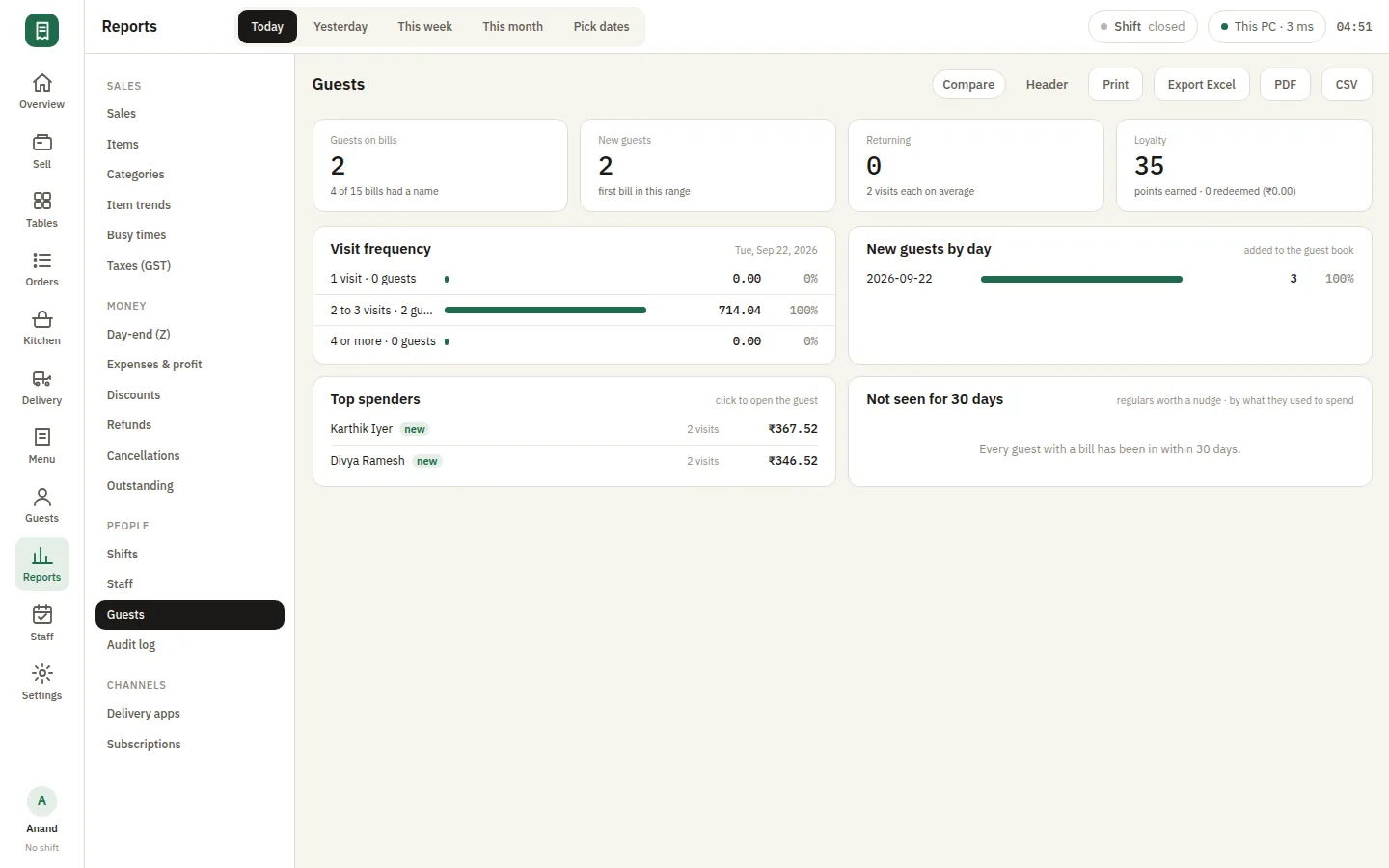
Keep customer records with phone numbers, addresses and the orders they have placed, so a regular does not have to explain themselves each visit. Pull a guest onto a bill to attach the order to their history, issue a credit note, or look back at what somebody usually orders before they ask. The whole customer list lives on your own machine, which matters when it is the most valuable thing your restaurant has.

  • Phone, address and full order history
  • Pull a guest onto a bill in one tap
  • Credit notes against the guest record

Points and stamps, redeemed at the counter

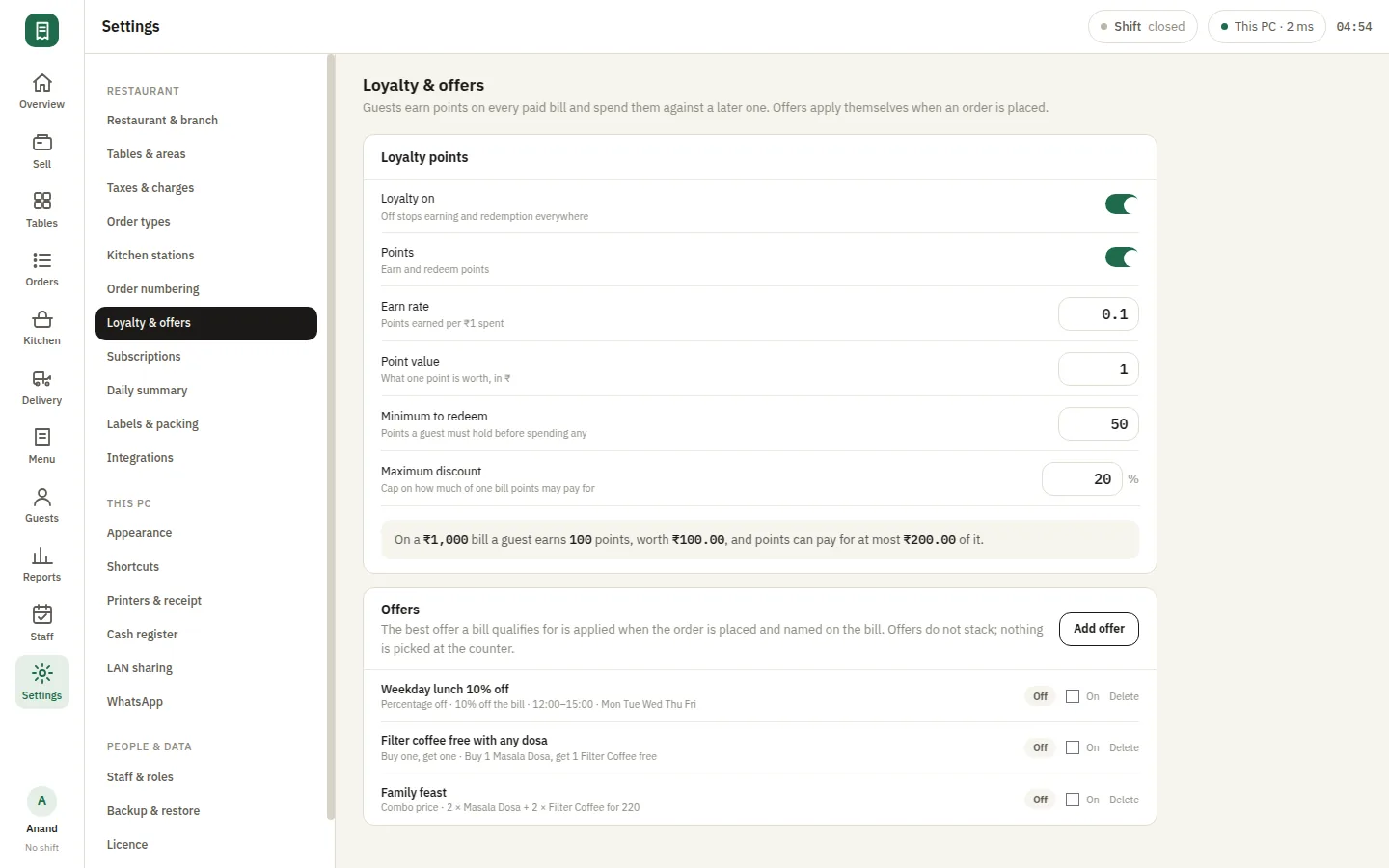
Run a loyalty scheme without handing your customer list to a third party. Points accrue against a guest's spend, or stamps against visits, and both redeem at the counter as part of an ordinary settlement. Because loyalty is configured on the same PC that holds the guest records, there is no sync to fail and no per-customer fee — the scheme is yours, and so is the data it runs on.

  • Points on spend or stamps on visits
  • Redeemed as part of an ordinary settlement
  • No per-customer fee and no third party
SmartPOS Loyalty — Settings loyalty offers
SmartPOS Offers — Sell discount

Discounts you control, recorded where you can see them

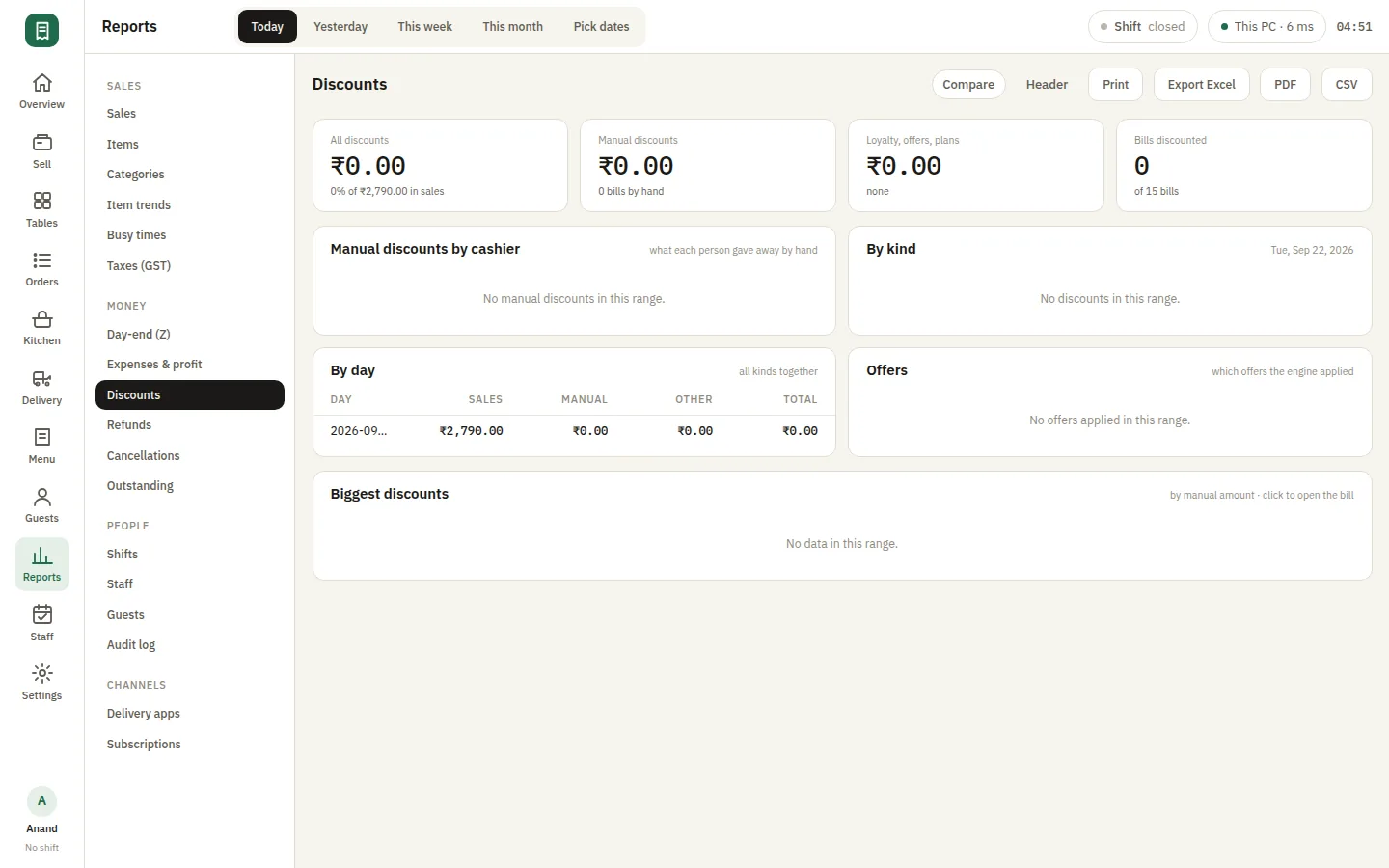
Apply a percentage or a flat discount to a bill, or run a promotional offer over a period, with the reason captured rather than lost in a manual price edit. Every discount lands in the discounts report, so what you gave away this month is a number you can look at instead of a feeling. Offers are set once and applied by any cashier without needing a manager at the terminal.

  • Percentage or flat discount on a bill
  • The reason captured, not a silent price edit
  • Everything lands in the discounts report

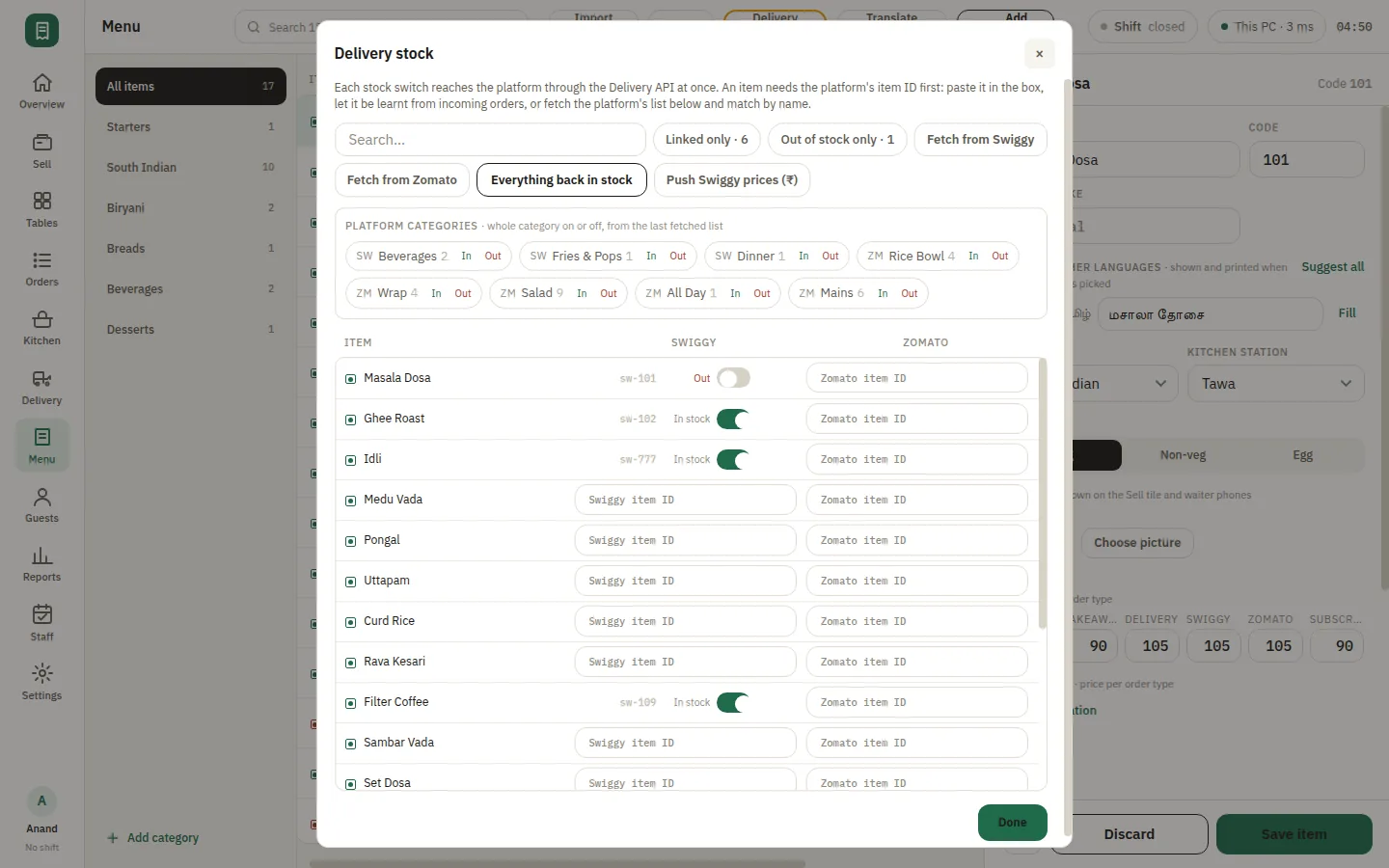
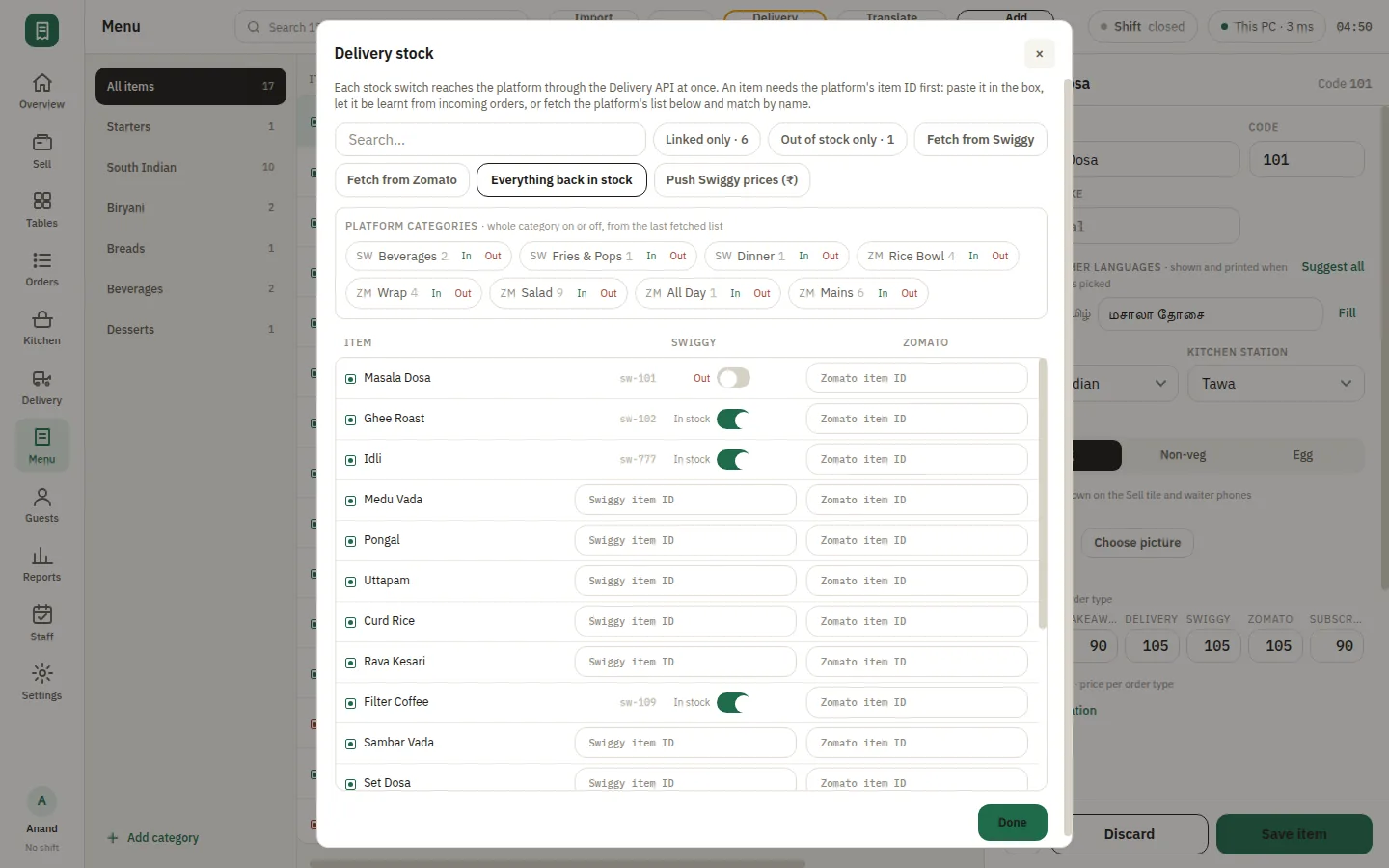
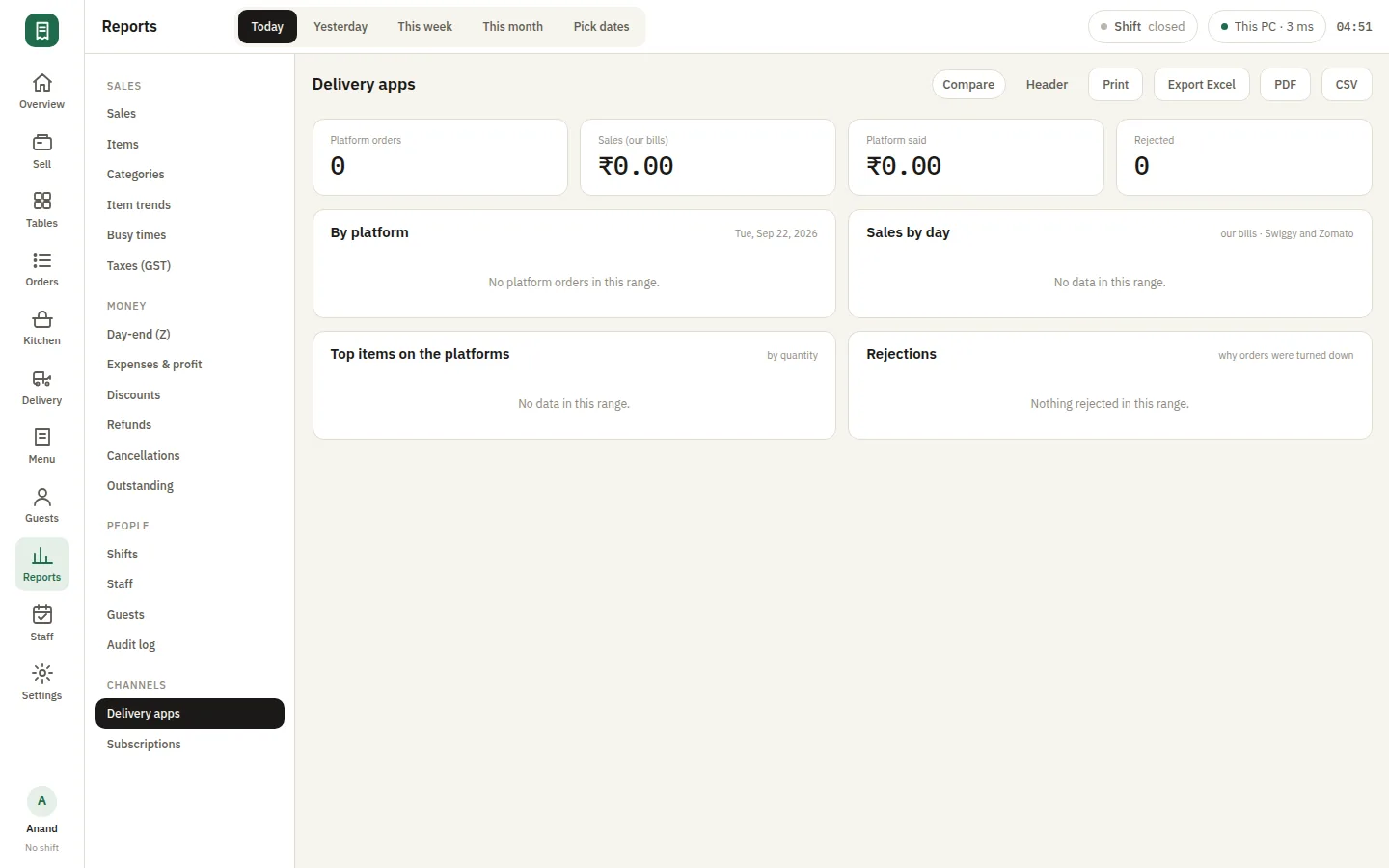
Swiggy and Zomato at the same counter

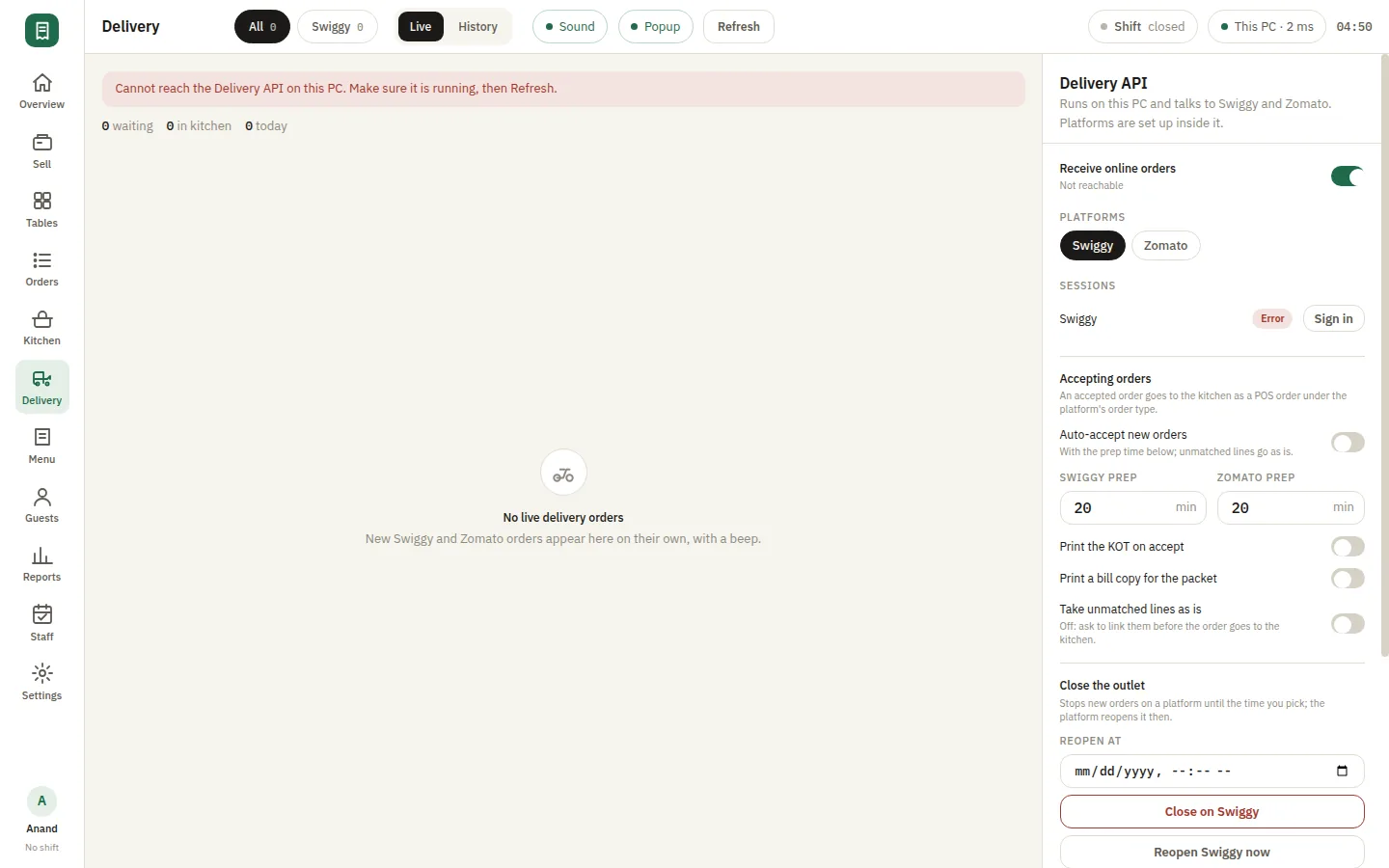
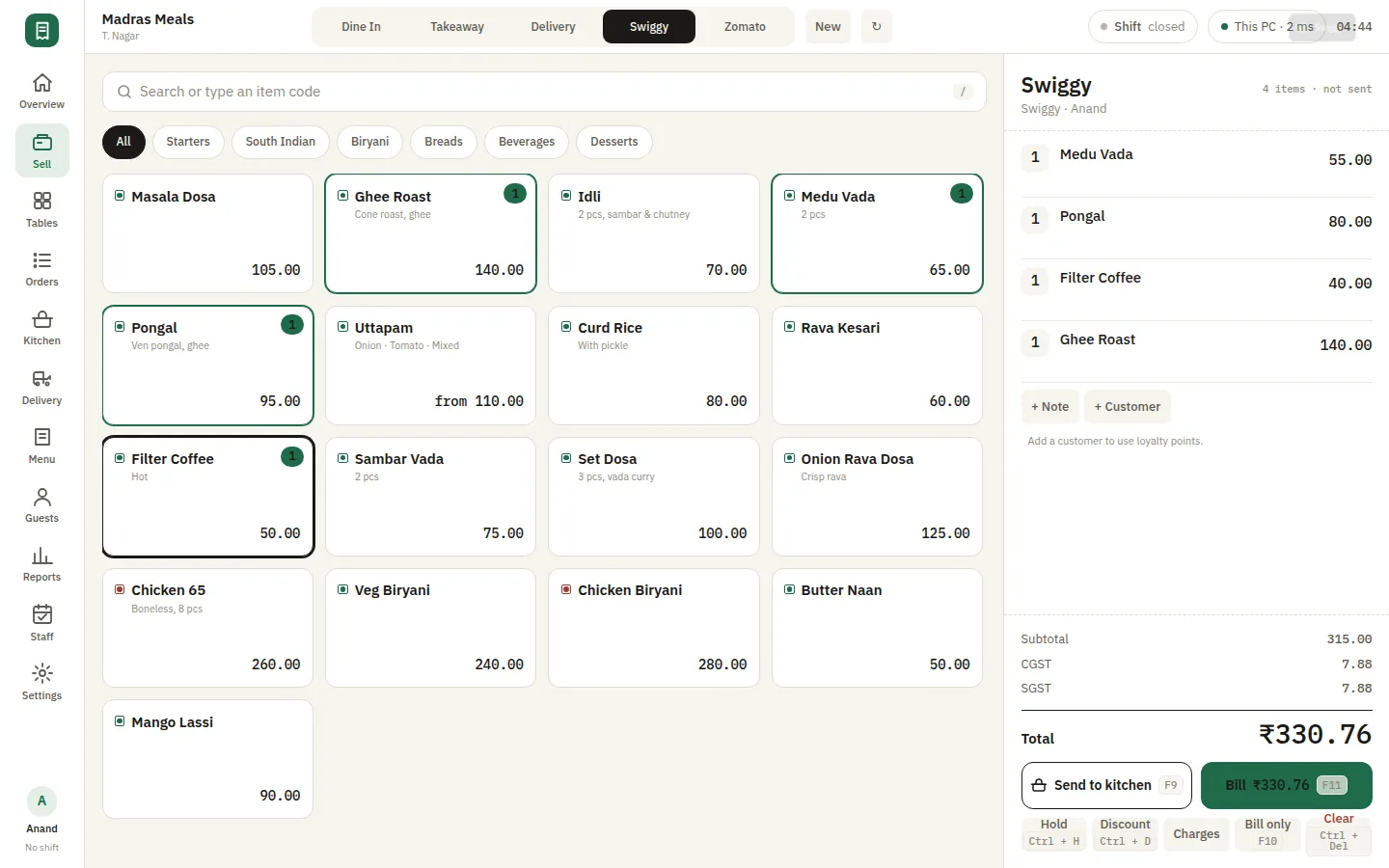
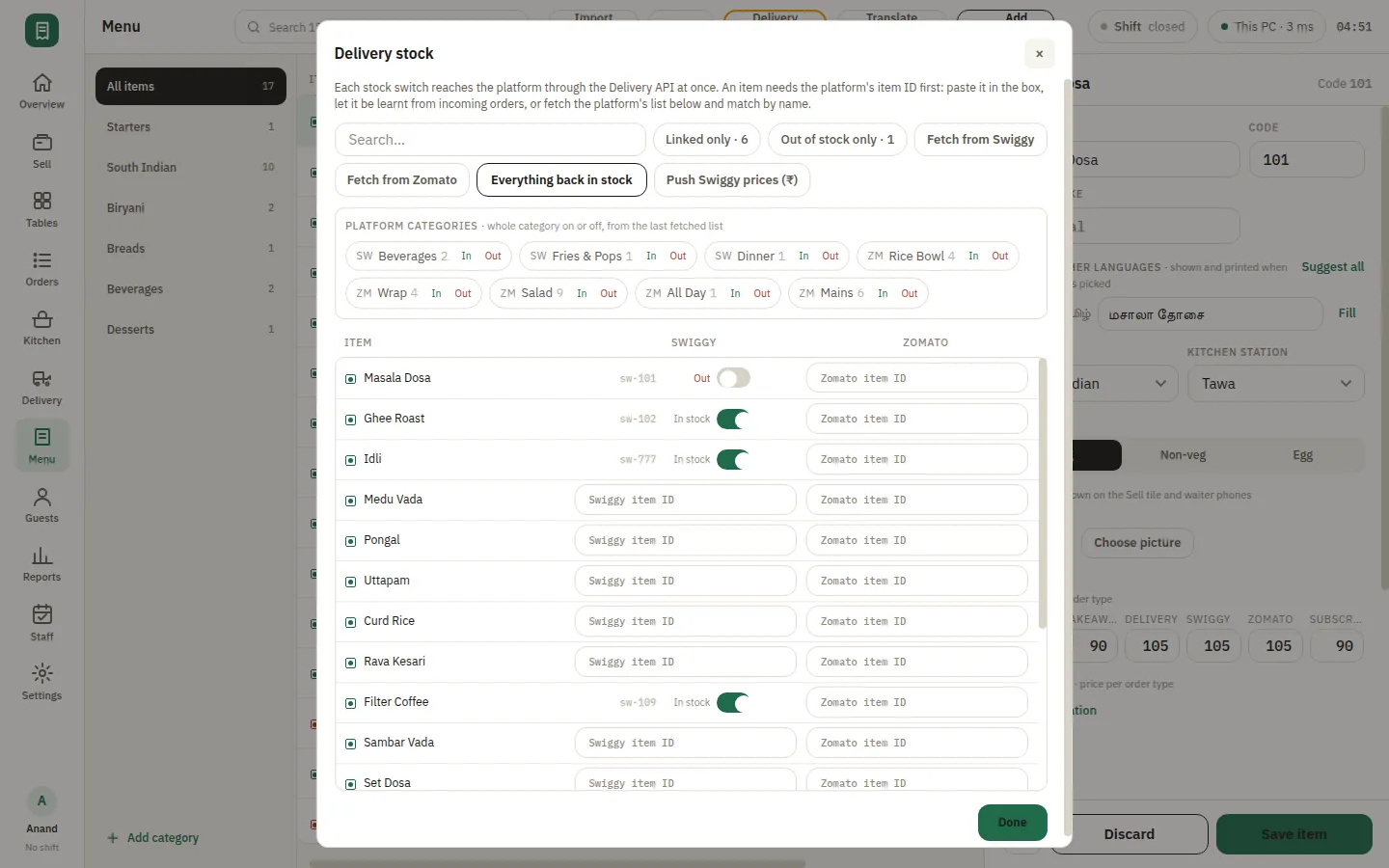
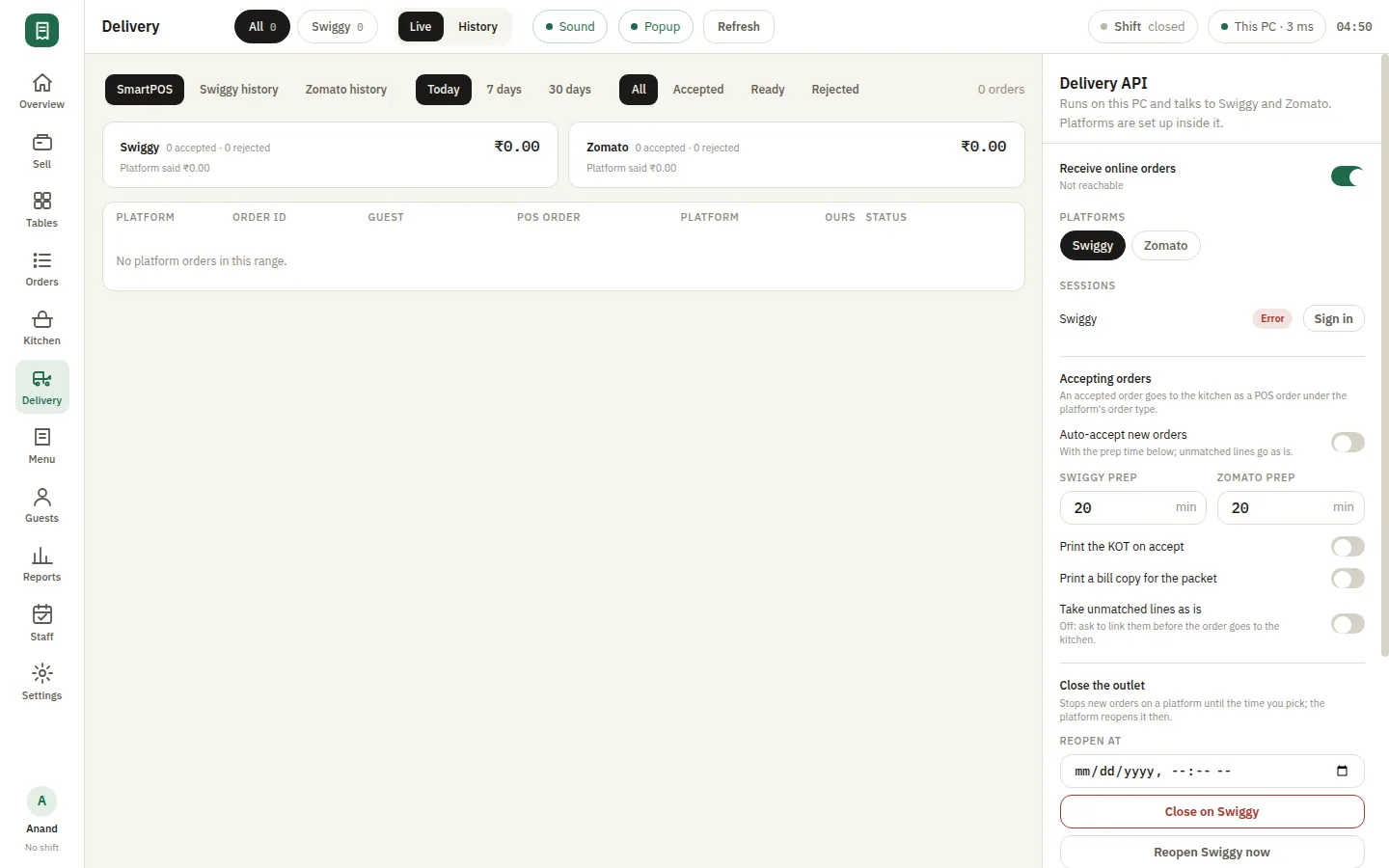
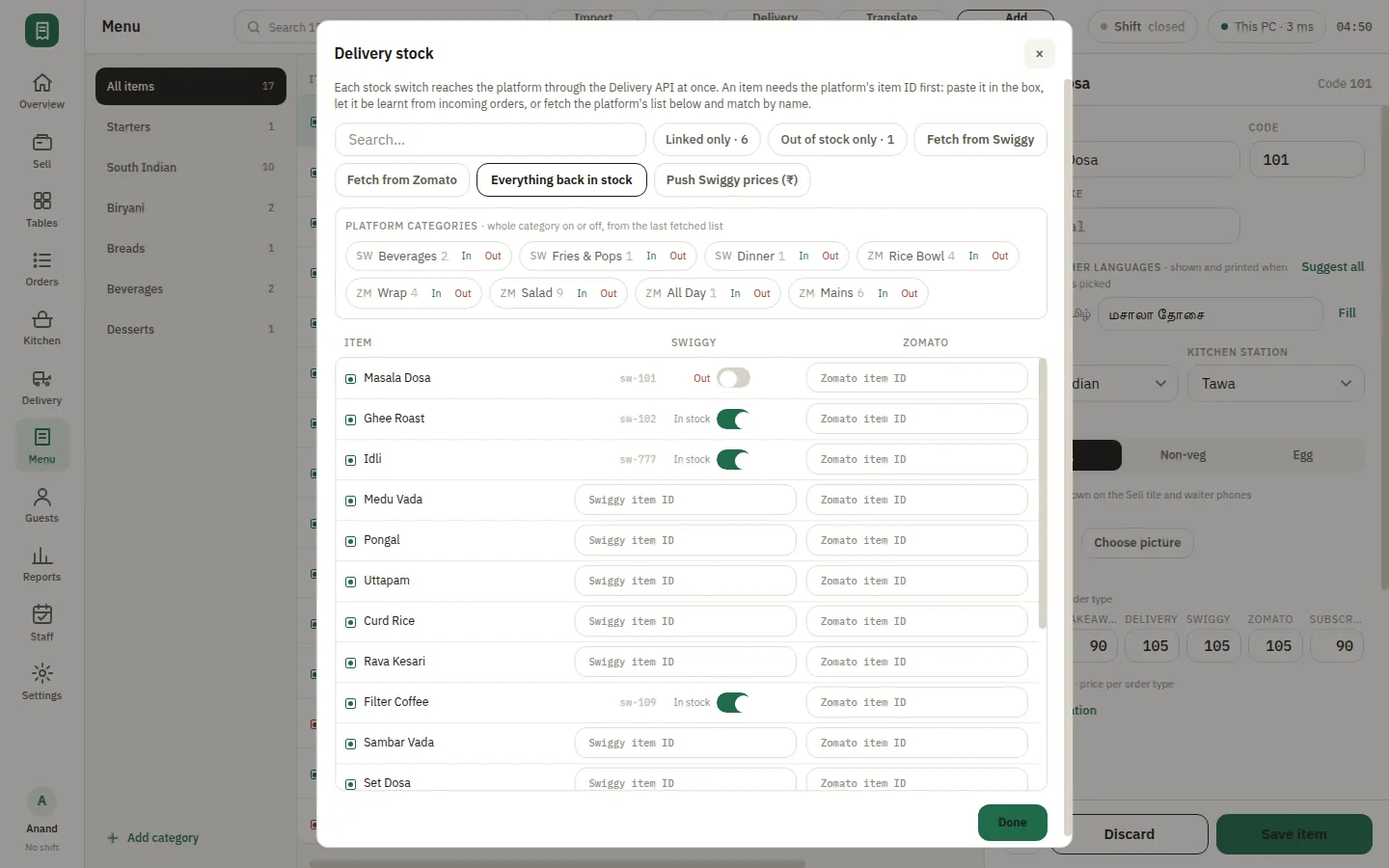
Aggregator orders arrive on the same screen as walk-ins, so the kitchen works one queue instead of watching three tablets. Live and past delivery orders are listed with their platform, and stock or price can be pulled from the apps without touching your counter menu. The delivery reports show what each platform is actually contributing. Online orders need the internet, as they must — billing carries on without it.

  • Swiggy and Zomato on the same screen as walk-ins
  • Hold stock or price back from the apps
  • Per-platform reporting
SmartPOS Delivery integration — Delivery live
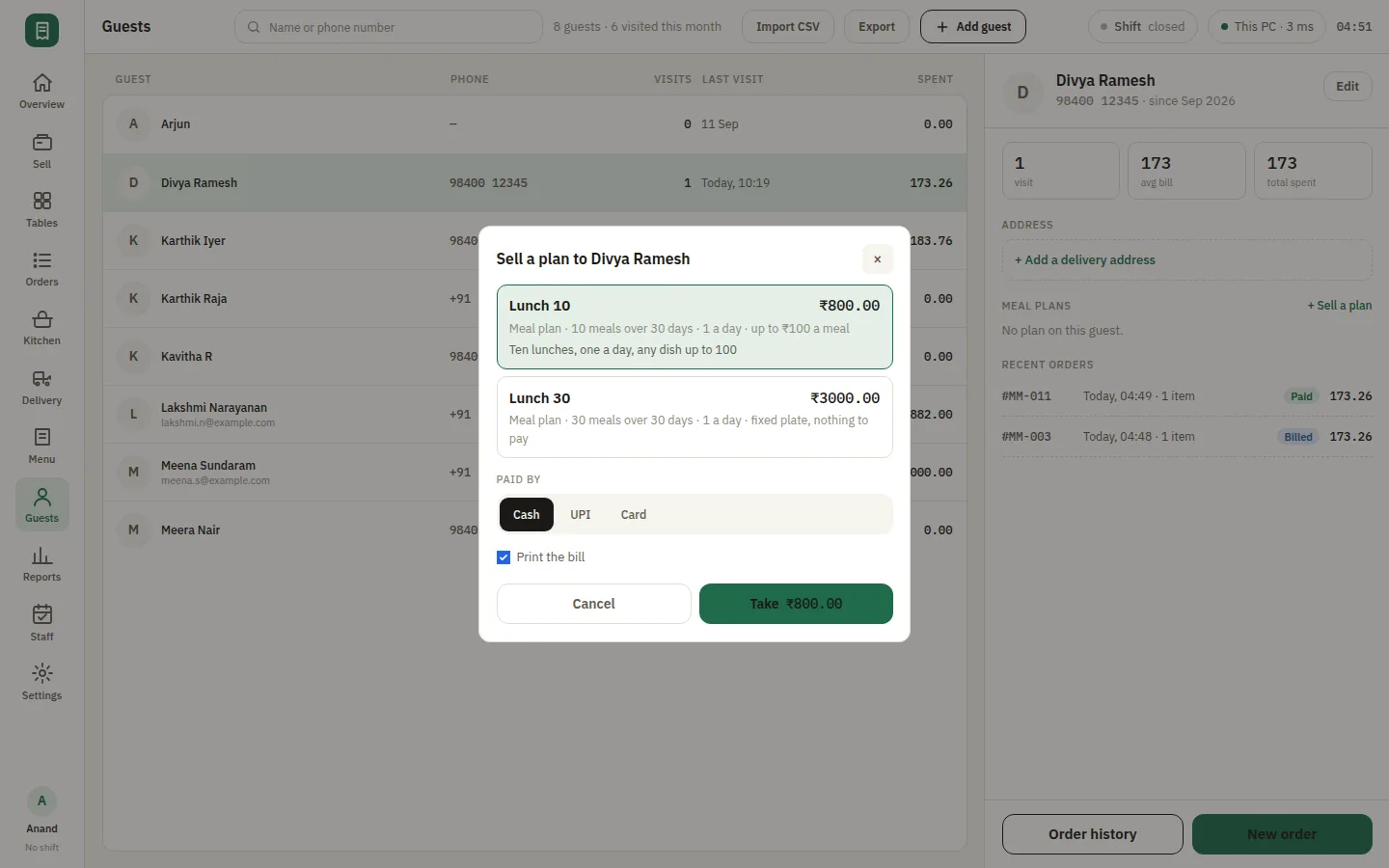
SmartPOS Food subscriptions — Guests sell plan

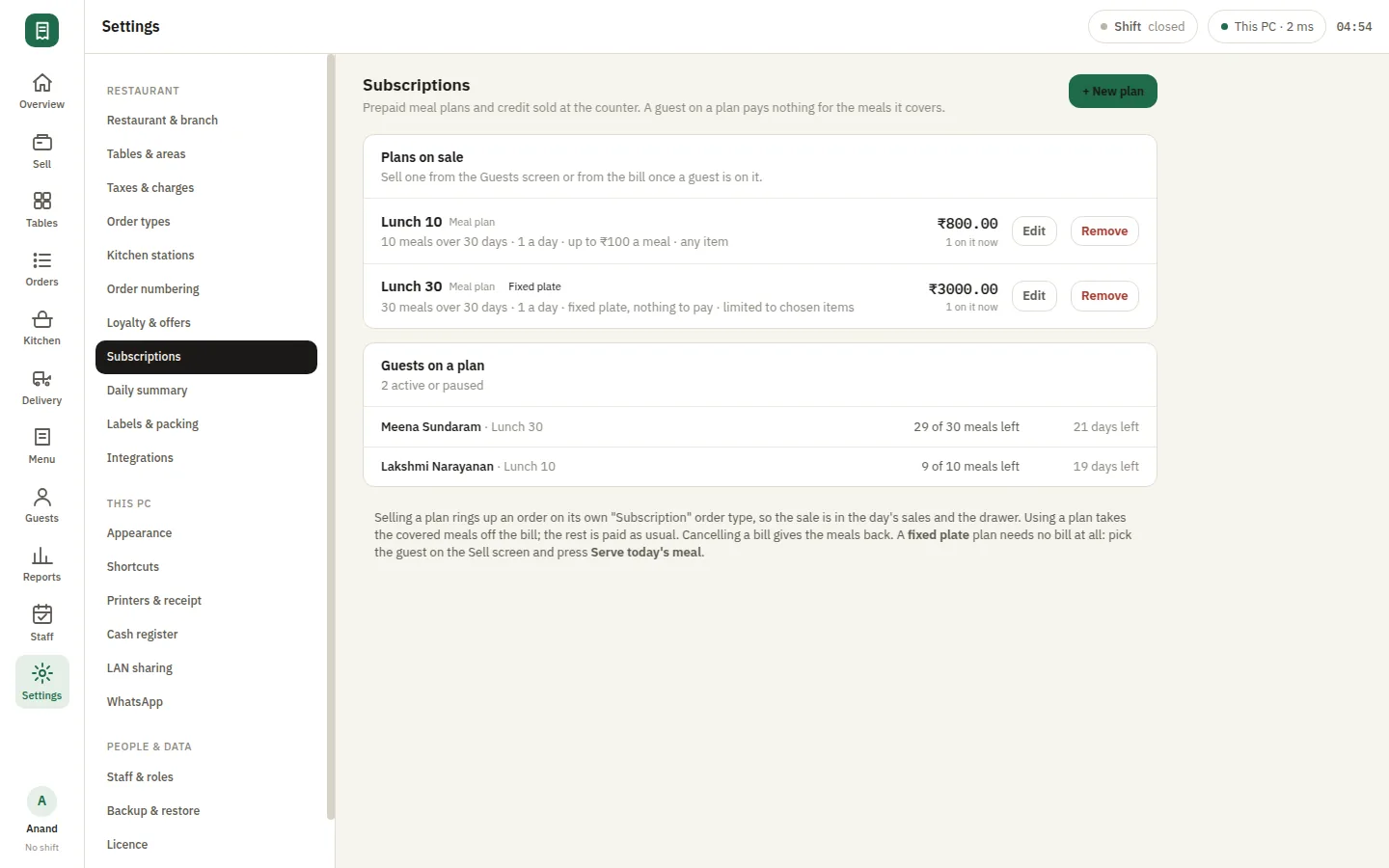
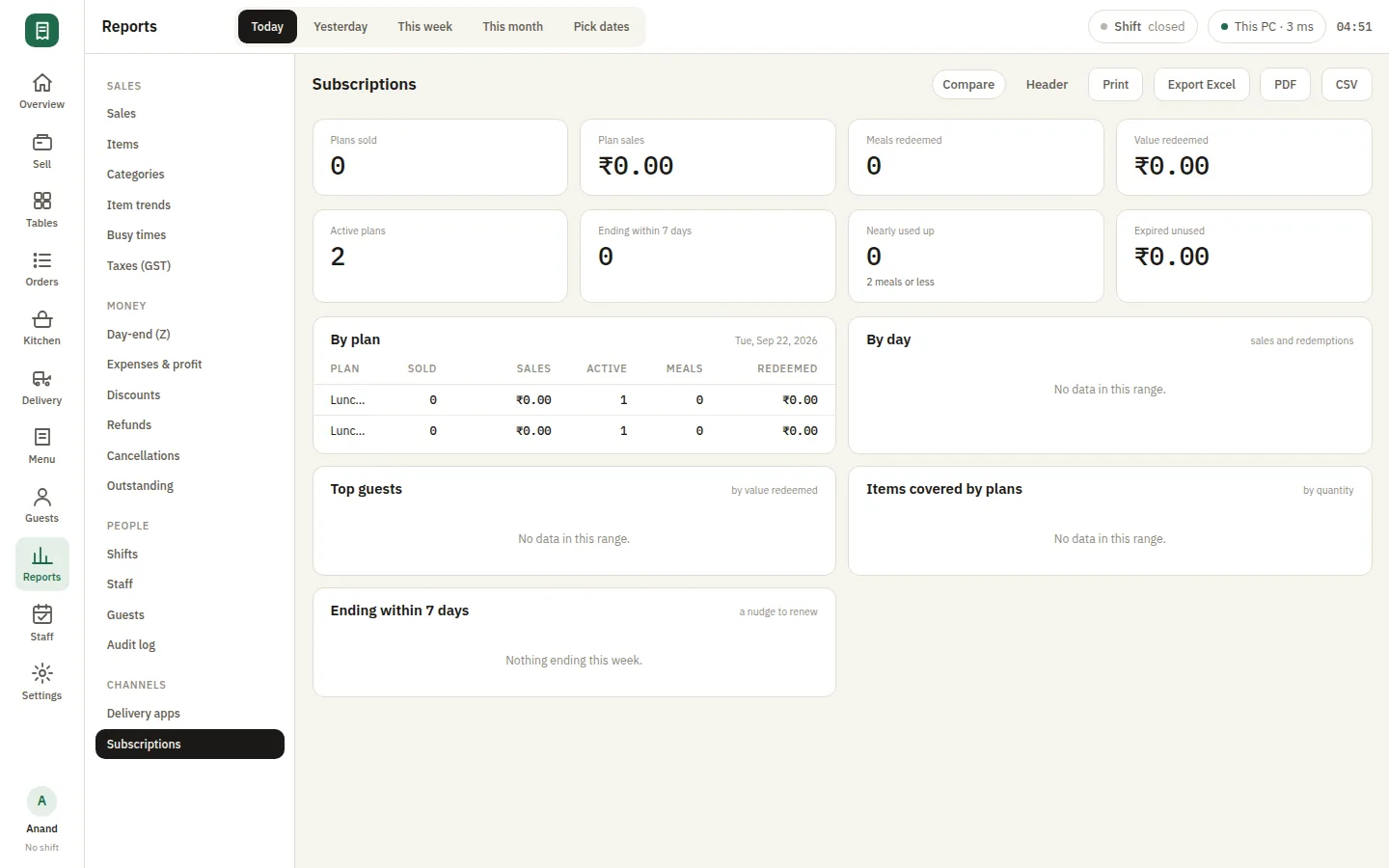
Prepaid meal plans, sold and redeemed at the till

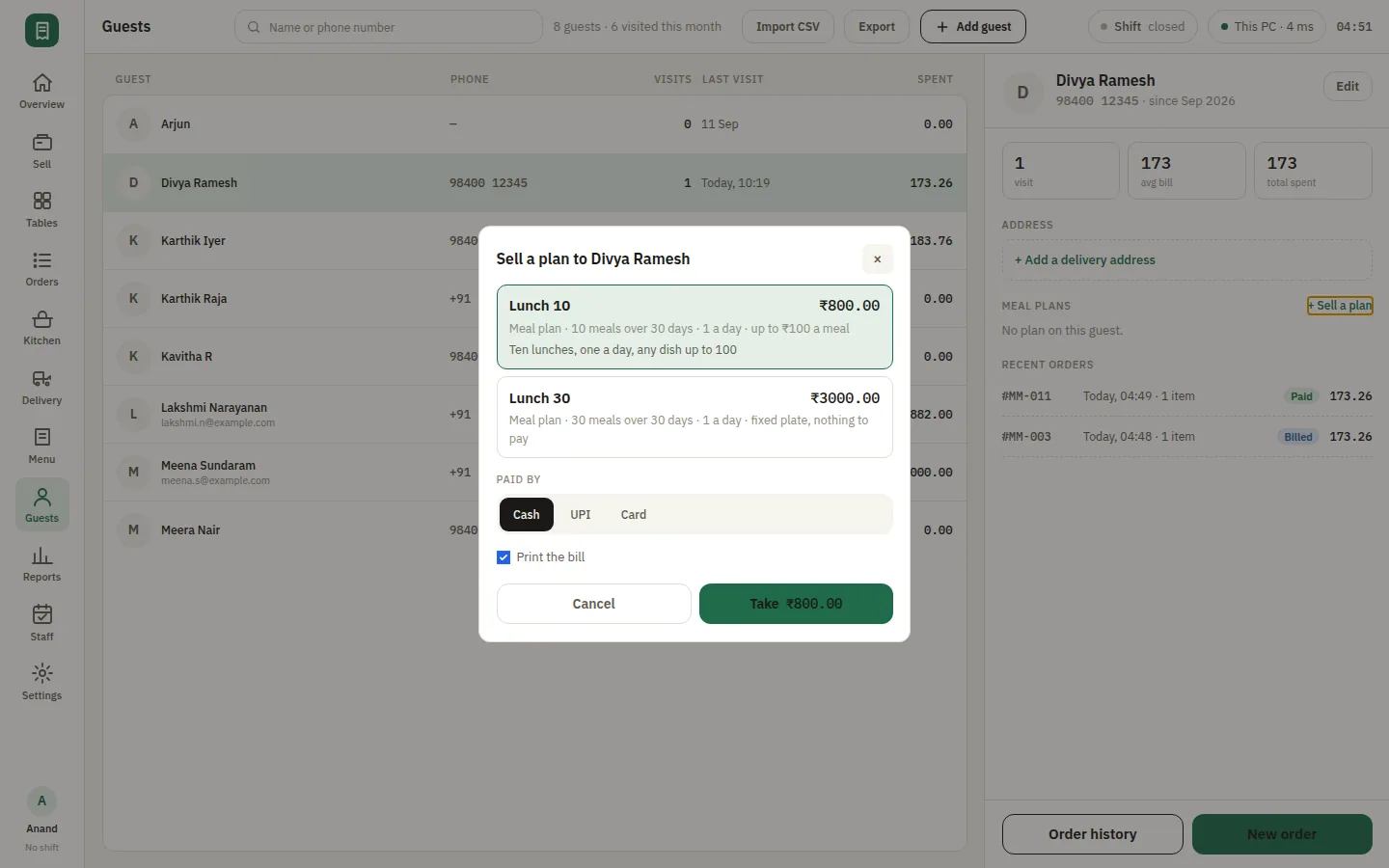
Sell a monthly tiffin or a prepaid meal plan to a guest, then redeem against it at the counter as they eat through it. The balance sits with the guest record, so any cashier can see what is left without a ledger in a drawer. For a mess, a canteen or a cloud kitchen with regulars on a plan, it turns a book of names and payments into something the till handles on its own.

  • Sell a prepaid plan to a guest
  • Redeem against the balance at the counter
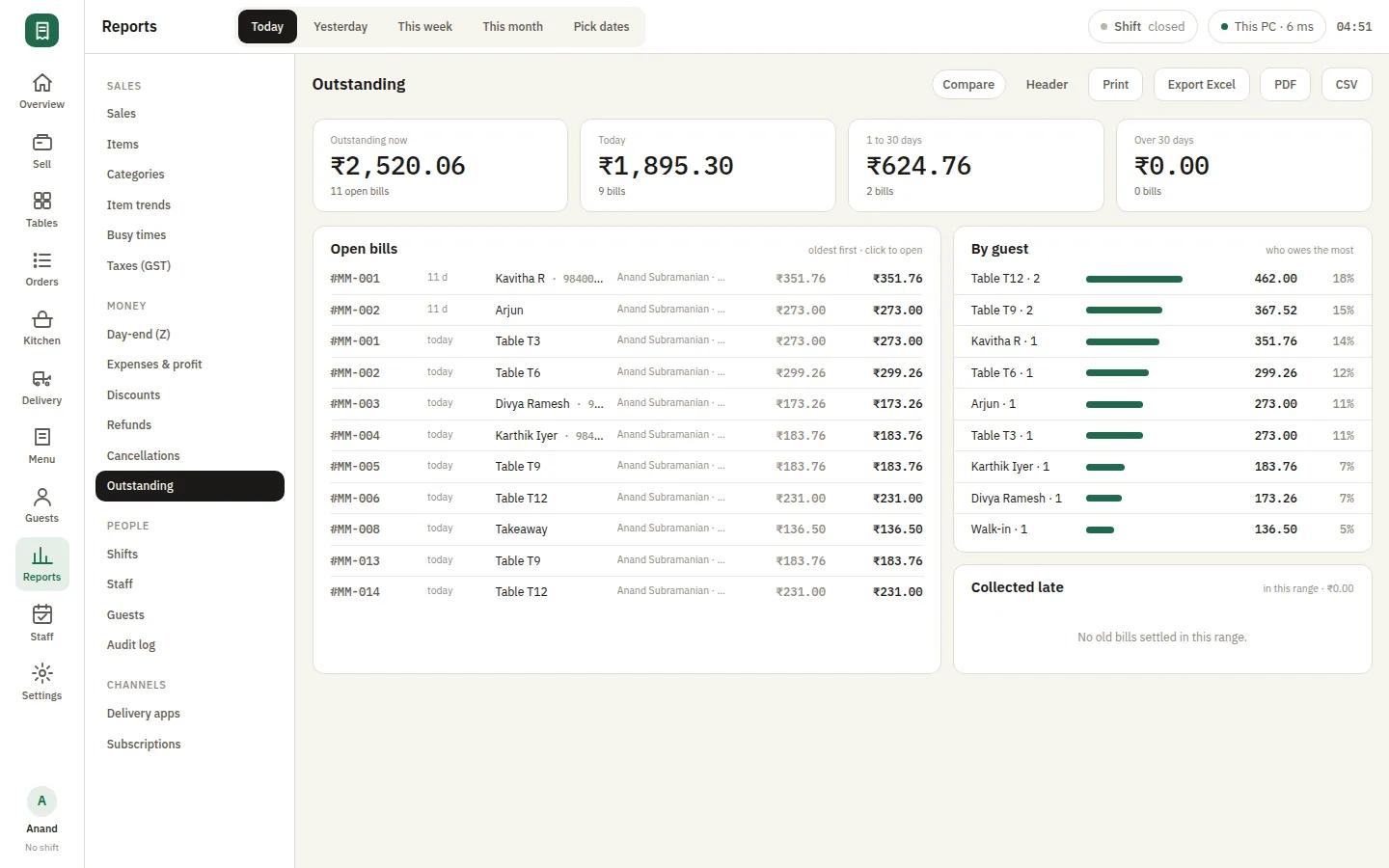
  • Balance visible to any cashier

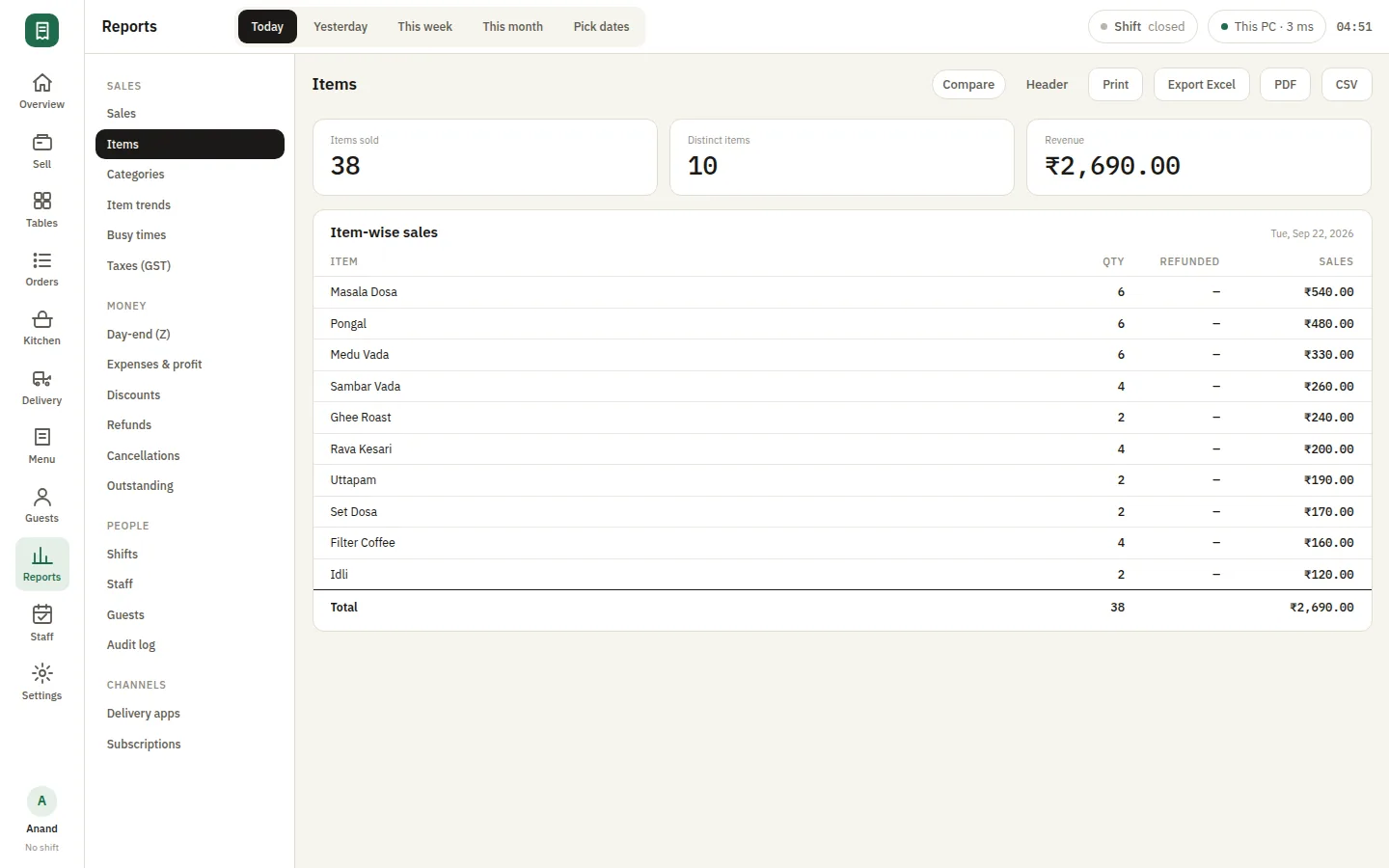
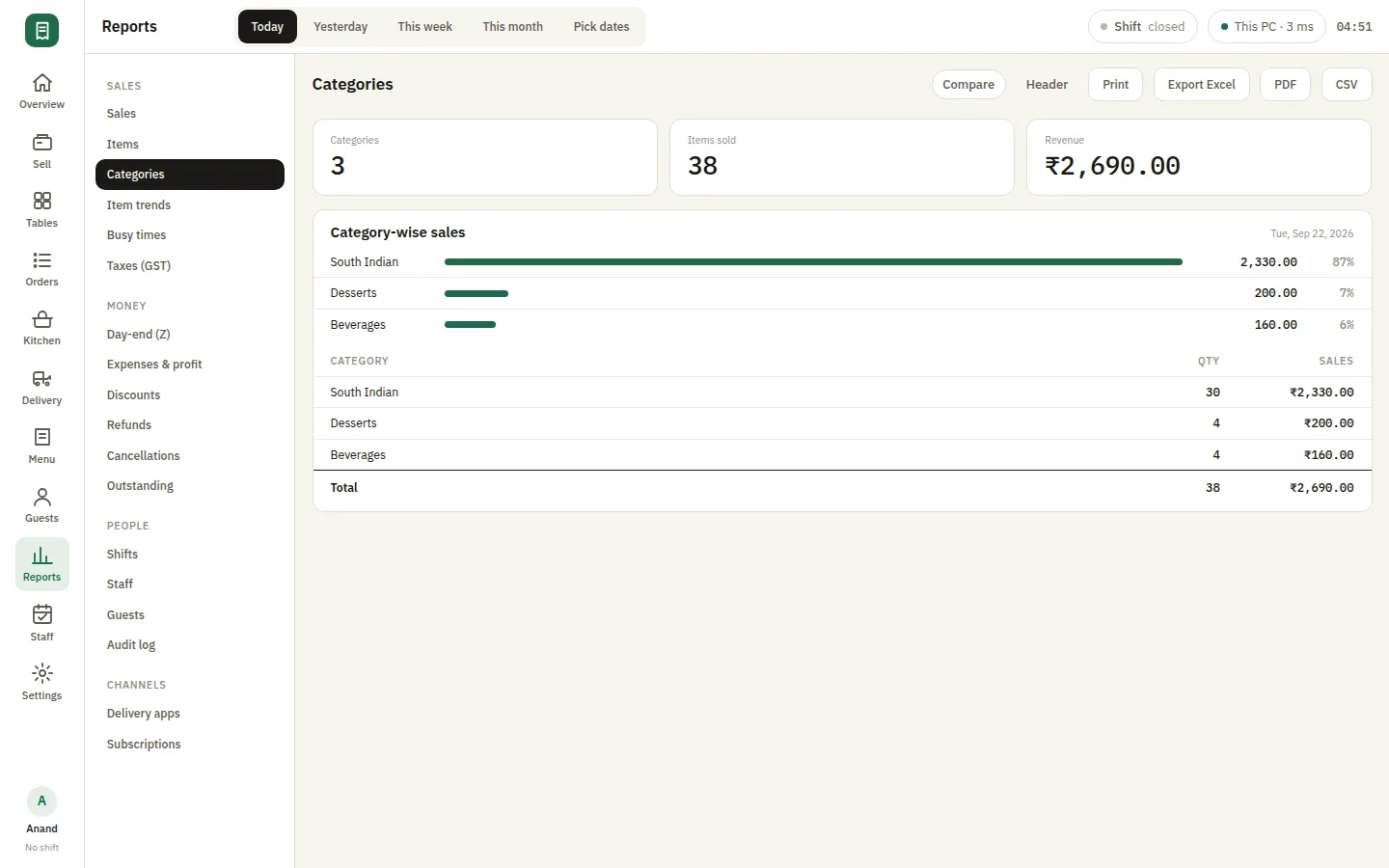
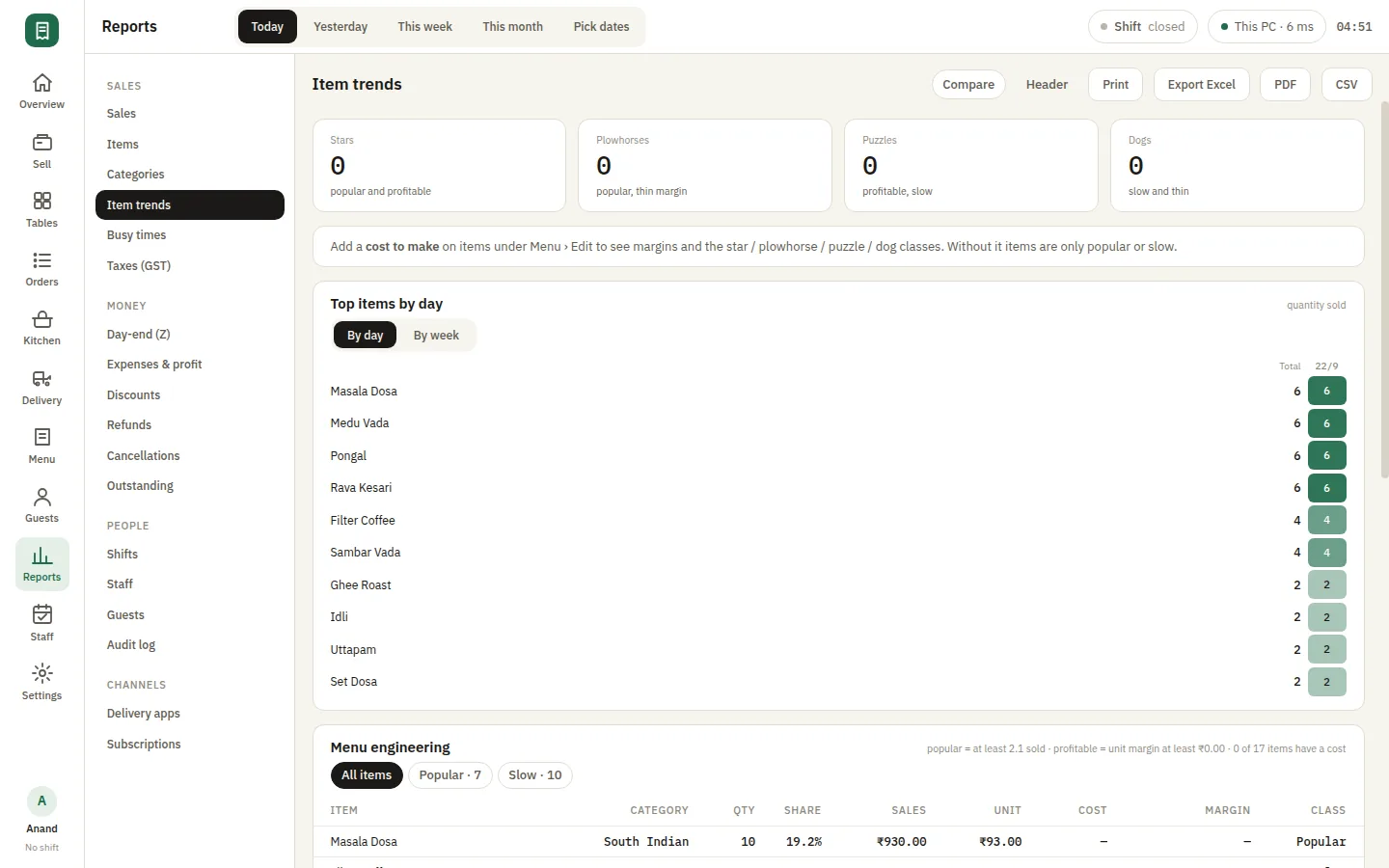
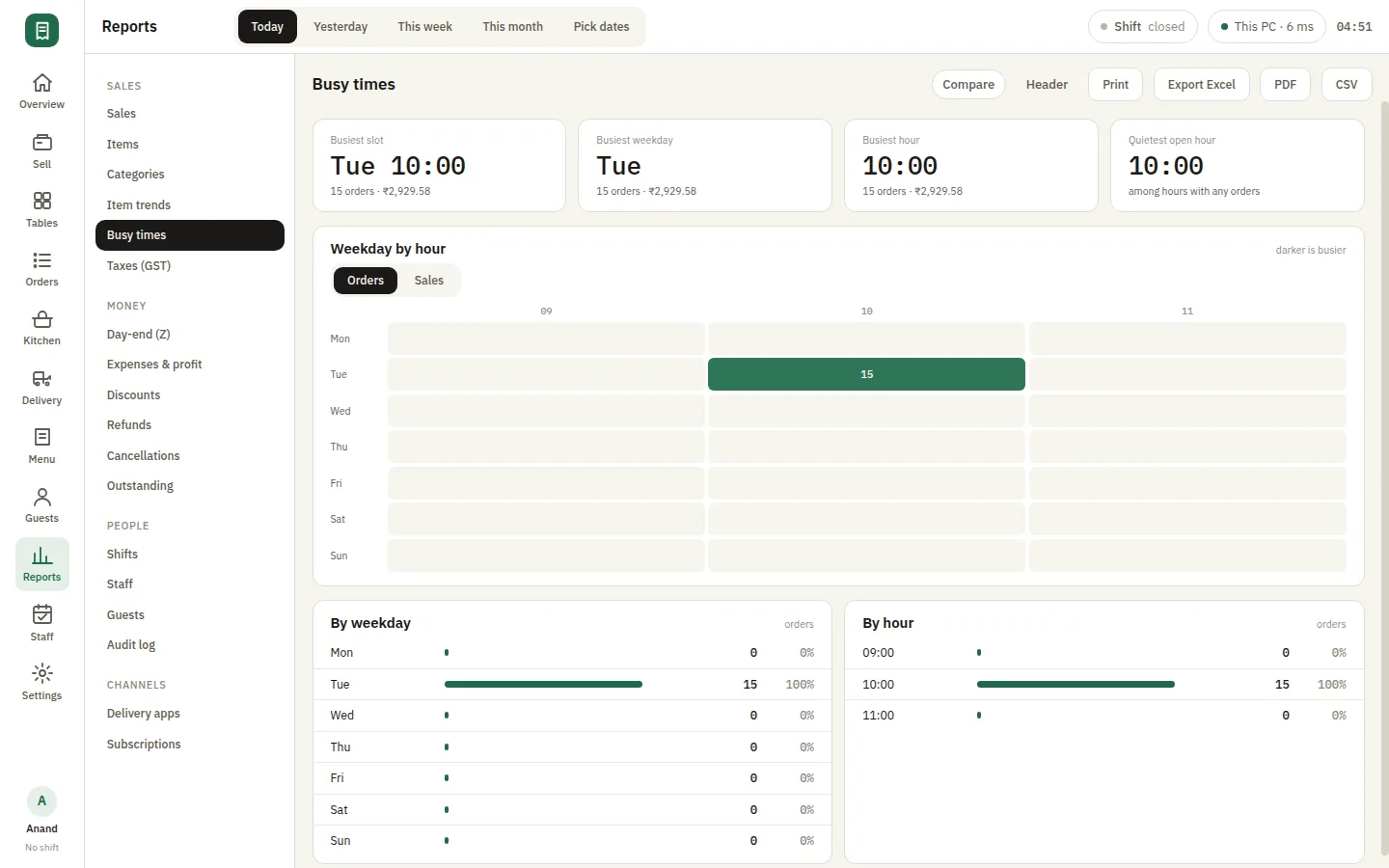
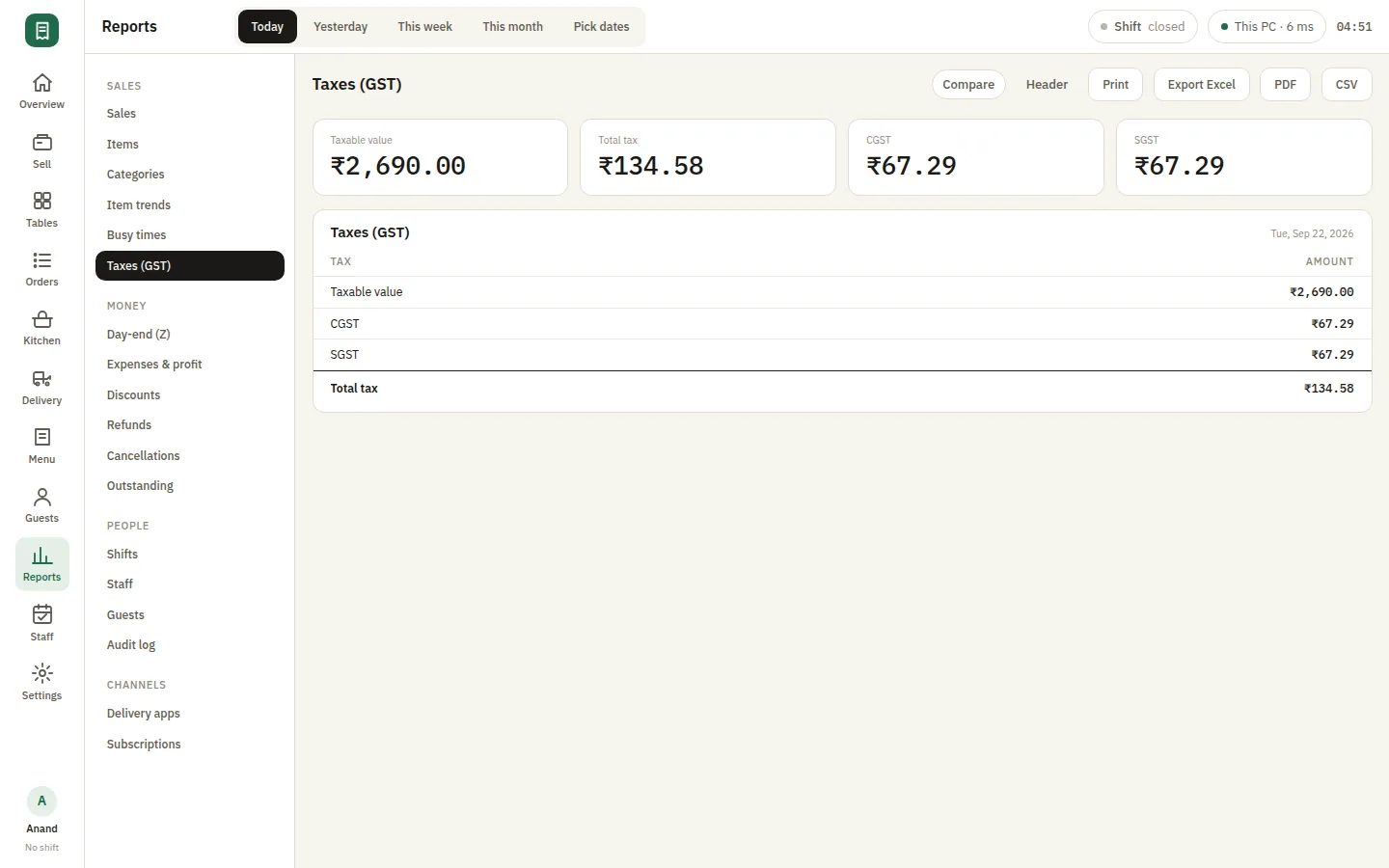
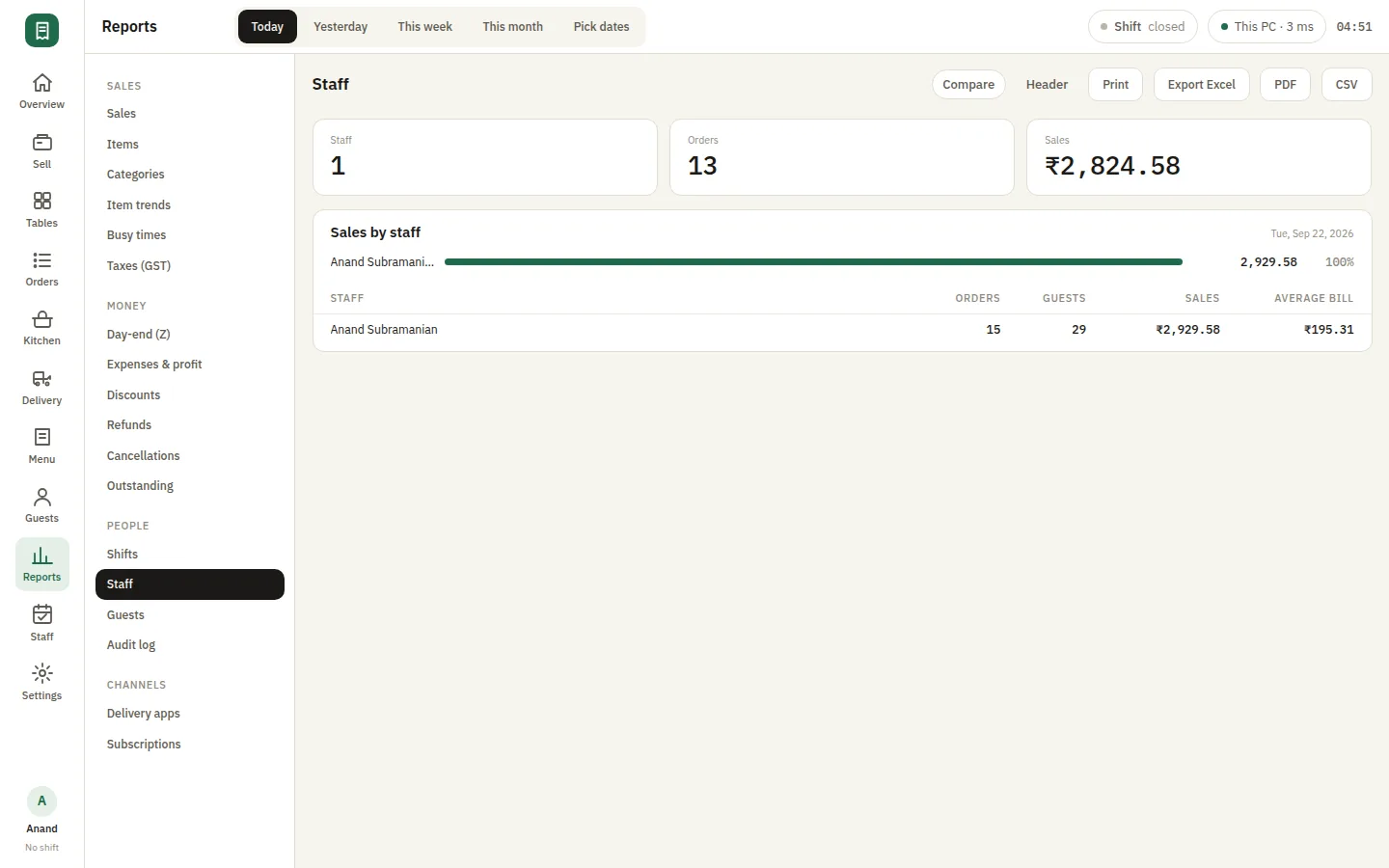
The numbers, without exporting anything

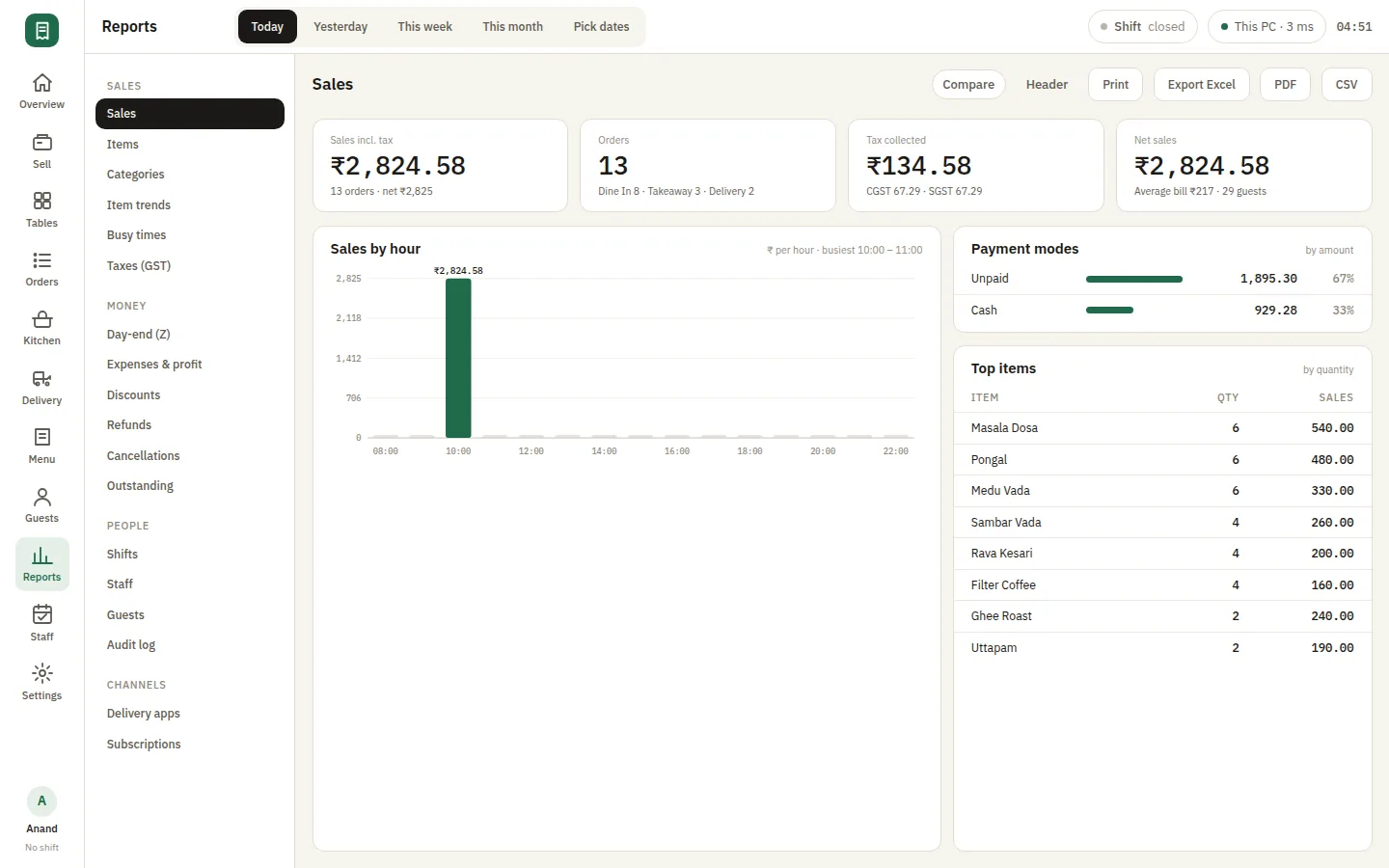
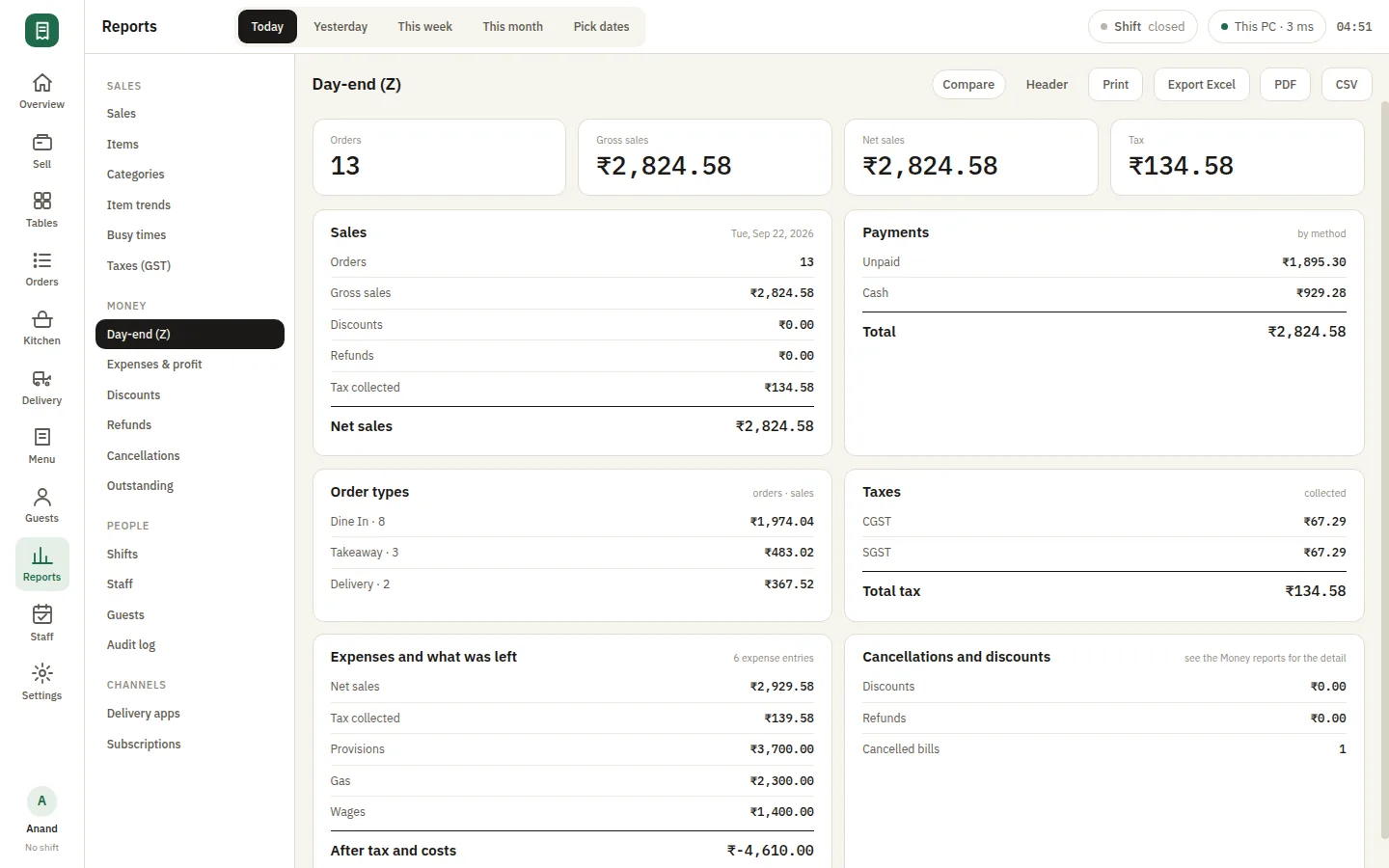
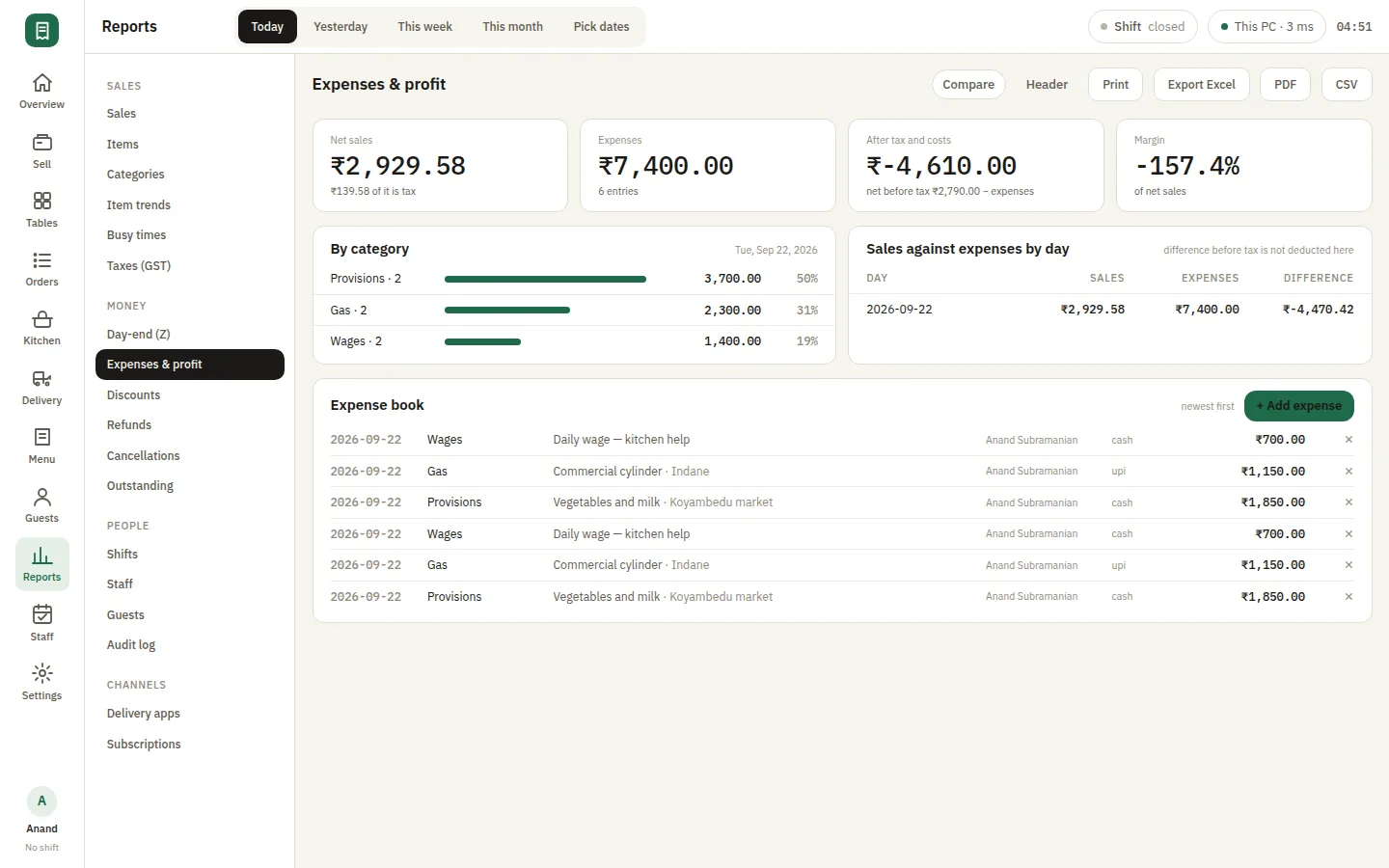
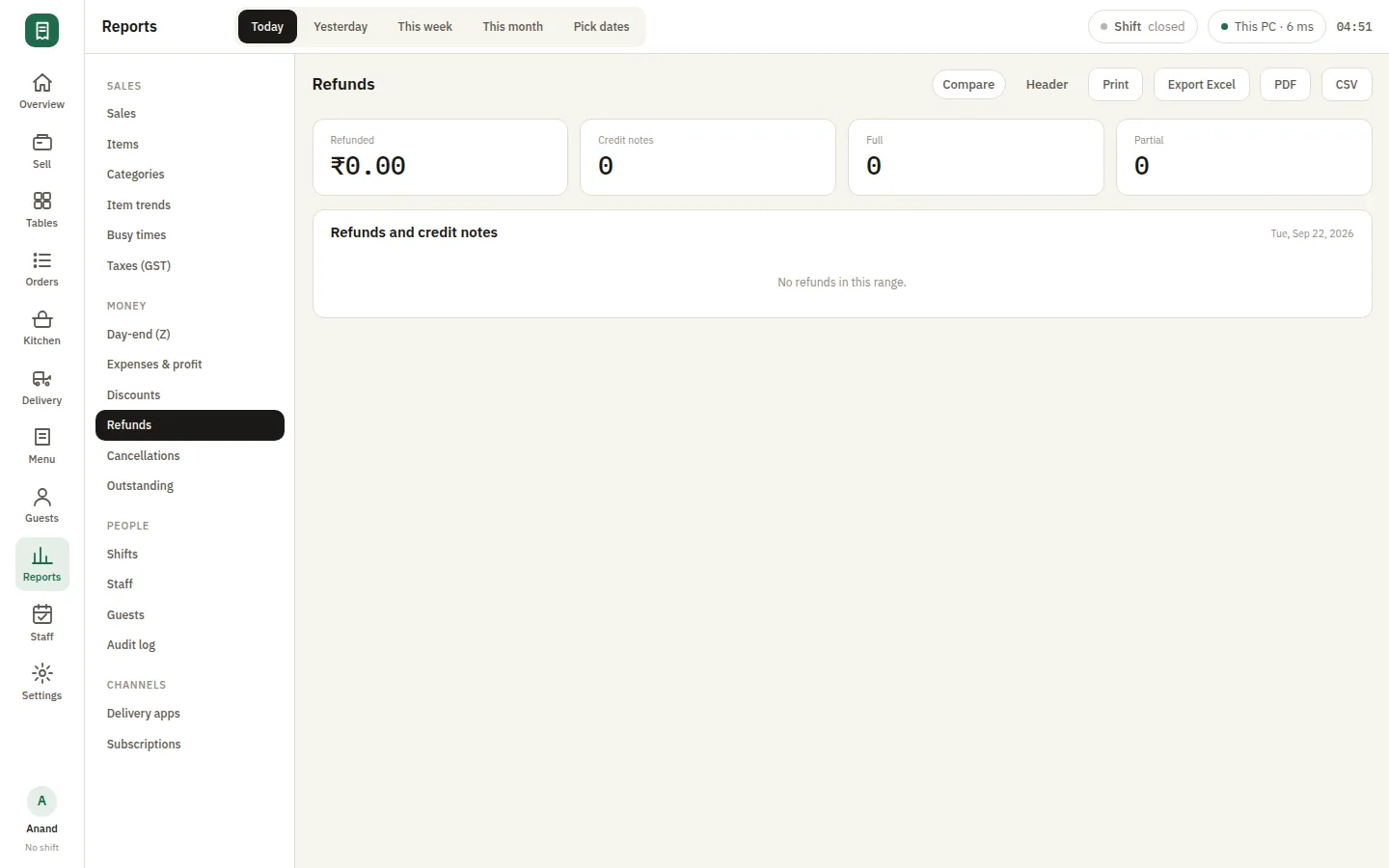
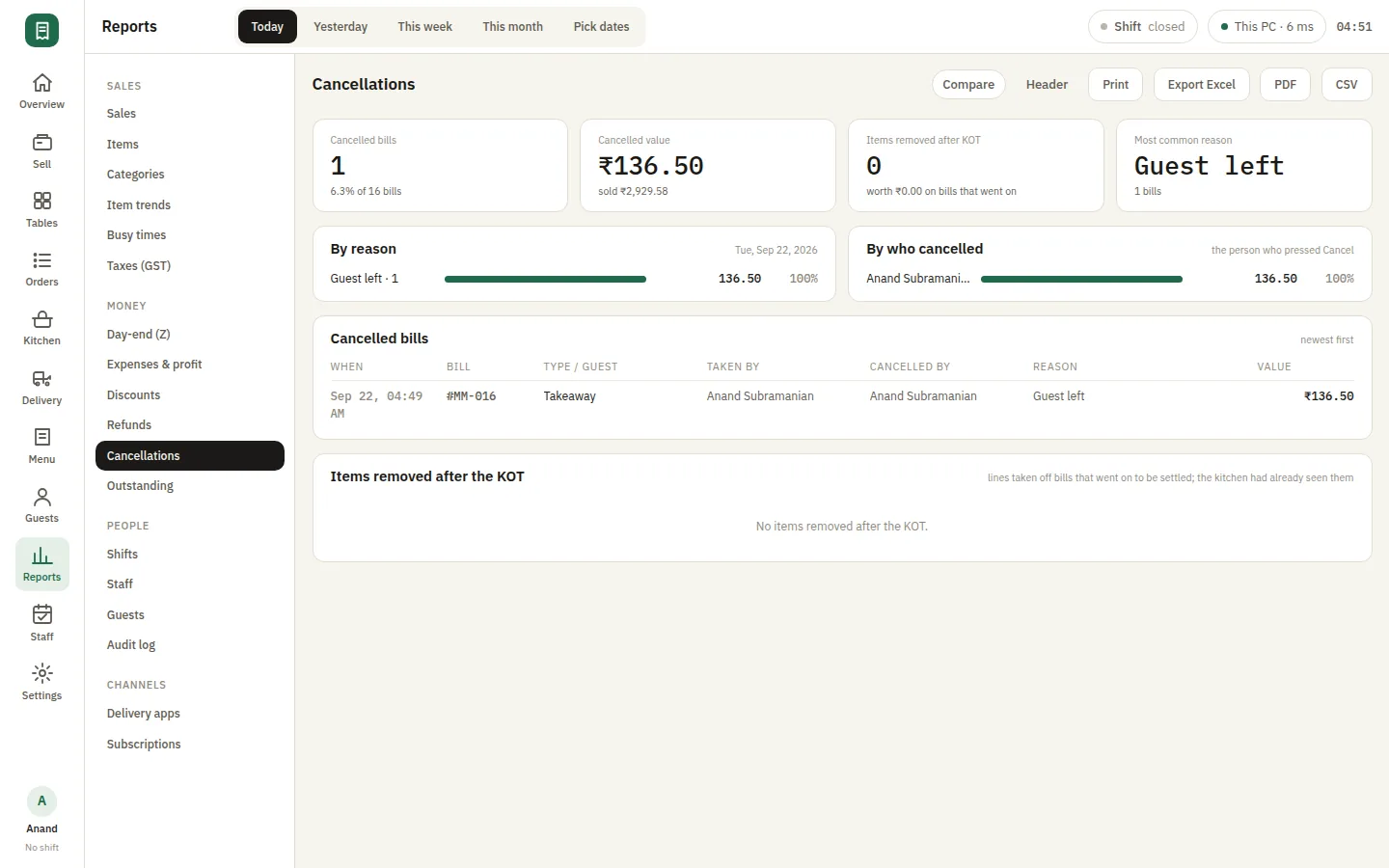
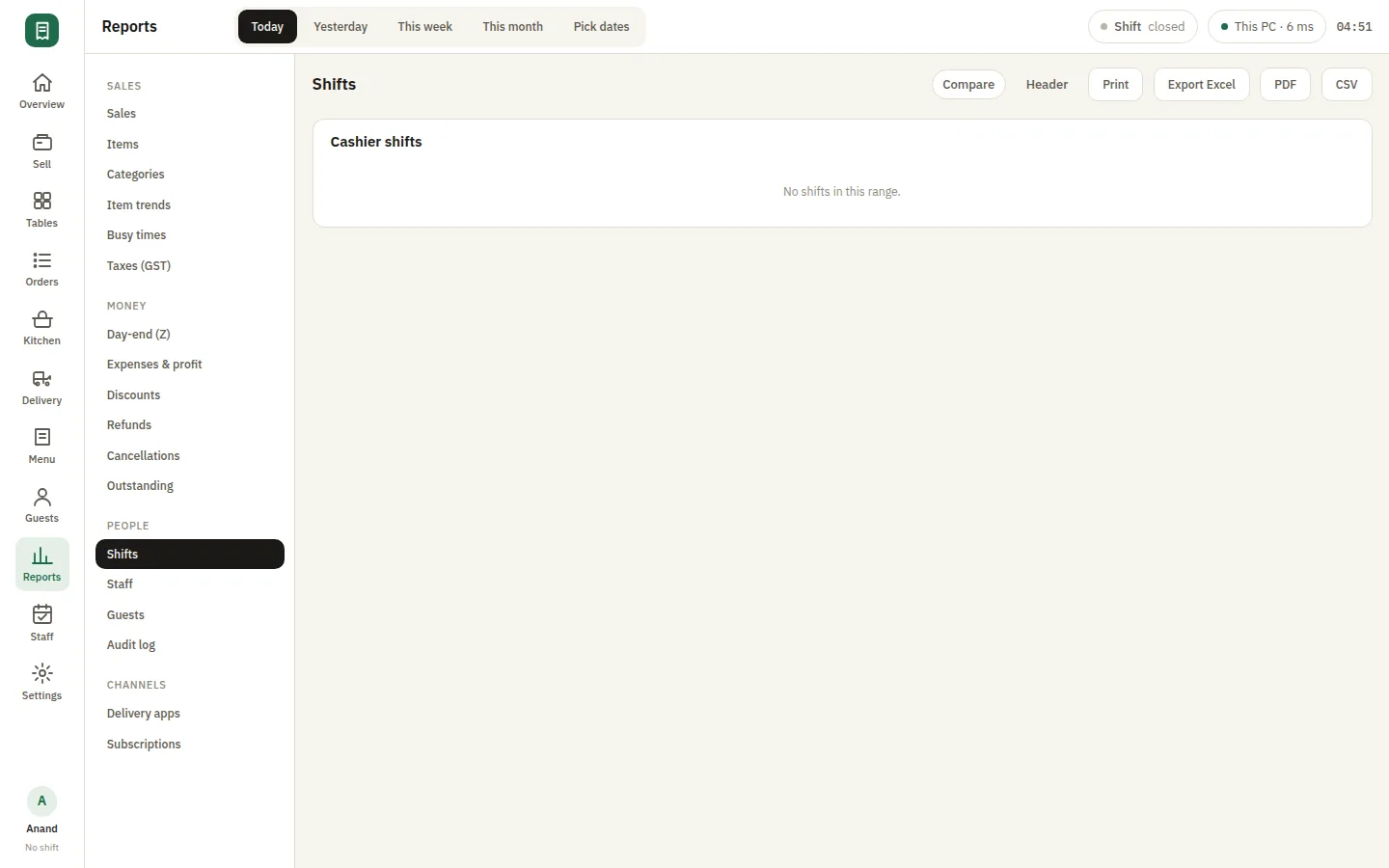
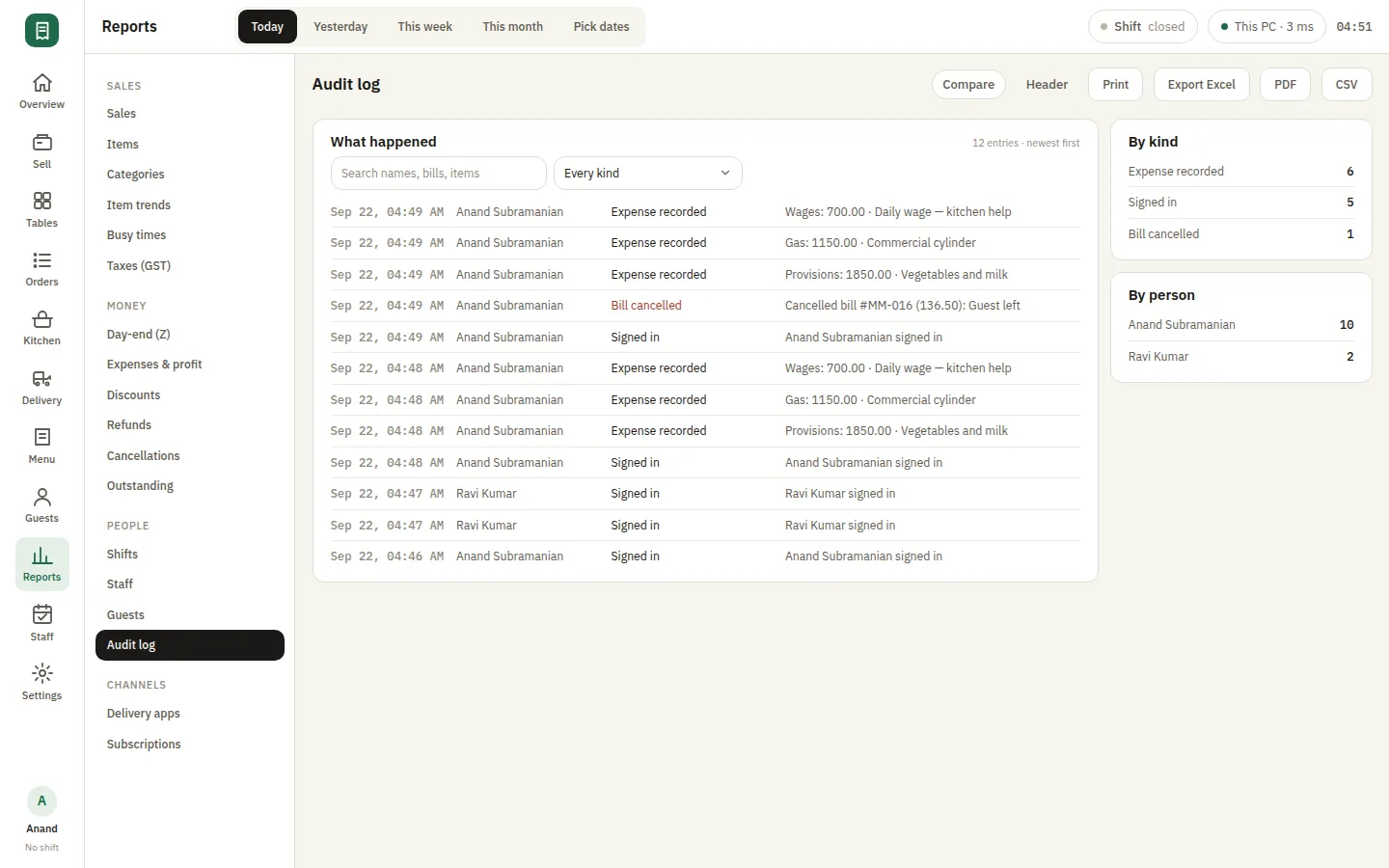
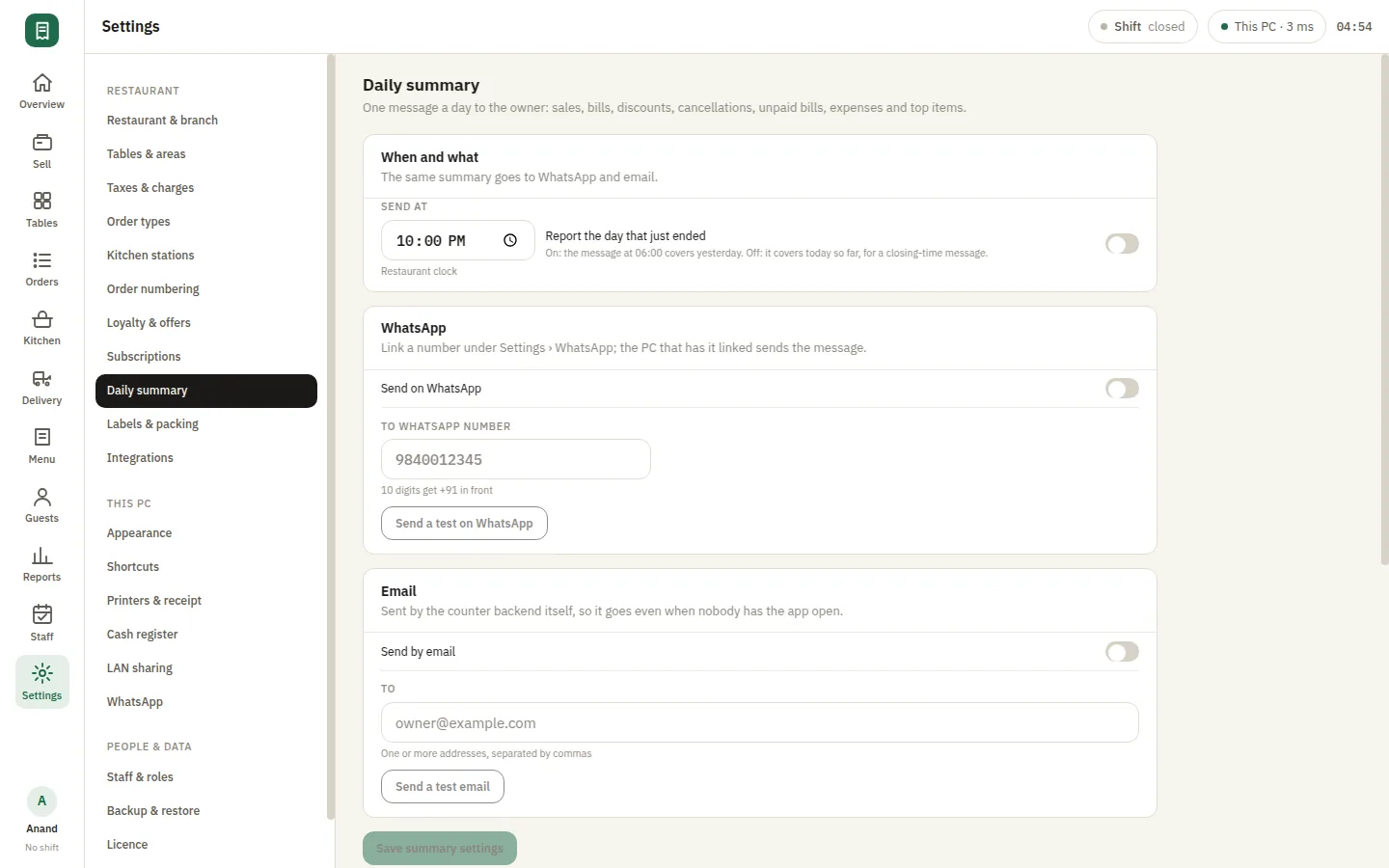
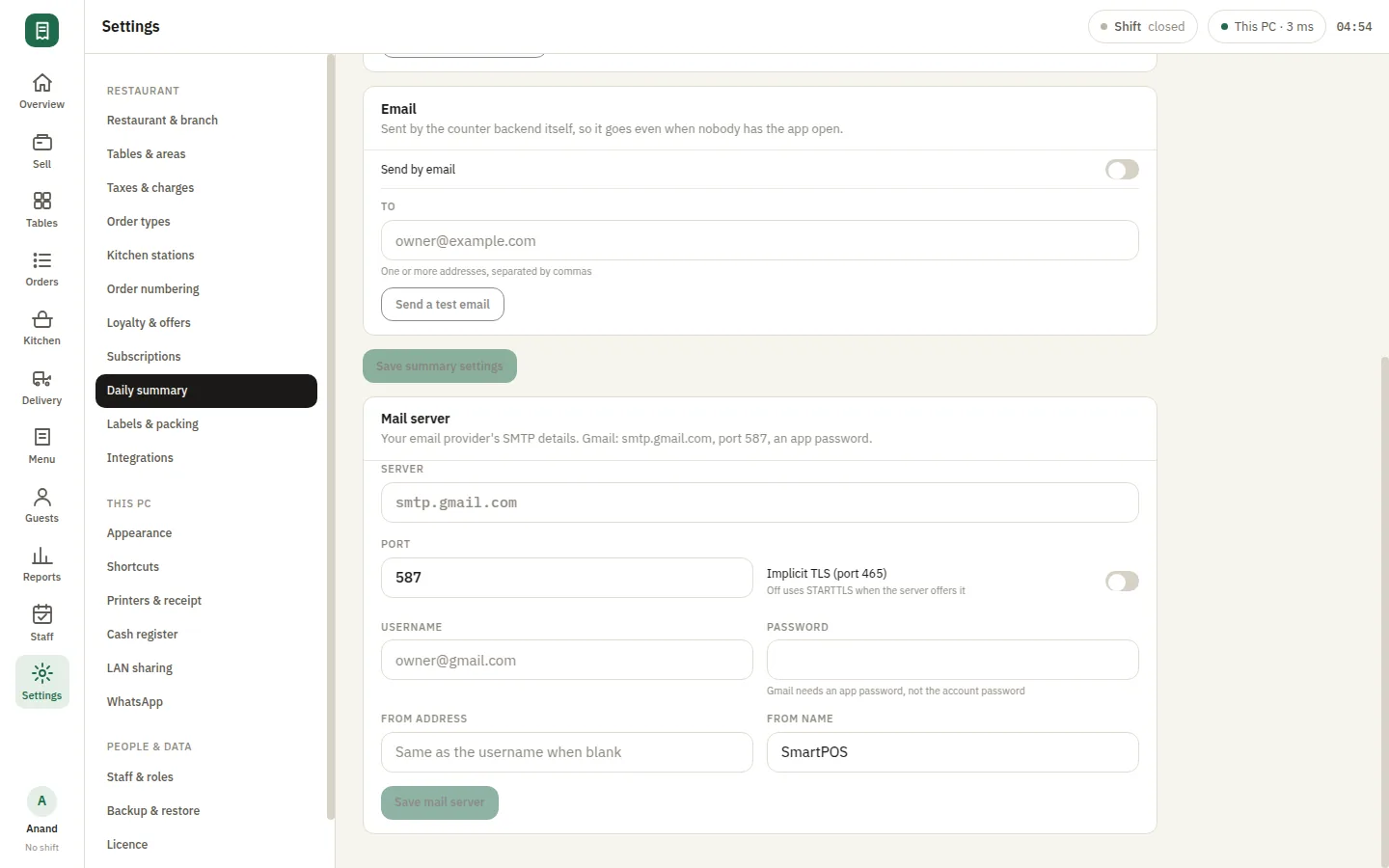
Sales by day, by item, by category and by hour; GST summaries ready for filing; day-end Z reports; discounts, refunds, cancellations and outstanding balances; performance by staff member and by guest. Every report is generated on the counter PC from your own data and exports when you want a copy. An audit log records who changed what, and a daily summary can land in your inbox without your books leaving the restaurant.

  • Sales by day, item, category and hour
  • GST summaries and day-end Z reports
  • Exports when you want a copy
SmartPOS Reports — Report sales
SmartPOS Waiter phones — Waiter floor

Waiters take orders on the phone in their pocket

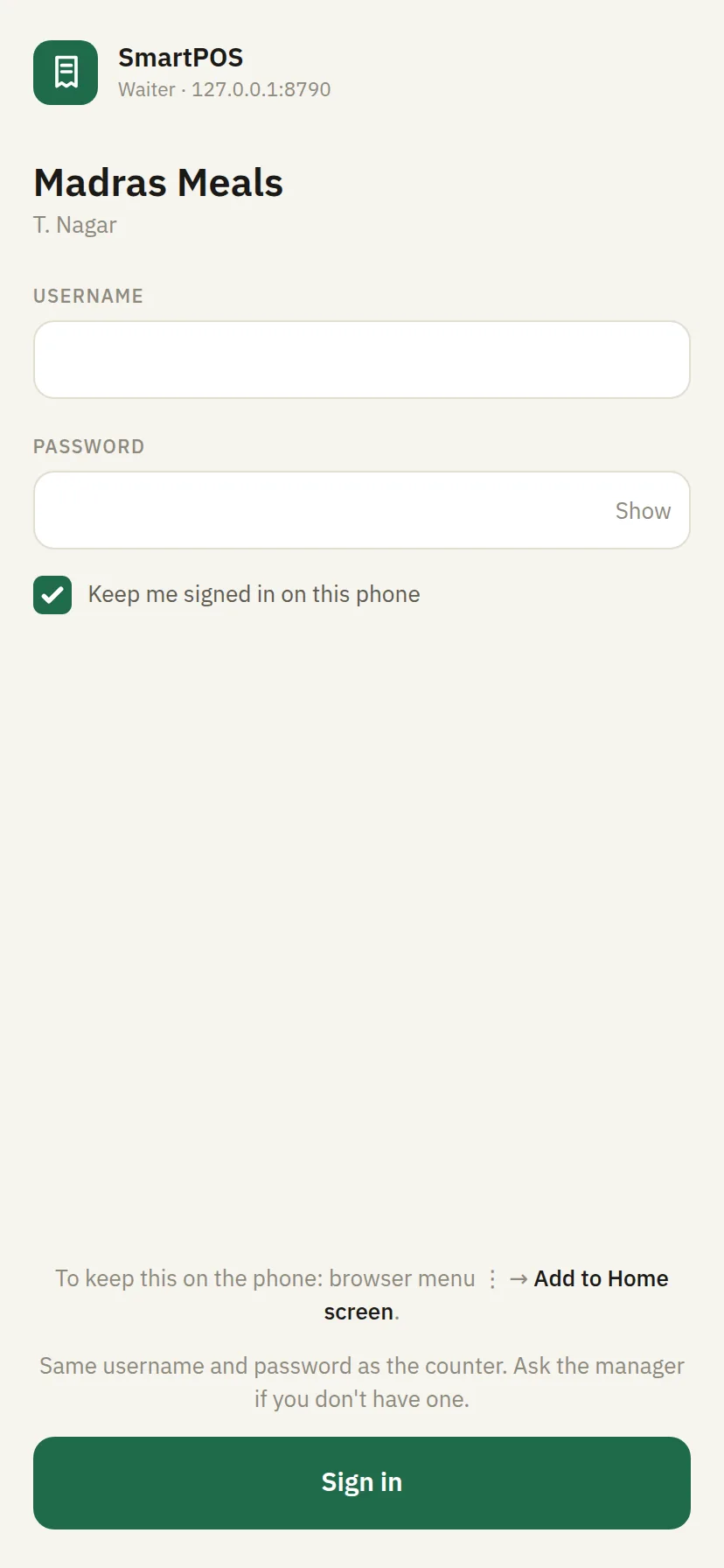
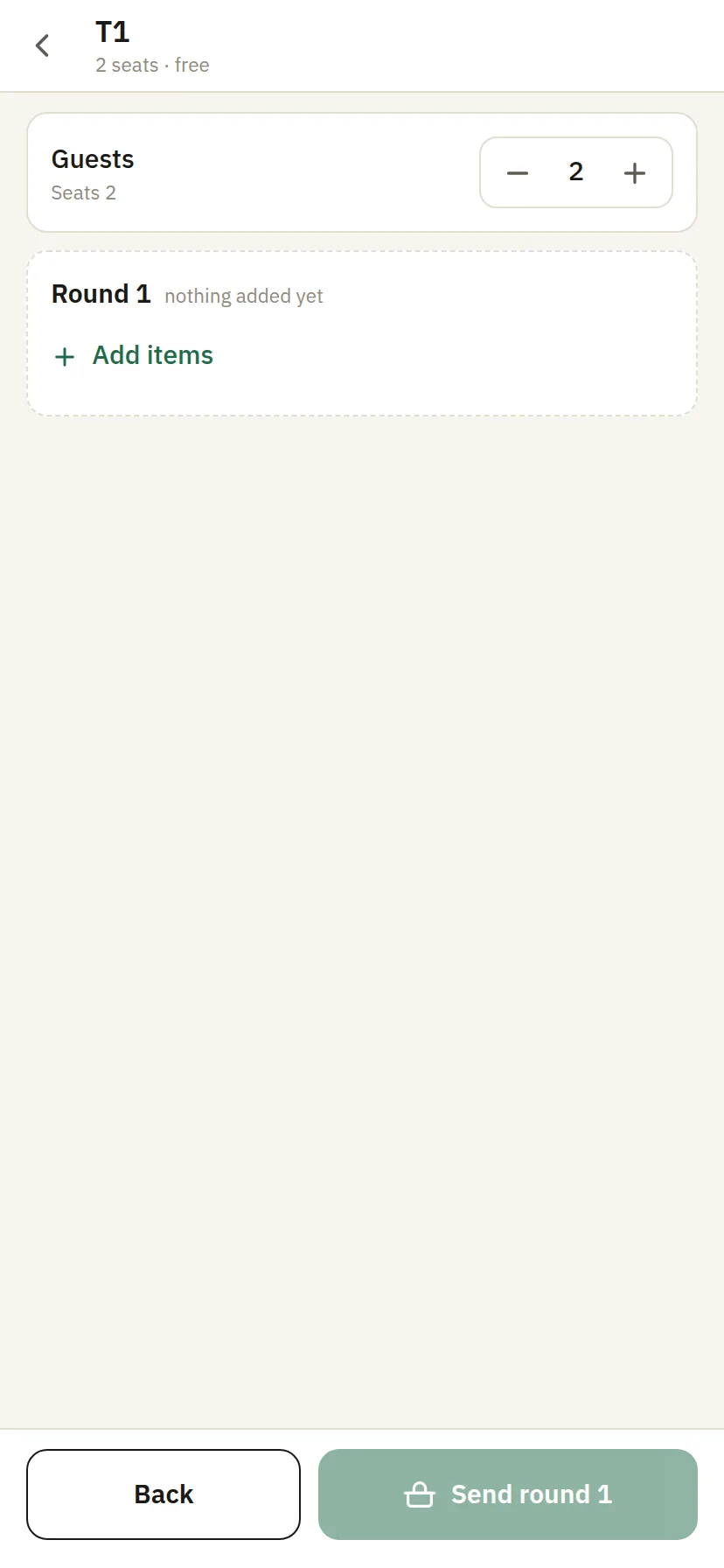
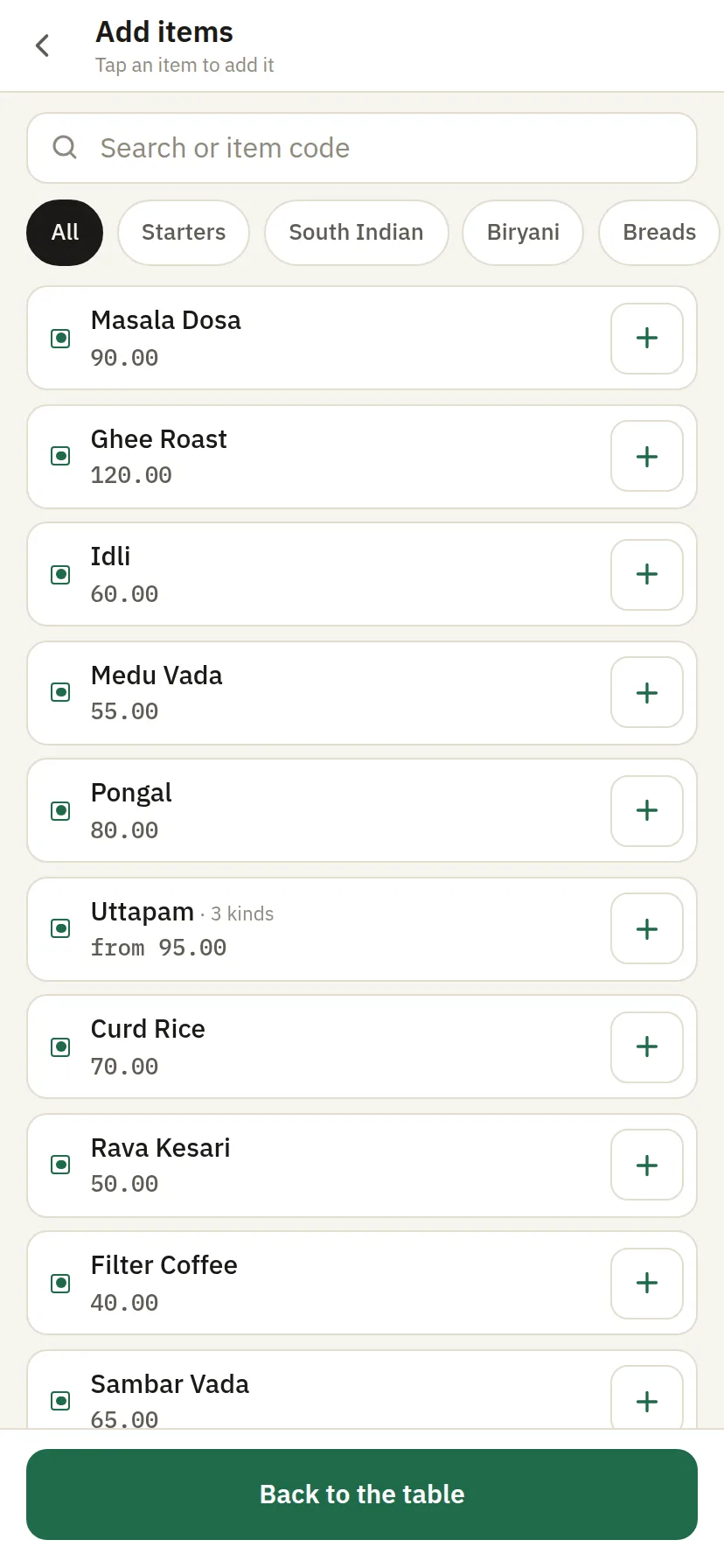
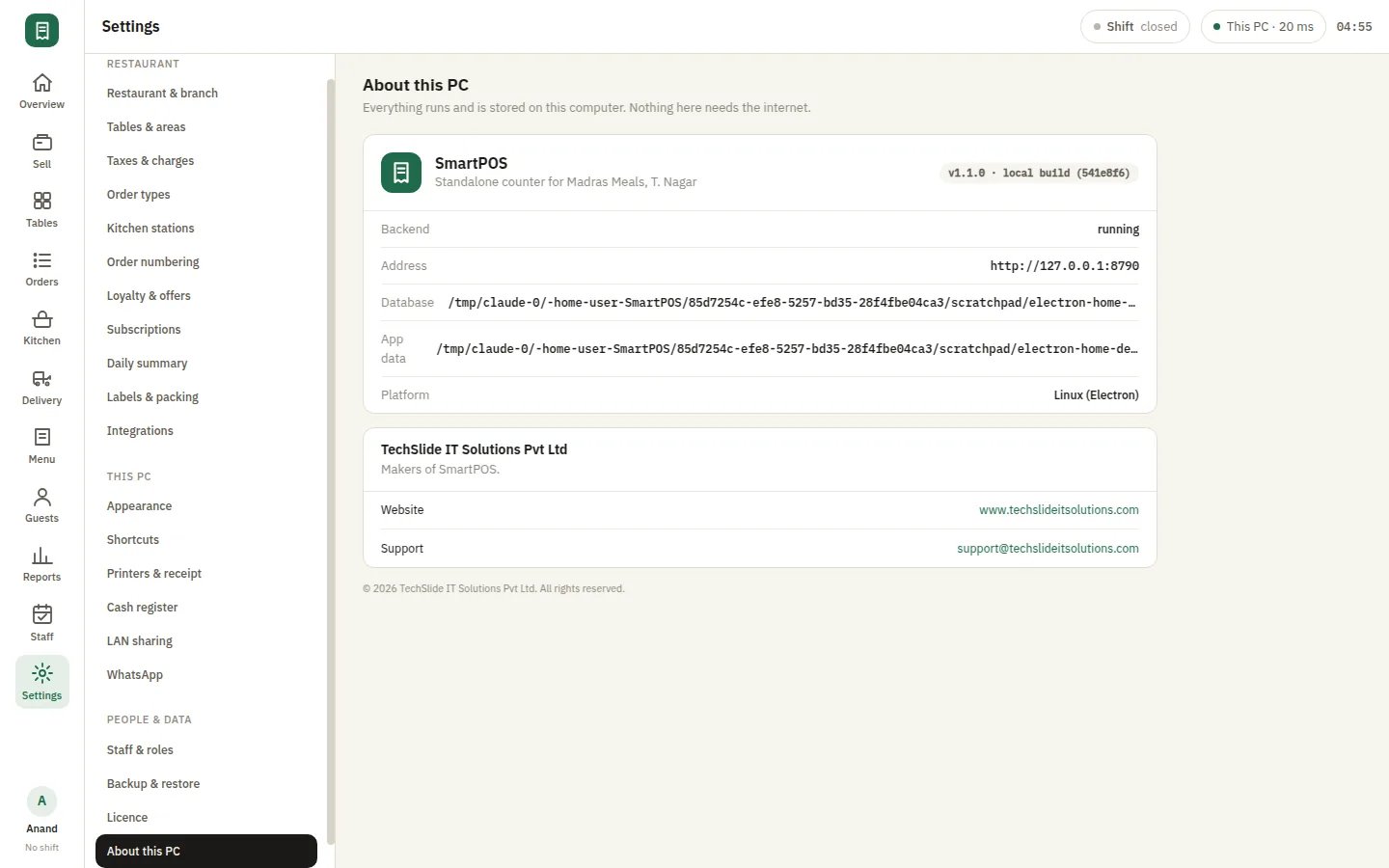
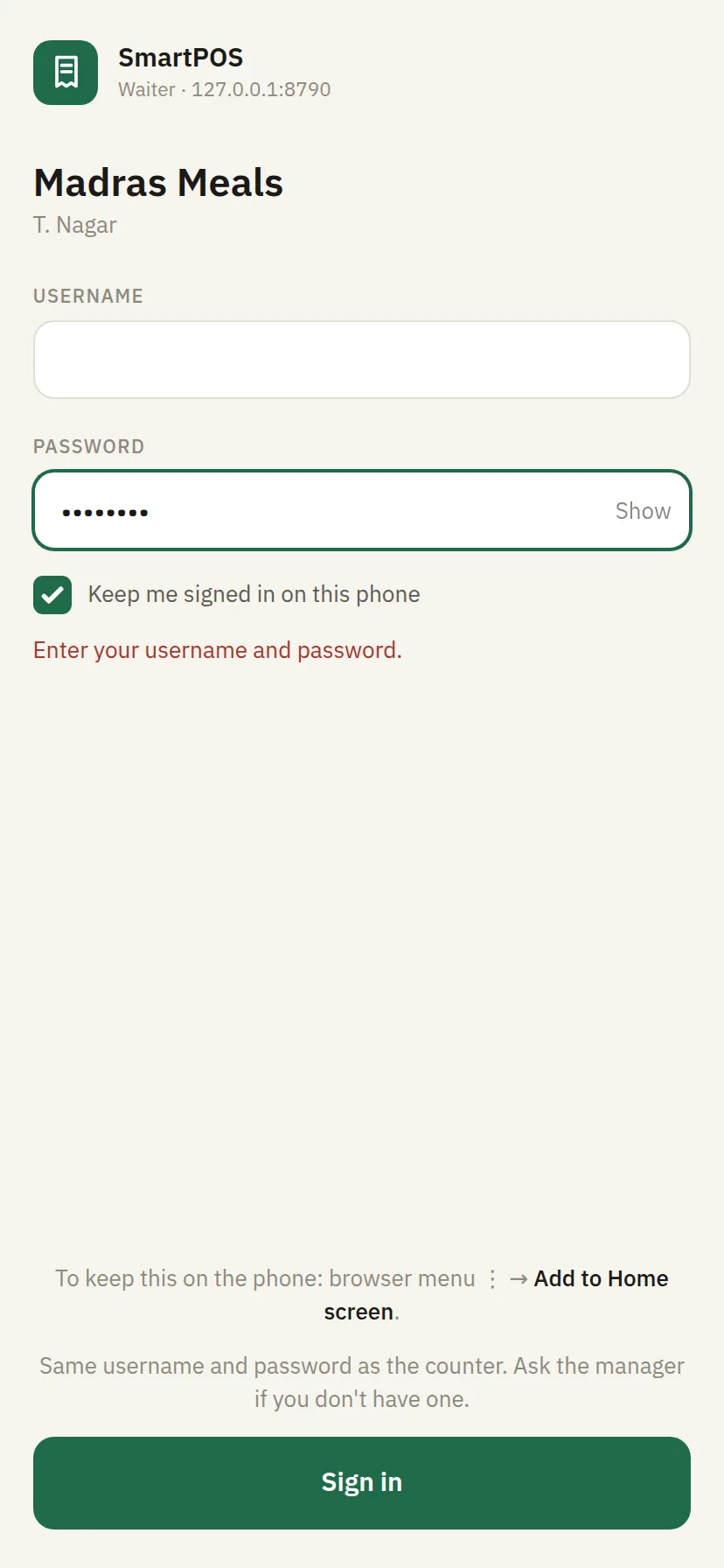
Turn on LAN sharing and your waiters open the ordering screen on their own phone over the restaurant's Wi-Fi — no app store, no handheld terminals to buy, no internet. They see the floor, open a table, add items and send the KOT straight to the kitchen from where the guest is sitting. Orders reach the counter the moment they are placed, which removes the walk back to the till and the order pad it replaced.

  • Waiters use the phone already in their pocket
  • No app store and no handheld to buy
  • KOT reaches the kitchen from the table

A second billing counter on the same restaurant

On a multi-counter licence a second Windows PC joins the same restaurant over your network, sharing one menu, one guest list and one run of bill numbers. Both counters bill at once, and a queue at the door becomes two queues moving. There is no server to rent and no cloud in the middle — the counter PC is the hub, and the second terminal talks to it across the LAN you already have.

  • A second Windows PC on your own network
  • One menu, one guest list, one bill series
  • No server to rent and no cloud in the middle
SmartPOS Second terminal — Settings lan sharing
SmartPOS Label print — Settings labels packing

Labels for anything that leaves in a bag

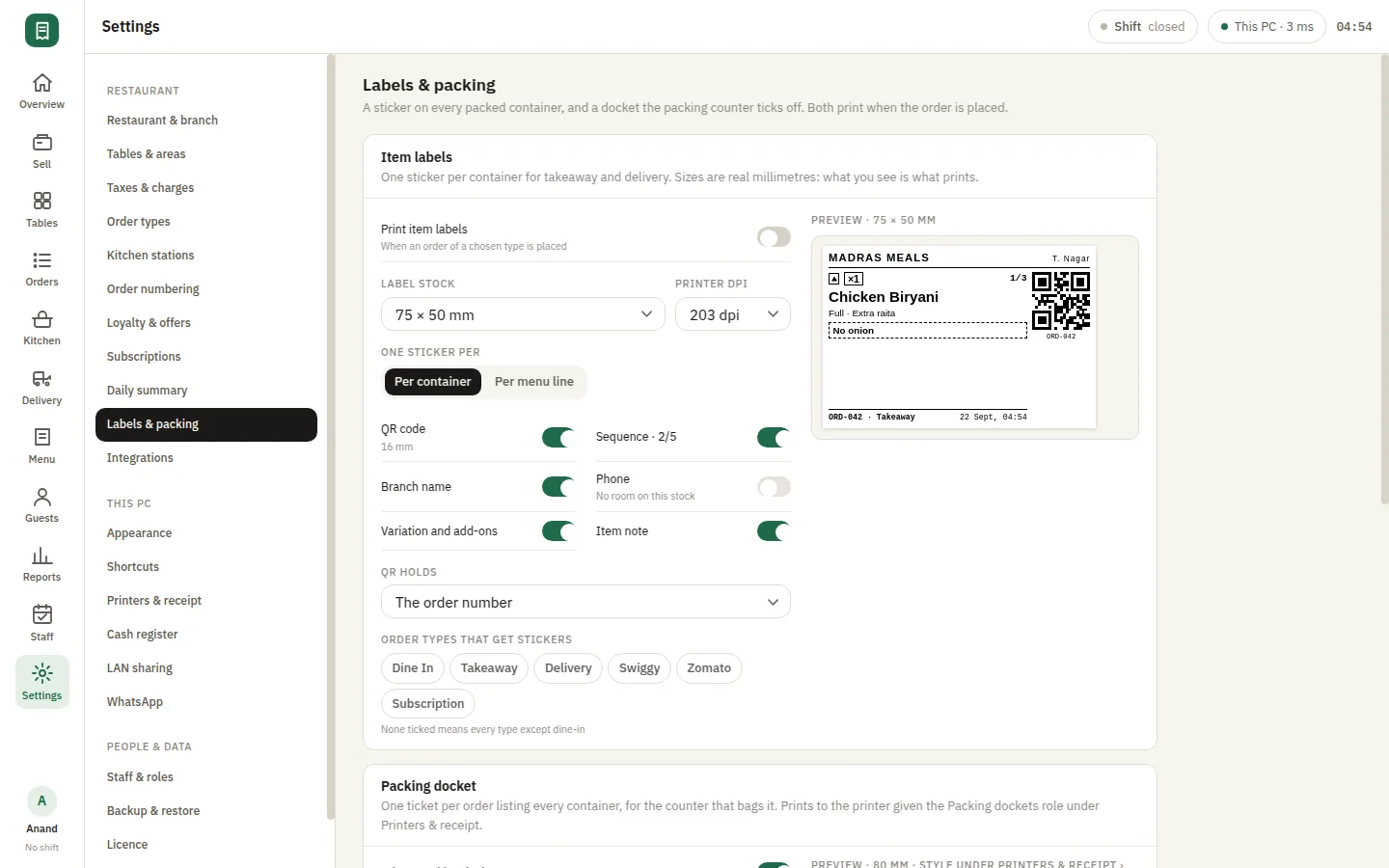
Print stickers and labels for packed items straight from the order, so a delivery bag or a counter pickup carries what it is and who it belongs to. For a cloud kitchen or a bakery running several orders at once, a printed label is the difference between a smooth handover and a wrong bag going out of the door — and it prints from the same counter PC as the bill.

  • Stickers and labels straight from the order
  • Right bag, right guest, every time
  • Prints from the same counter PC as the bill

A docket for the counter that bags the order

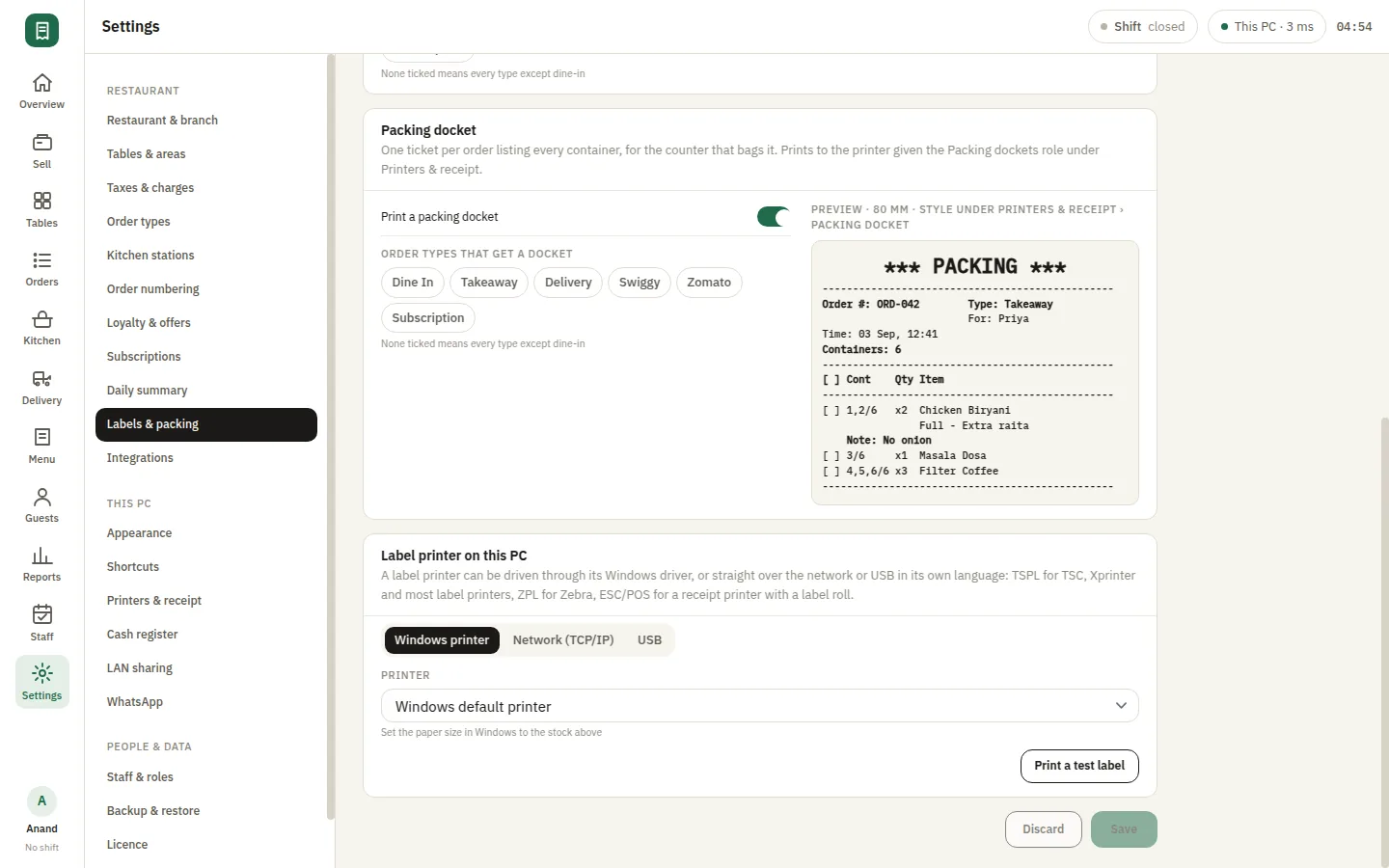
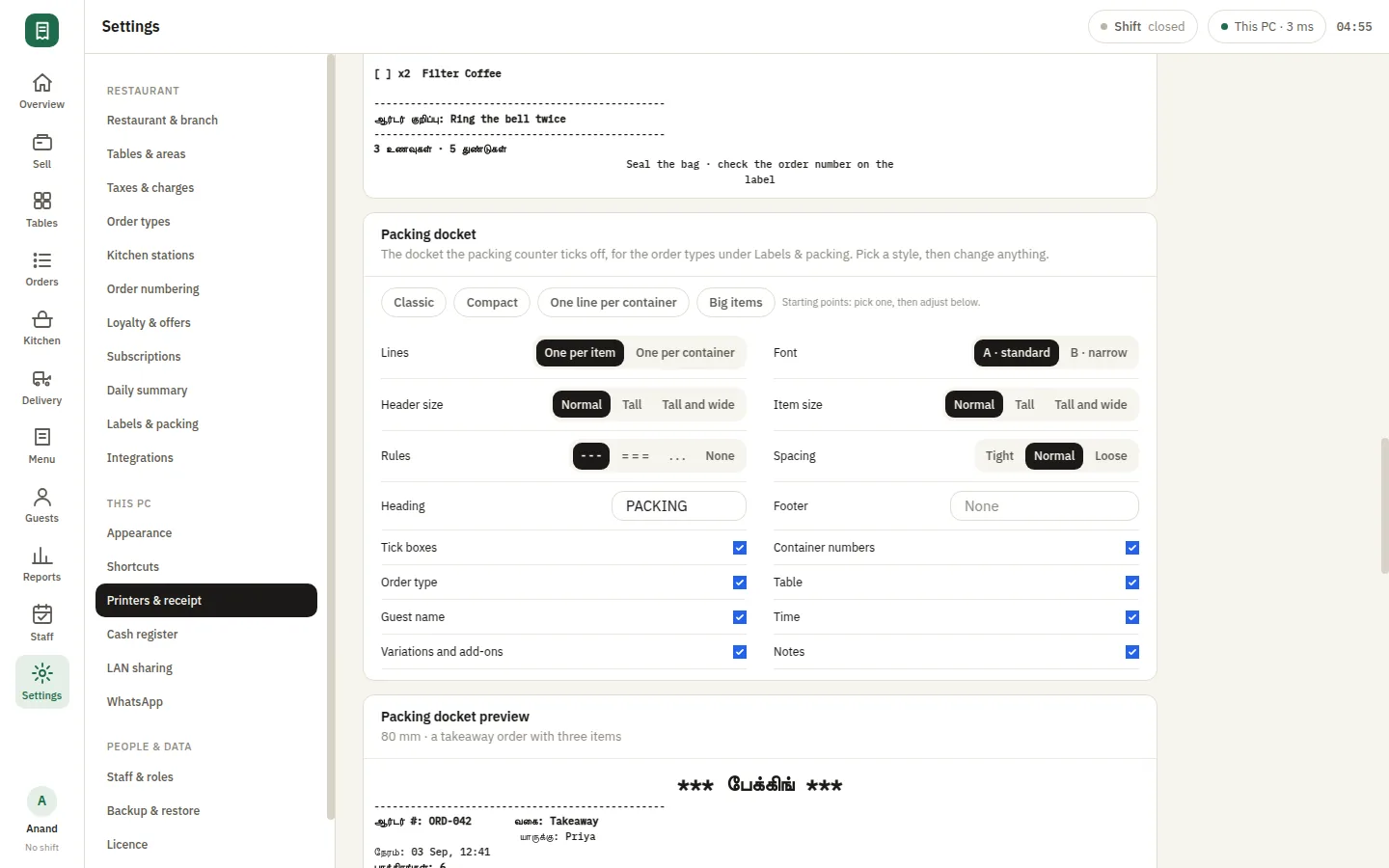
The packing station prints a docket per order for whoever is assembling it, listing what should be in the bag before it is sealed. It keeps the packing bench working from paper that matches the bill rather than from the kitchen's copy, which is where items usually go missing on a busy delivery night.

  • A docket per order for the packing bench
  • Matches the bill, not the kitchen copy
  • Fewer items missing on a busy delivery night
SmartPOS Packing station — Settings labels packing more
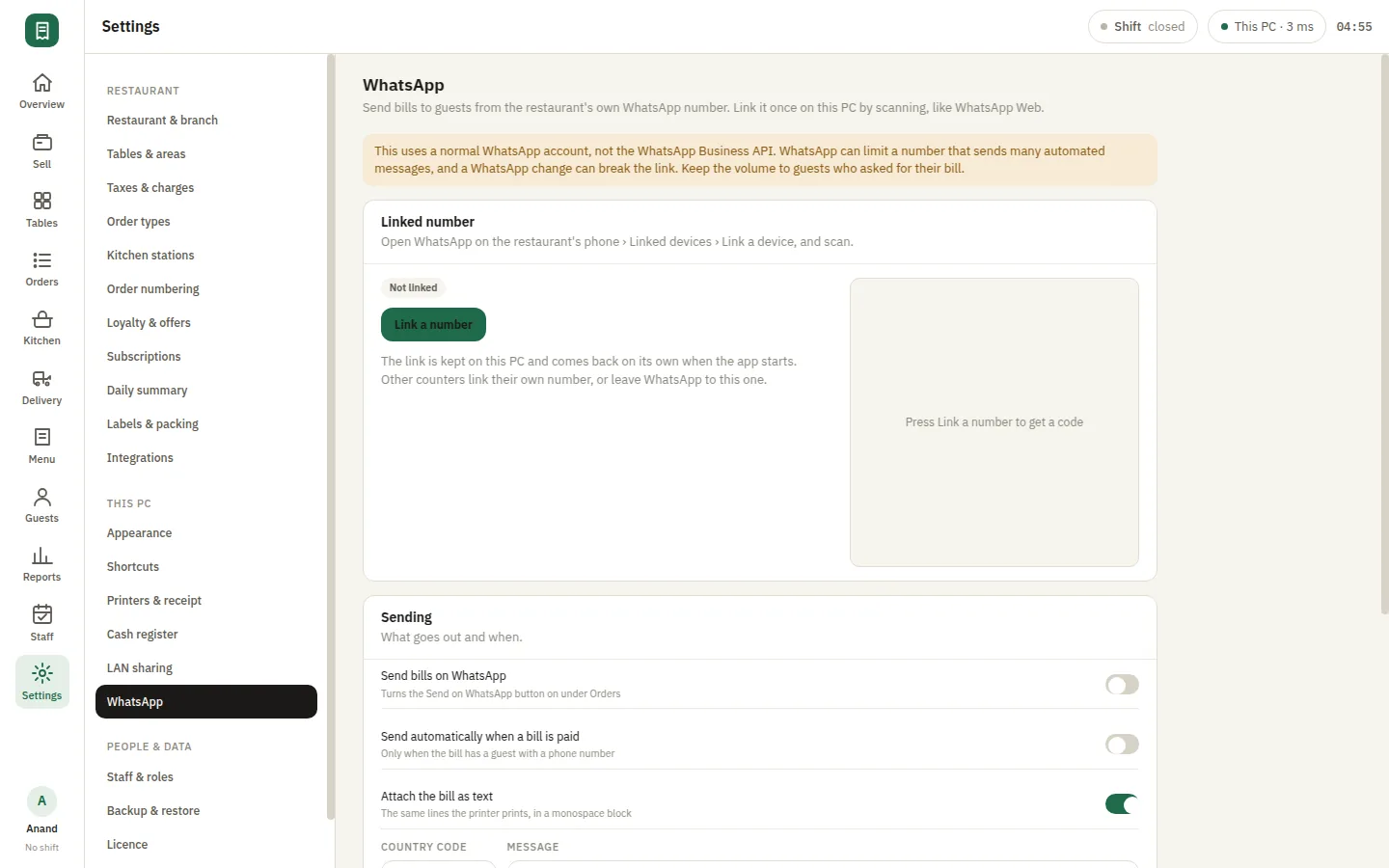
SmartPOS WhatsApp — Settings whatsapp

Bills to WhatsApp from your own number

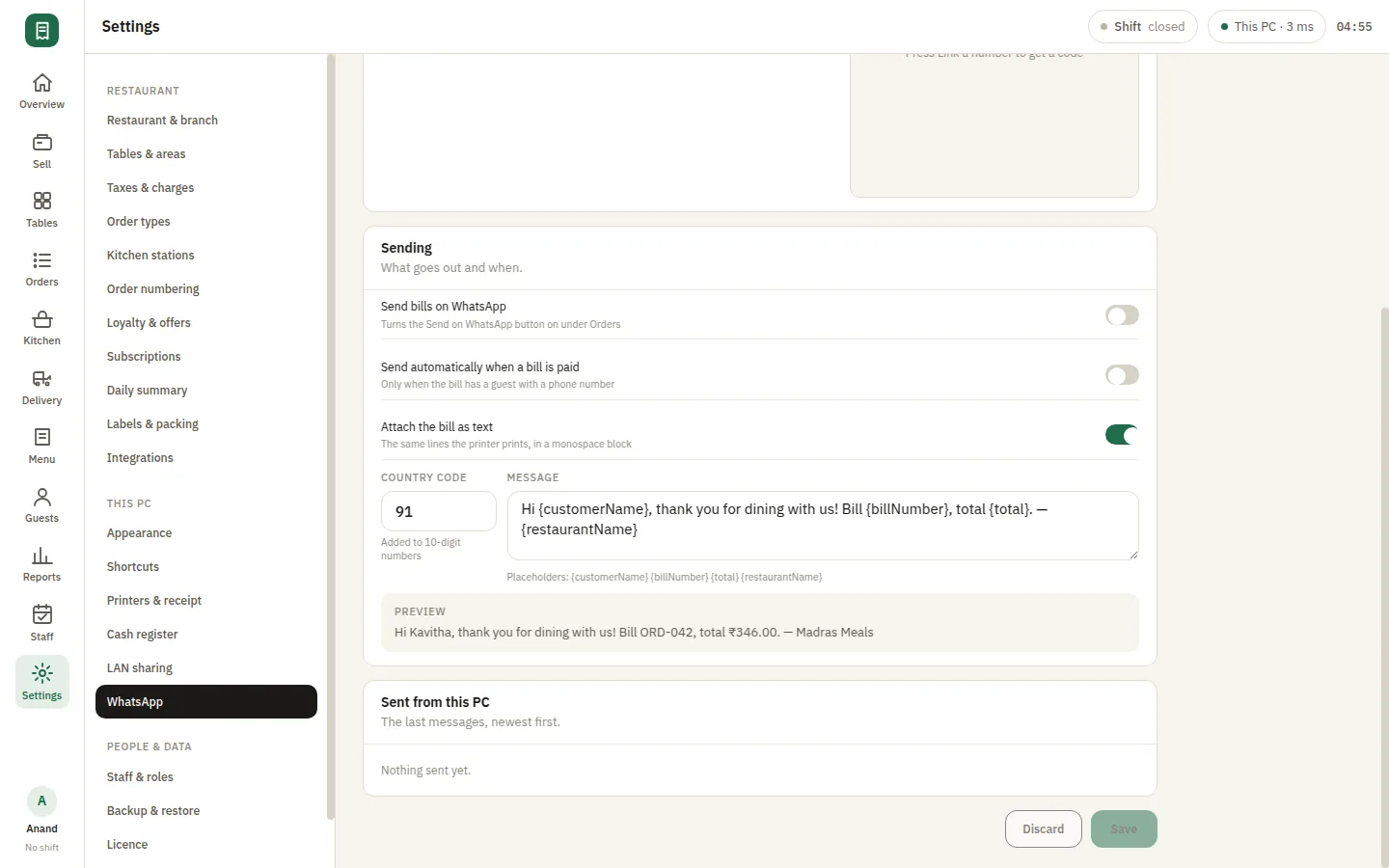
Send a bill to a guest on WhatsApp from the restaurant's own number, rather than through a bulk-messaging service that puts your customers on someone else's list. The guest gets the receipt on the app they already use, and you keep a paperless bill without paying per message to a marketing platform.

  • Bills sent from your own WhatsApp number
  • No bulk-messaging service in between
  • Paperless receipts with nothing per message

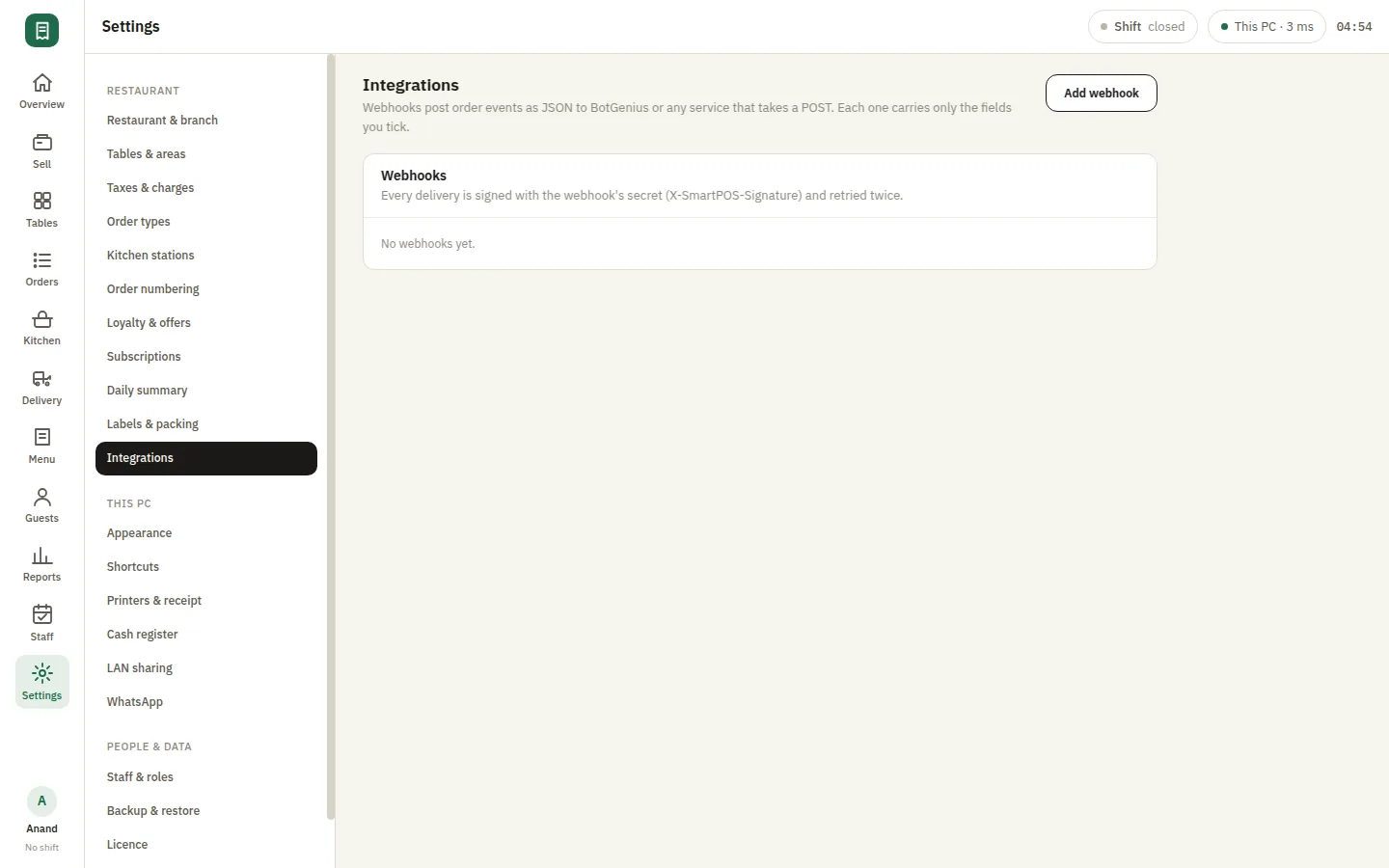
Post your order events anywhere you like

Webhooks push order events out to BotGenius or any other service you run, so SmartPOS staying on your own PC does not mean it cannot talk to the rest of your setup. You decide the endpoint and what listens at the other end, which keeps an integration something you own rather than something the POS vendor sells you access to.

  • Order events posted to any endpoint
  • BotGenius or something you wrote yourself
  • An integration you own, not one you rent
SmartPOS Webhooks — Settings integrations

Attendance and payroll at the same counter

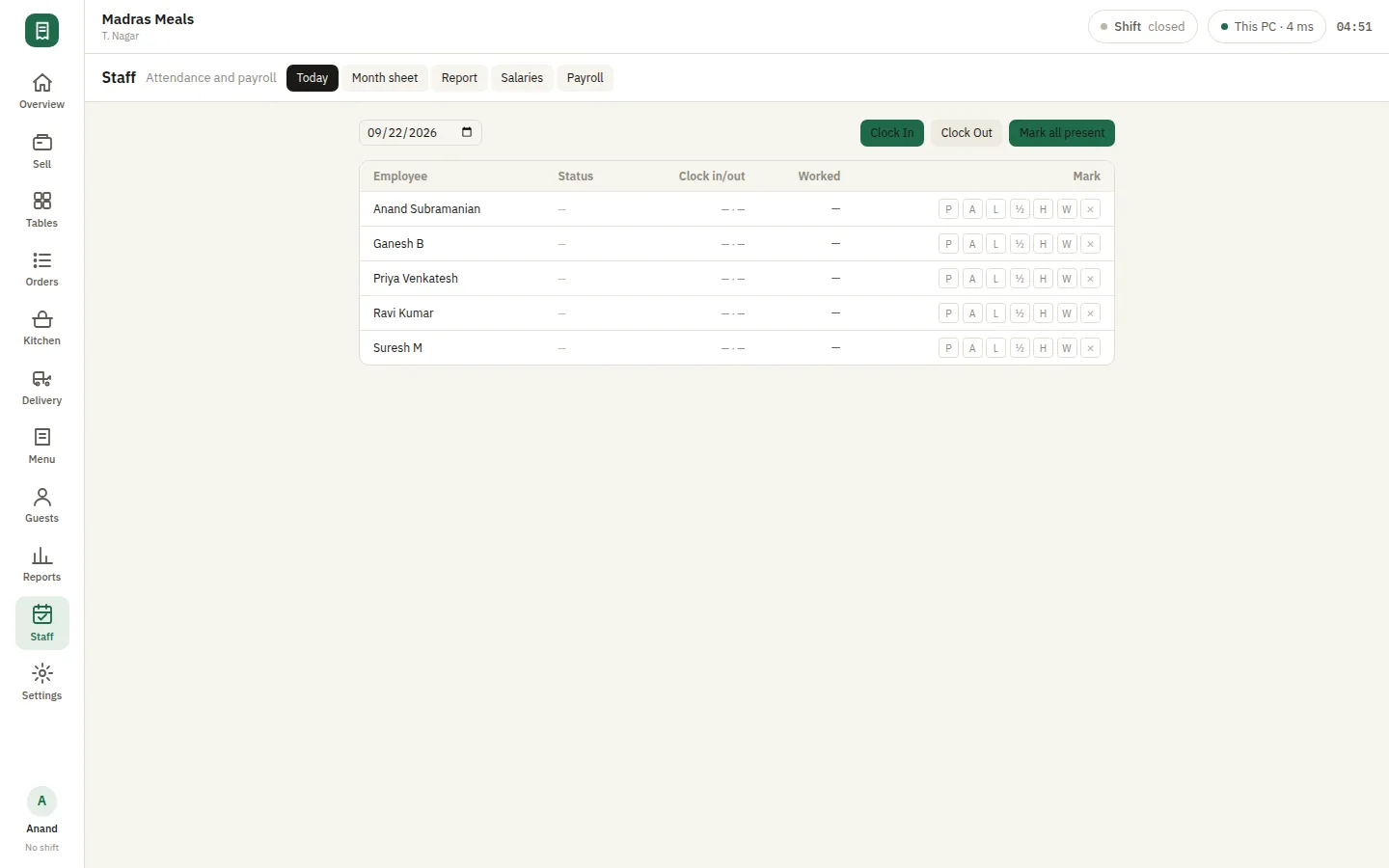
Mark daily attendance for your staff, build the month sheet from it, and run salaries, payroll periods and payslips without a second piece of software. For a restaurant where the manager is also the HR department, keeping attendance next to the till means the hours a person actually worked and the money they are paid come from the same record.

  • Daily attendance and month sheets
  • Salaries, payroll periods and payslips
  • Kept next to the till, not in second software

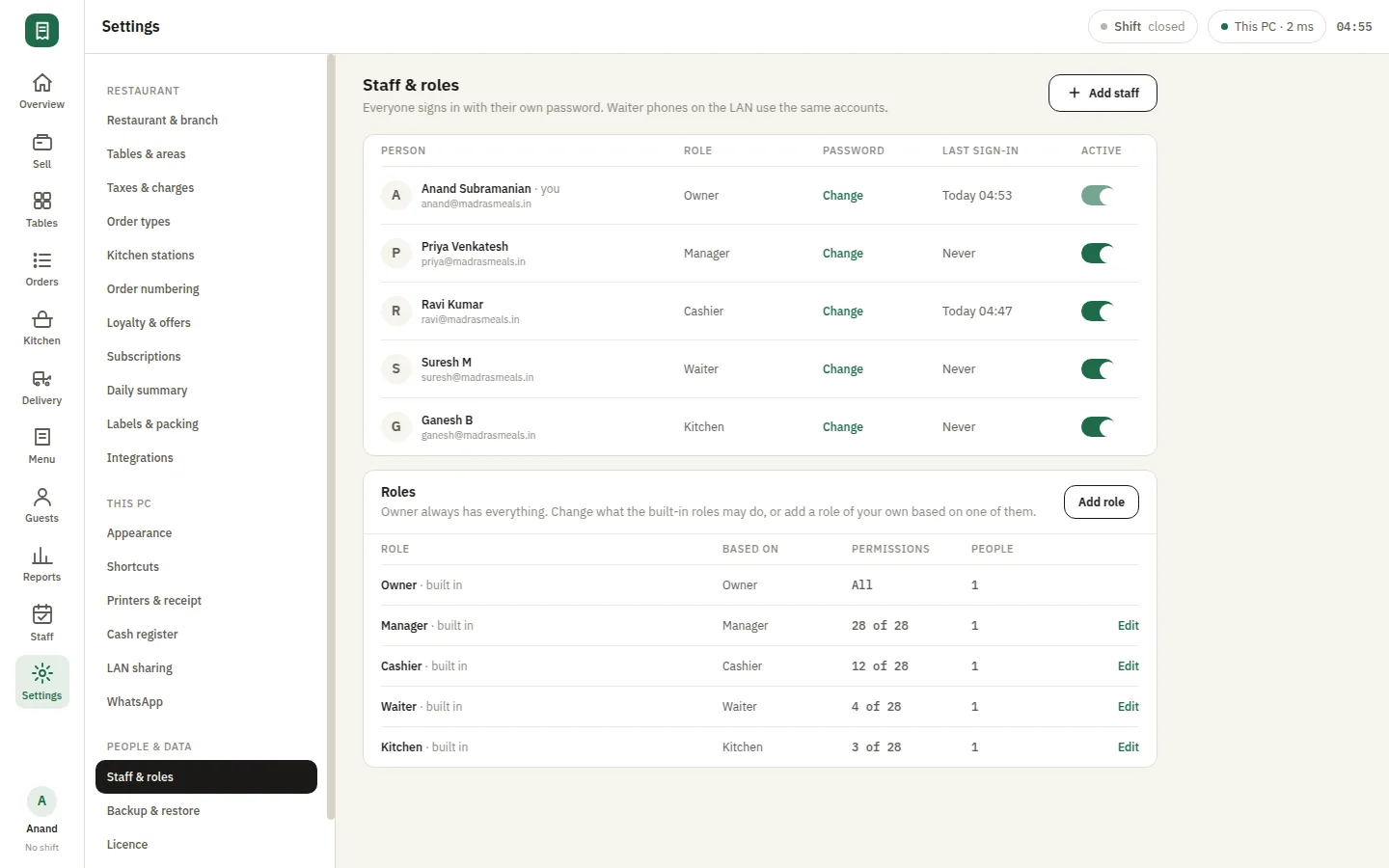
Logins, roles and who did what

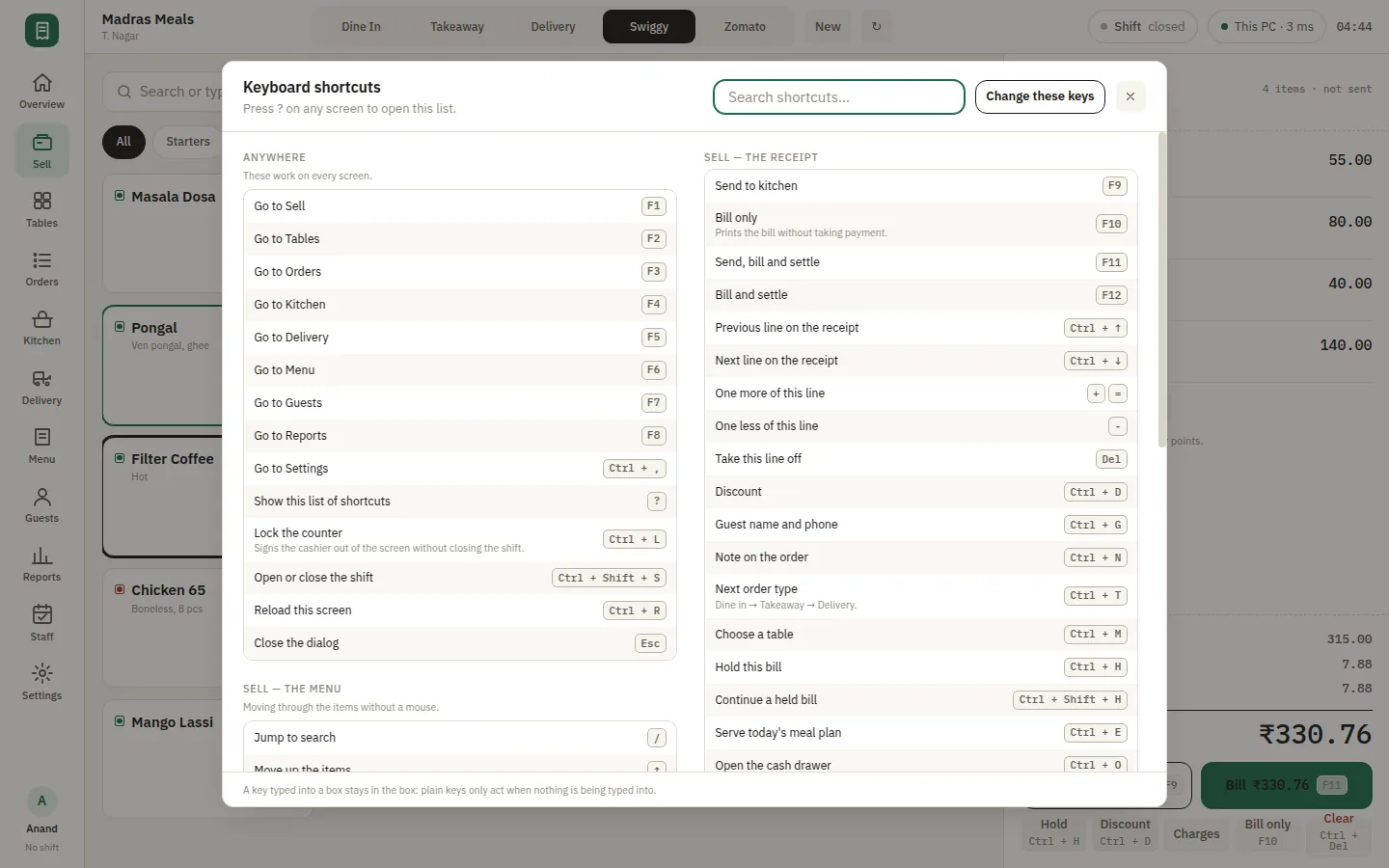
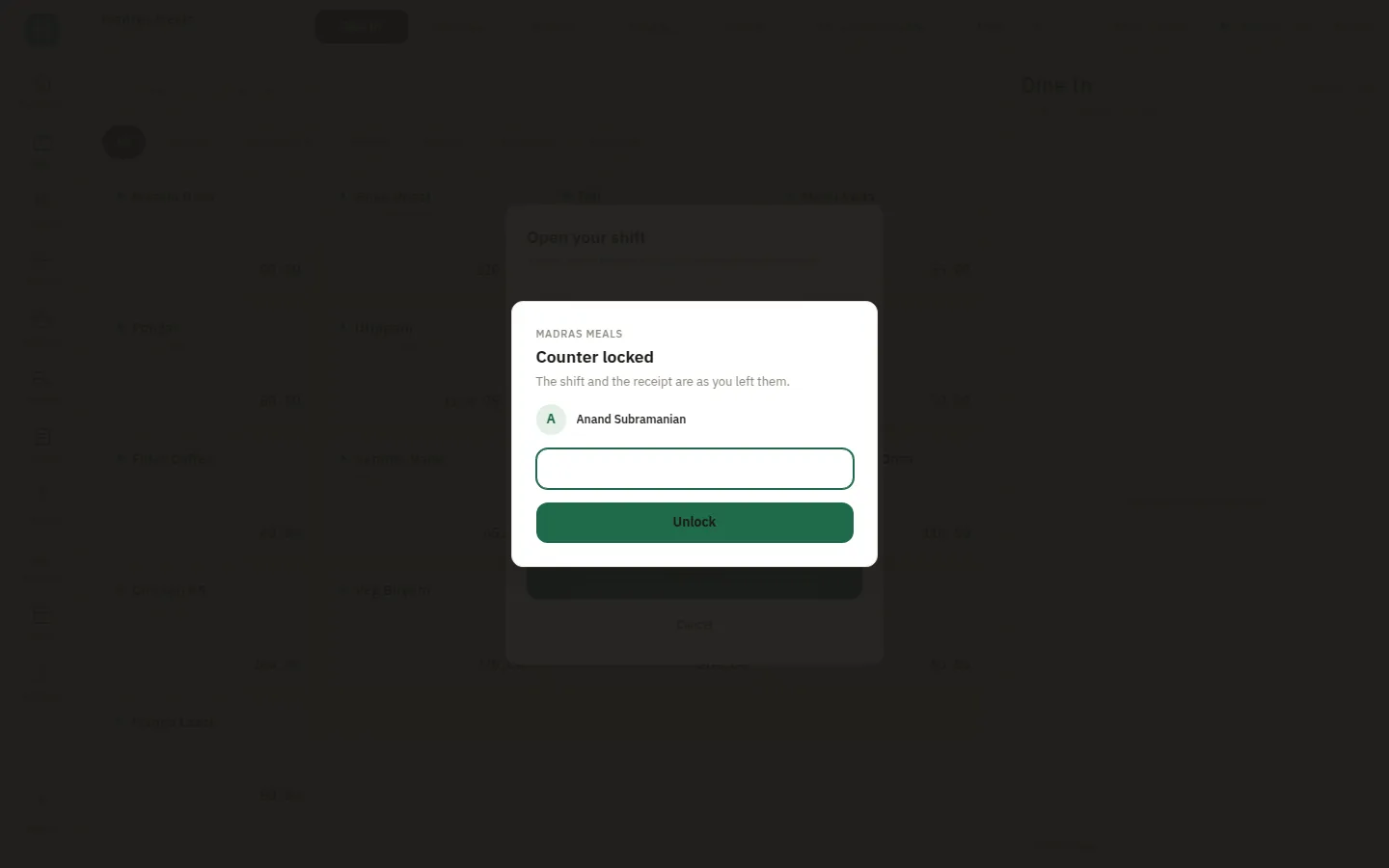
Give every person at the counter their own login, with owner, manager, cashier and waiter roles deciding what each can reach. Ctrl+L locks the terminal between cashiers without ending the shift or losing the bill on screen. Because every sale, discount and cancellation is recorded against the person who made it, the staff report and the audit log answer questions that are otherwise a matter of memory.

  • Owner, manager, cashier and waiter roles
  • Ctrl+L locks the counter without ending the shift
  • Every sale recorded against who made it
SmartPOS Staff and roles — Settings staff roles
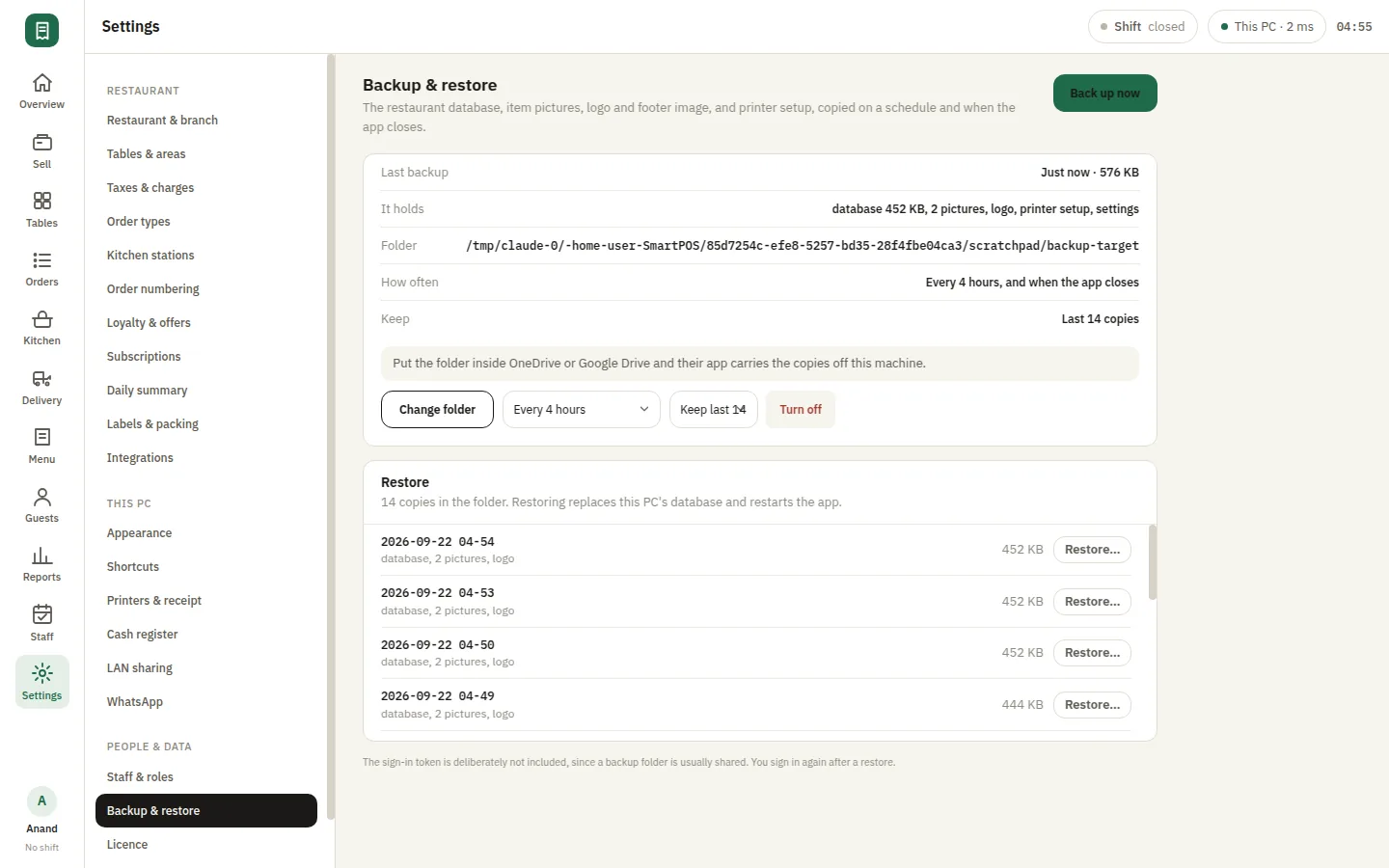
SmartPOS Backup — Settings backup restore

Your data is yours to keep safe

Schedule backups of the whole restaurant — orders, menu, guests, staff — to a folder on the machine or one a sync client picks up, and restore from one if a PC has to be rebuilt. Holding your own data means holding your own backups, so this is the part worth setting up on day one rather than the week after you need it.

  • Scheduled backups of the whole restaurant
  • Restore onto a rebuilt PC
  • Your data, so your backups

All SmartPOS screens

Every screen of the app, captured against a demo restaurant with a full day of trading in it. Pick a module, then click any picture to enlarge.

SmartPOS Sell — Sell empty
Sell empty
SmartPOS Sell — Sell charges
Sell charges
SmartPOS Sell — Sell guest
Sell guest
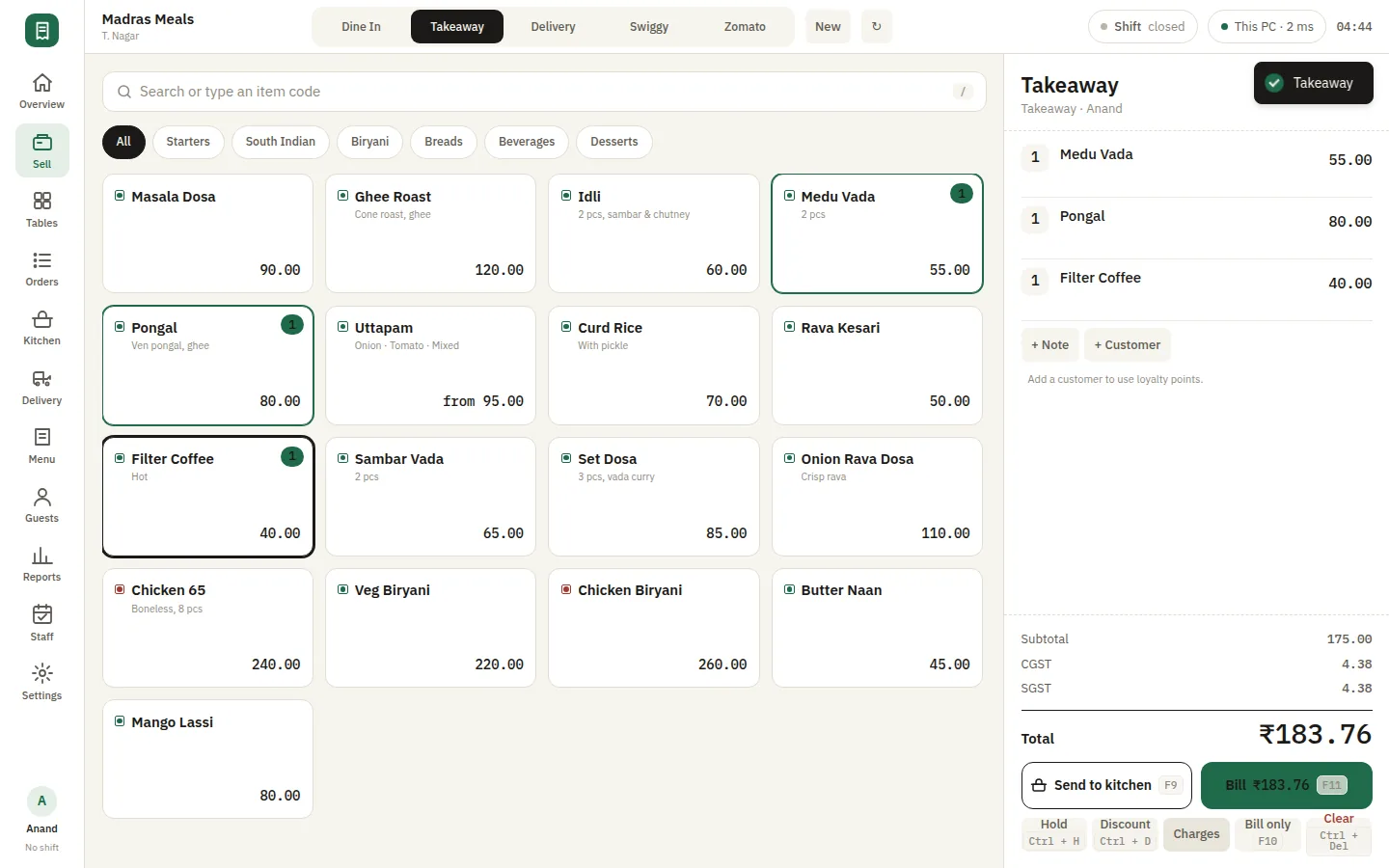
SmartPOS Sell — Sell takeaway
Sell takeaway
SmartPOS Sell — Sell delivery type
Sell delivery type
SmartPOS Sell — Sell item detail
Sell item detail
SmartPOS Sell — Sell settle
Sell settle
SmartPOS Sell — Sell settle card
Sell settle card
SmartPOS Sell — Sell shortcuts
Sell shortcuts
SmartPOS Sell — Sell shift open
Sell shift open
SmartPOS Sell — Customer display
Customer display
SmartPOS Sell — Customer display
Customer display
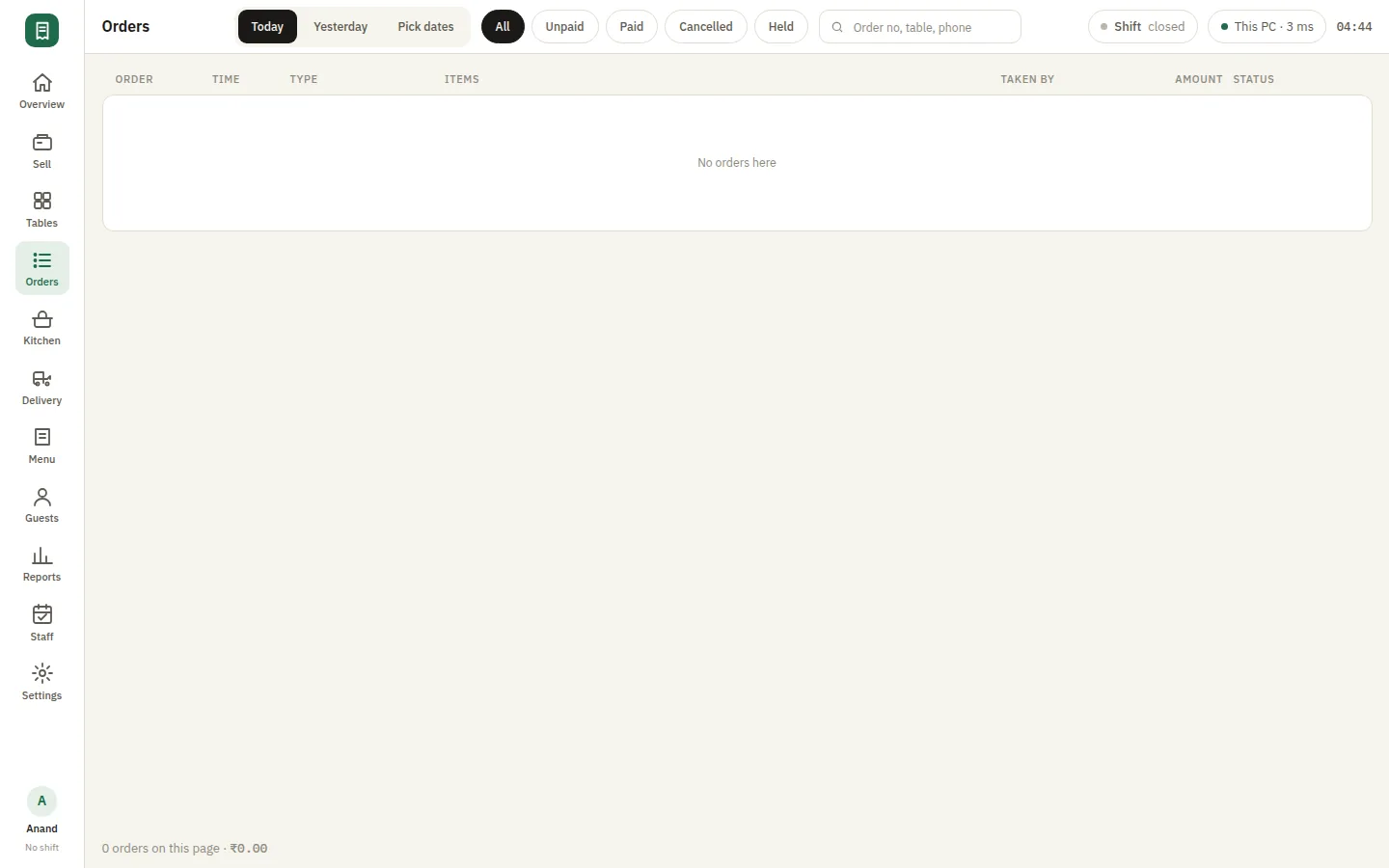
SmartPOS Orders — Orders
Orders
SmartPOS Orders — Orders held
Orders held
SmartPOS Orders — Orders cancelled
Orders cancelled
SmartPOS Orders — Orders detail
Orders detail
SmartPOS Orders — Orders cancel
Orders cancel
SmartPOS Orders — Orders reprint
Orders reprint
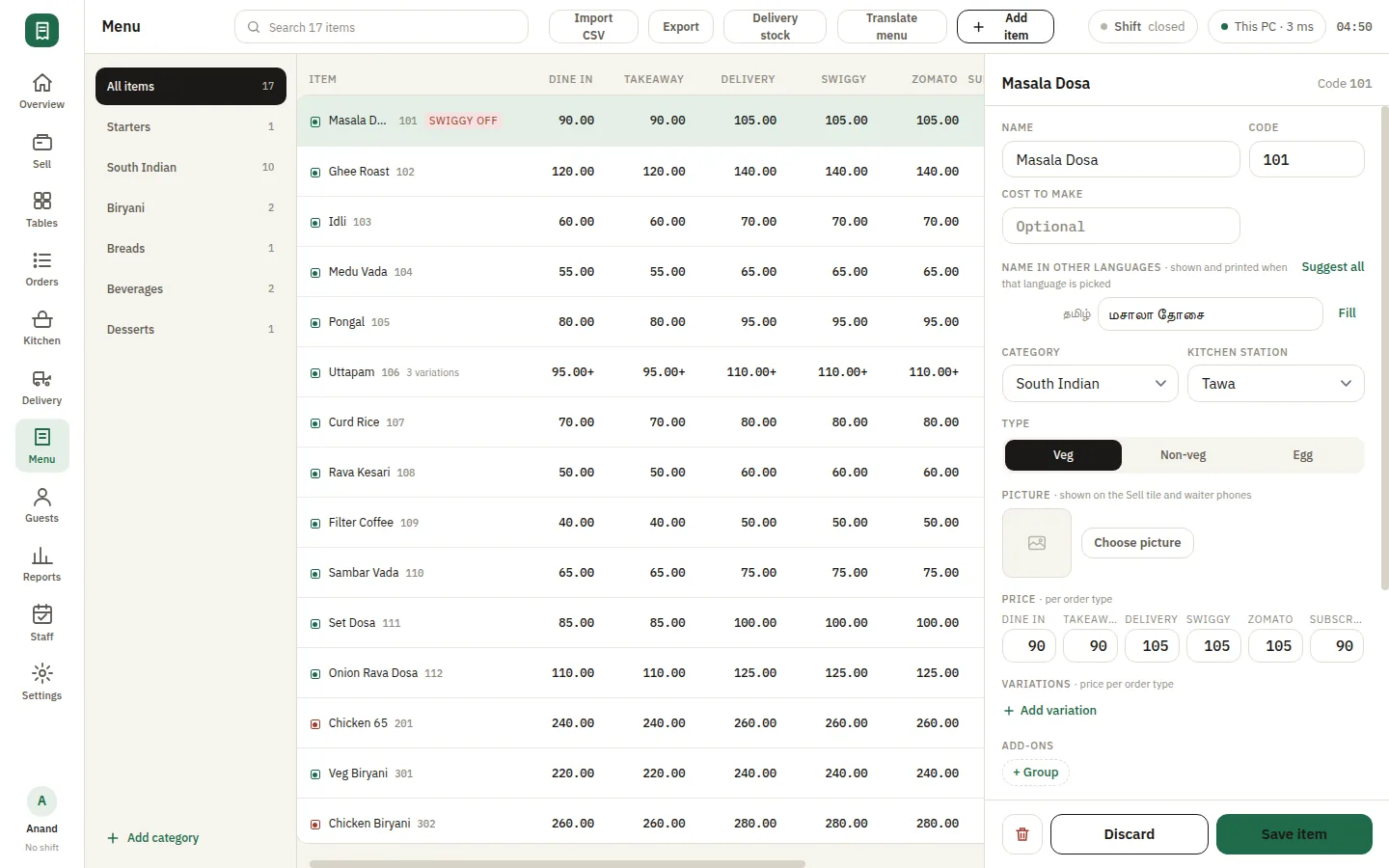
SmartPOS Menu — Menu item editor
Menu item editor
SmartPOS Menu — Menu translate
Menu translate
SmartPOS Menu — Menu add item
Menu add item
SmartPOS Menu — Menu import
Menu import
SmartPOS Settings — Settings taxes charges
Settings taxes charges
SmartPOS Settings — Settings order types
Settings order types
SmartPOS Settings — Settings order numbering
Settings order numbering
SmartPOS Settings — Settings appearance
Settings appearance
SmartPOS Settings — Settings appearance more
Settings appearance more
SmartPOS Settings — Settings shortcuts
Settings shortcuts
SmartPOS Settings — Settings shortcuts more
Settings shortcuts more
SmartPOS Settings — Settings printers receipt
Settings printers receipt
SmartPOS Settings — Settings printers receipt more
Settings printers receipt more
SmartPOS Settings — Settings licence
Settings licence
SmartPOS Tables — Tables selected
Tables selected
SmartPOS Tables — Sell table picker
Sell table picker
SmartPOS Tables — Settings tables areas
Settings tables areas
SmartPOS Kitchen — Kitchen cooking
Kitchen cooking
SmartPOS Kitchen — Kitchen after ready
Kitchen after ready
SmartPOS Kitchen — Kitchen ready
Kitchen ready
SmartPOS Kitchen — Kitchen cancel
Kitchen cancel
SmartPOS Kitchen — Settings kitchen stations
Settings kitchen stations
SmartPOS Kitchen — Kds signin
Kds signin
SmartPOS Kitchen — Kds tickets
Kds tickets
SmartPOS Kitchen — Kds signin
Kds signin
SmartPOS Kitchen — Kds tickets
Kds tickets
SmartPOS Cash register — Shift menu
Shift menu
SmartPOS Cash register — Shift open
Shift open
SmartPOS Cash register — Shift open dialog
Shift open dialog
SmartPOS Cash register — Shift menu
Shift menu
SmartPOS Cash register — Shift menu
Shift menu
SmartPOS Cash register — Shift x report
Shift x report
SmartPOS Cash register — Settings cash register
Settings cash register
SmartPOS Guests — Guests detail
Guests detail
SmartPOS Guests — Guests add
Guests add
SmartPOS Guests — Report guests
Report guests
SmartPOS Offers — Report discounts
Report discounts
SmartPOS Delivery integration — Delivery history
Delivery history
SmartPOS Delivery integration — Menu delivery stock
Menu delivery stock
SmartPOS Delivery integration — Report delivery apps
Report delivery apps
SmartPOS Food subscriptions — Settings subscriptions
Settings subscriptions
SmartPOS Food subscriptions — Report subscriptions
Report subscriptions
SmartPOS Reports — Report items
Report items
SmartPOS Reports — Report categories
Report categories
SmartPOS Reports — Report item trends
Report item trends
SmartPOS Reports — Report busy times
Report busy times
SmartPOS Reports — Report taxes gst
Report taxes gst
SmartPOS Reports — Report day end z
Report day end z
SmartPOS Reports — Report expenses profit
Report expenses profit
SmartPOS Reports — Report refunds
Report refunds
SmartPOS Reports — Report cancellations
Report cancellations
SmartPOS Reports — Report outstanding
Report outstanding
SmartPOS Reports — Report shifts
Report shifts
SmartPOS Reports — Report audit log
Report audit log
SmartPOS Reports — Settings daily summary
Settings daily summary
SmartPOS Reports — Settings daily summary more
Settings daily summary more
SmartPOS Waiter phones — Waiter signin
Waiter signin
SmartPOS Waiter phones — Waiter table
Waiter table
SmartPOS Waiter phones — Waiter ready
Waiter ready
SmartPOS Waiter phones — Waiter add items
Waiter add items
SmartPOS Waiter phones — Waiter ready
Waiter ready
SmartPOS Second terminal — Settings about this pc
Settings about this pc
SmartPOS WhatsApp — Settings whatsapp more
Settings whatsapp more
SmartPOS Staff and roles — Staff
Staff
SmartPOS Staff and roles — Report staff
Report staff
SmartPOS Staff and roles — Lock screen
Lock screen
SmartPOS Staff and roles — User menu
User menu

Frequently asked questions

Does SmartPOS work without the internet?

Yes for the work you do every day. Billing, KOTs, printing, tables, reports and the waiter phones all run on your own PC and your own Wi-Fi, with no internet at all. The internet is needed once when you activate the licence, and the counter re-checks the licence when it can reach us.

Is there a monthly fee?

No. SmartPOS is a one-time licence for the restaurant. Optional yearly maintenance covers updates and support.

Where is my data kept?

In a database file on the counter PC, under the app's own data folder. Orders, bills, guests and staff records are never uploaded. There is no analytics, crash reporting or telemetry in SmartPOS.

Can waiters take orders on their phones?

Yes, over your own Wi-Fi with no internet. Turn on LAN sharing and waiters open the waiter app on their phone. A tablet at the pass can show the kitchen screen, and a second screen at the counter can show the customer display.

Can I use more than one billing counter?

Yes, on a multi-counter licence. A second Windows PC on the same network shares the same restaurant, menu and bill numbering.

How is this different from RestoPOS Desktop POS?

Desktop POS is part of cloud RestoPOS: it signs in to your cloud account, syncs with the mobile, captain and kitchen apps, and lets you watch the outlet from your phone. SmartPOS has no cloud account at all — everything stays on the counter PC. They are separate products, and you choose the one that fits how you want to run.

What do I need to run it?

A Windows PC at the counter, and a thermal printer over USB or your network. Waiter phones and the kitchen screen need only your own Wi-Fi.
See SmartPOS in action —
book a free demo

Start your 14-day free trial today. Free onboarding, no setup fees, cancel anytime.
💬 WhatsApp Us